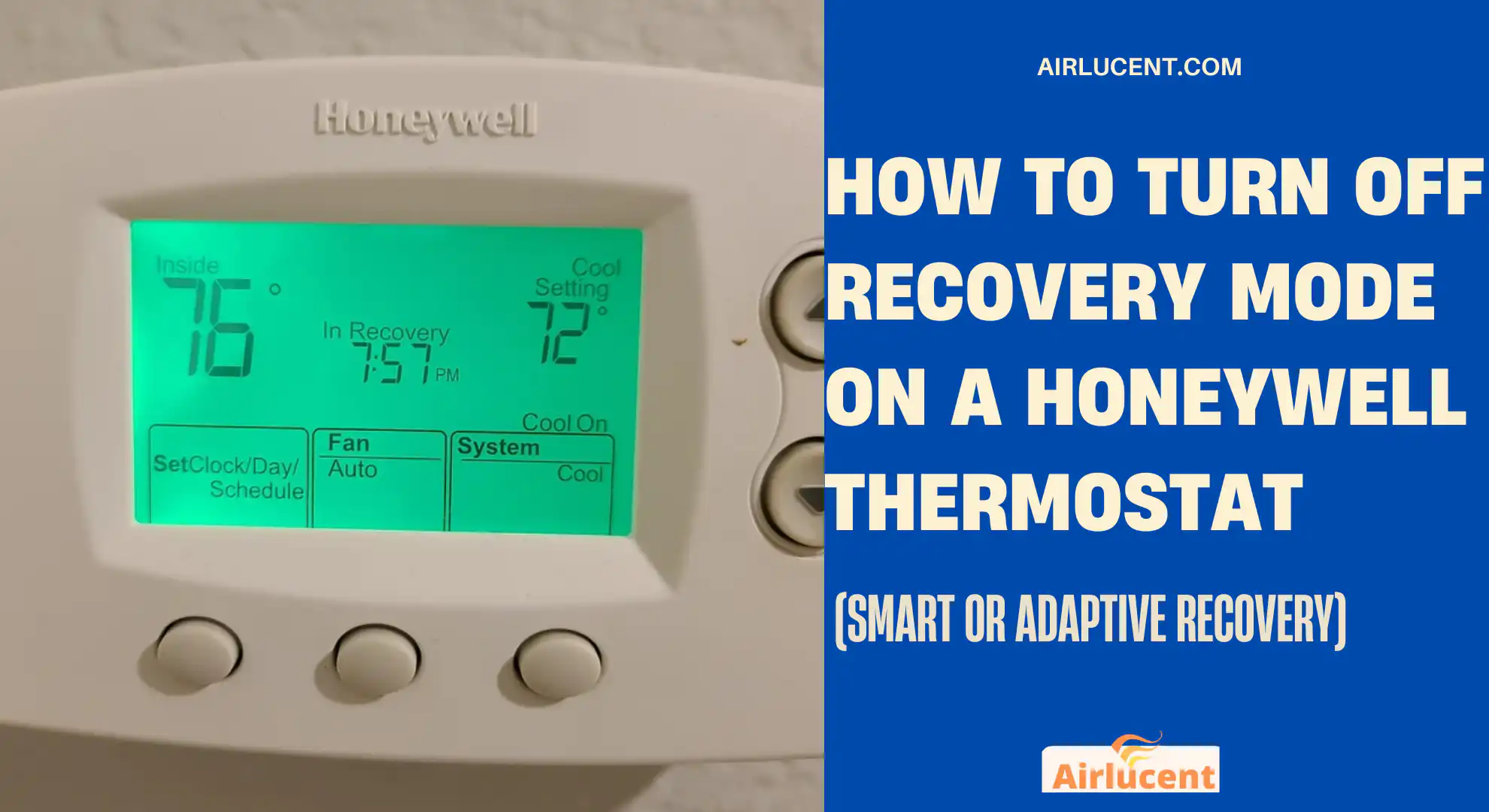
I’m Nathan. I’ve worked as an HVAC technician for over 10 years, and I’ve had this exact conversation with homeowners more times than I can count. Someone looks at their Honeywell thermostat, sees the word Recovery (or Smart Recovery), and immediately thinks something is wrong.
Most of the time, nothing is wrong. Recovery is usually a comfort feature. That said, there are totally valid reasons you might want to turn it off, especially if you do not use schedules or you do not like the system starting early.
This guide shows you how to exit Recovery mode, how to disable Smart or Adaptive Recovery (permanent), and what to check if Recovery seems “stuck.”
- What “Recovery” means on a Honeywell thermostat
- Why Recovery starts earlier than you expect
- How to exit Recovery mode (temporary)
- How to turn off Smart or Adaptive Recovery (permanent fix)
- Step 1: Identify what type of Honeywell thermostat you have
- Quick reference table: turning off Recovery by model family
- Method A: T-Series Pro thermostats (example T6 Pro) disable Recovery using ISU 425
- Method B: Honeywell RTH programmable models (example RTH6580WF) disable recovery using function 13
- Method C: Smart Wi-Fi Honeywell thermostats (app-based) turn off Adaptive Recovery in the app
- Why Recovery might take longer than normal
- How manual changes interrupt Recovery (and why that’s normal)
- Common misunderstandings I hear (myths vs reality)
- When you should NOT turn Recovery off (in my professional opinion)
- When to call an HVAC pro
What “Recovery” means on a Honeywell thermostat
In plain language, Recovery means the thermostat is “planning ahead.”
Instead of waiting until 6:00 AM to start heating (when your schedule says 70°F at 6:00 AM), it may start at 5:20 AM so your house is actually 70°F by 6:00 AM.
Why Honeywell uses Recovery mode
Recovery is designed to:
- Reduce that “cold house at wake-up” feeling
- Prevent big temperature swings
- Learn how long your home takes to heat up or cool down
- Hit scheduled comfort times more accurately
The U.S. Department of Energy notes that thermostat setbacks can save energy when used correctly, but comfort suffers if the home is not back to temperature when you need it. Smart recovery features exist to solve that timing problem.
Why Recovery starts earlier than you expect
This is the part that surprises people. You set the schedule for 6:00 AM, but the system turns on at 5:00 AM. That is not the thermostat “disobeying” you. It is doing exactly what Smart Recovery is meant to do.
From what I’ve seen in the field, the biggest factors are:
- How fast your home changes temperature
- Outdoor conditions
- Equipment type
- How big the temperature jump is going from 62°F sleep to 72°F wake-up takes time
What you might notice during Recovery
When Recovery is active, you might notice:
- The system runs longer than usual
- The temperature changes more gradually
- The thermostat clearly displays Recovery or Smart Recovery
- You may not hit your temperature immediately if you manually change things mid-cycle
This is typically normal behavior.
Recovery vs normal heating or cooling (simple comparison)
| How it behaves | Proactive, starts early | Reactive, starts when you change temp or when the setpoint is reached |
| Goal | Hit scheduled temp at the scheduled time | Maintain the current setpoint |
| System runtime | Often longer, smoother | More direct and immediate |
| Comfort | More consistent at key times (wake, home, sleep) | Depends on when you adjust the thermostat |
| Best for | People who use schedules | People who manually control temperature |
Before you turn it off: when Recovery is actually helpful
I tell homeowners this all the time: if you run a schedule and you care about comfort at specific times, Recovery is usually your friend.
Recovery is especially useful if:
- You do night setbacks (sleep cooler, then warm up for morning)
- You have kids or a household routine that depends on comfort at certain times
- Your home is slow to heat or cool
How to exit Recovery mode (temporary)
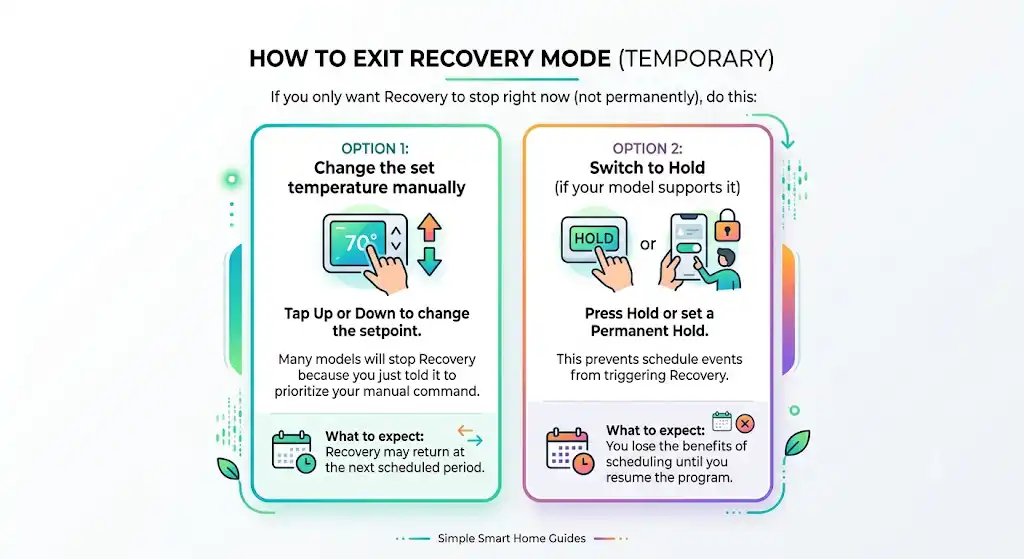
If you only want Recovery to stop right now (not permanently), do this:
Option 1: Change the set temperature manually
- Tap Up or Down to change the setpoint.
- Many models will stop Recovery because you just told it to prioritize your manual command.
What to expect: Recovery may return at the next scheduled period.
Option 2: Switch to Hold (if your model supports it)
- Press Hold or set a Permanent Hold.
- This prevents schedule events from triggering Recovery.
What to expect: You lose the benefits of scheduling until you resume the program.
How to turn off Smart or Adaptive Recovery (permanent fix)
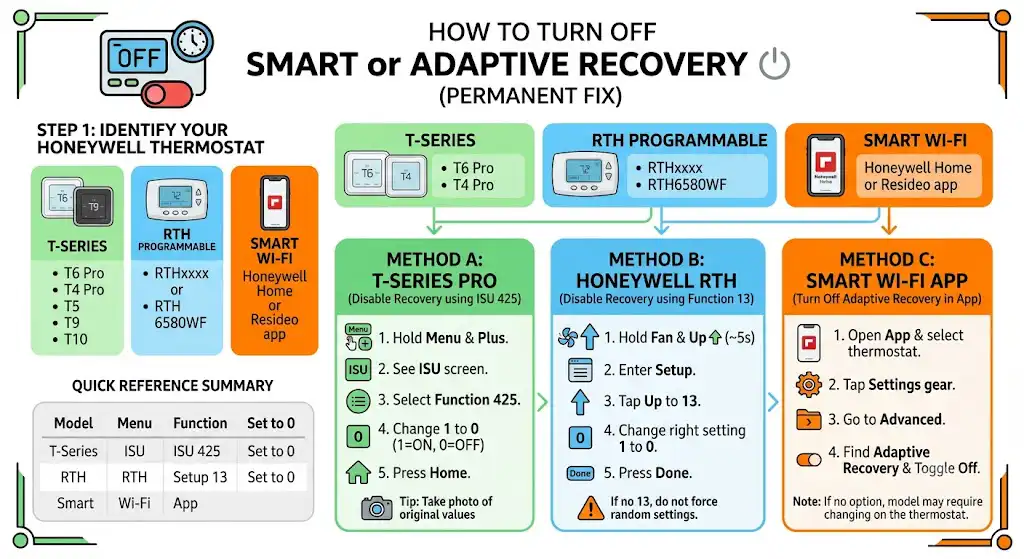
This is what most people mean when they say “turn off recovery mode.” You are disabling the feature that starts early.
Step 1: Identify what type of Honeywell thermostat you have
Use this quick checklist:
- If it says T6 Pro, T4 Pro, T5, T9, T10 you likely have a T-Series.
- If it says RTHxxxx (like RTH6580WF), you likely have a programmable retail model.
- If you control it through the Honeywell Home or Resideo app, you might have an app toggle.
Quick reference table: turning off Recovery by model family
| T-Series Pro (example T6 Pro) | Installer Setup (ISU) | Function 425 Adaptive or Smart Recovery | Set to 0 |
| RTH programmable models (example RTH6580WF) | Installer or setup menu | Function 13 Adaptive Intelligent Recovery | Set to 0 |
| Smart Wi-Fi thermostats (app-based) | Honeywell Home or Resideo app | Adaptive Recovery toggle | Toggle Off |
Method A: T-Series Pro thermostats (example T6 Pro) disable Recovery using ISU 425
This is one of the most common Honeywell setups I see in homes.
- Press and hold Menu and Plus at the same time (some models use Menu and Up/Down).
- Keep holding until you see ISU or a setup screen with numbers.
- Press Select until the top number shows 425.
- Change the bottom number from 1 to 0.
- 1 usually means On
- 0 usually means Off
- Press Home (or Done) to exit and save.
Tip from the field: Before you change anything in installer setup, take a quick photo of the original values so you can put them back if needed.
Method B: Honeywell RTH programmable models (example RTH6580WF) disable recovery using function 13
On several RTH models, Adaptive Recovery is controlled in a different setup area.
- Press and hold Fan and the Up arrow for about 5 seconds.
- You should enter a setup screen with a number on the left and a setting on the right.
- Tap Up until the left number is 13.
- Use Down to change the right-side setting from 1 to 0.
- Press Done.
If your screen does not show 13, do not force random settings. Different RTH models use different function numbers.
Method C: Smart Wi-Fi Honeywell thermostats (app-based) turn off Adaptive Recovery in the app
If your thermostat is controlled by the Honeywell Home app or Resideo app:
- Open the app and select your thermostat.
- Tap the Settings gear icon.
- Go to Advanced (wording may vary).
- Find Adaptive Recovery or Smart Recovery.
- Toggle it Off.
If you do not see the option, your model may require changing it at the thermostat itself.
Why Recovery might take longer than normal
A longer Recovery does not automatically mean you have a bad thermostat. In my service calls, these are the most common causes:
1. Big temperature difference
Going from 60°F to 72°F is not the same as 68°F to 72°F. Larger jumps mean longer runtime.
2. Extreme outdoor weather
Very cold mornings or high humidity afternoons slow the process.
3. Your system is running “gently” on purpose
Some systems stage or ramp gradually. That can feel slower, but it is often more comfortable and can be more efficient.
4. HVAC performance issues
If Recovery seems endless, check these basics first:
Homeowner checklist (fast and practical)
| Air filter | Clogged filter is very common | Low airflow reduces heating and cooling capacity |
| Supply vents | Closed or blocked vents | Restricts airflow, increases runtime |
| Return grille | Furniture covering return | Starves the system for air |
| Outdoor unit (AC/heat pump) | Dirty coil or debris | Reduces heat transfer |
| Batteries (if used) | Low battery odd behavior | Can cause control issues on some models |
If those are fine and Recovery is still unusually long, it may be time for a professional diagnosis.
How manual changes interrupt Recovery (and why that’s normal)
Recovery is schedule-driven. When you manually change the temperature, you are basically telling the thermostat:
“Forget the plan. Do this instead.”
So the thermostat may:
- Cancel Recovery
- Switch to a normal heating or cooling call
- Restart Recovery later based on the next schedule period
Nothing is being damaged. It is just prioritizing your manual input.
Common misunderstandings I hear (myths vs reality)
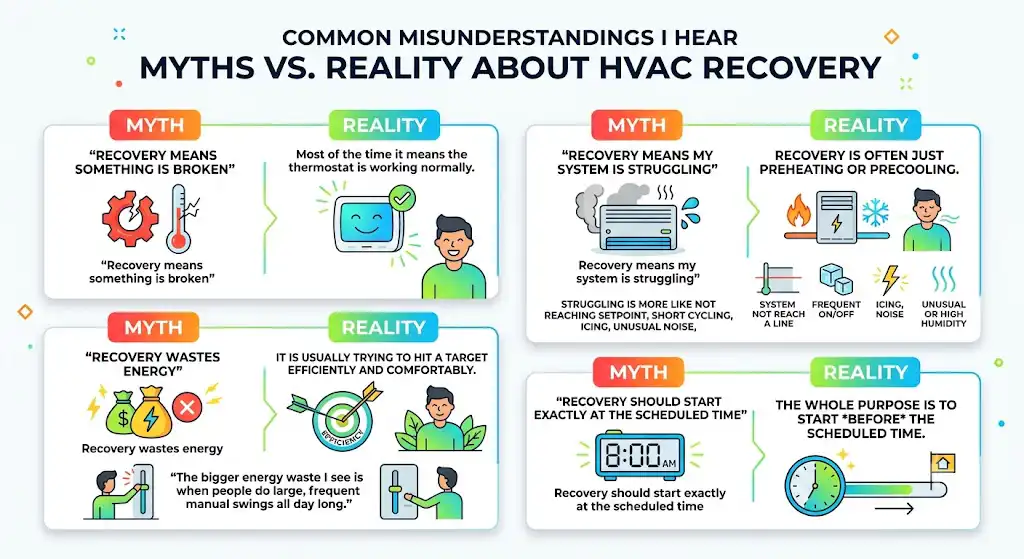
Myth 1: “Recovery means something is broken”
Reality: Most of the time it means the thermostat is working normally.
Myth 2: “Recovery means my system is struggling”
Reality: Recovery is often just preheating or precooling. Struggling is more like not reaching setpoint at all, short cycling, icing, unusual noise, or high humidity that never drops.
Myth 3: “Recovery wastes energy”
Reality: It is usually trying to hit a target efficiently and comfortably. The bigger energy waste I see is when people do large, frequent manual swings all day long.
Myth 4: “Recovery should start exactly at the scheduled time”
Reality: The whole purpose is to start before the scheduled time.
When you should NOT turn Recovery off (in my professional opinion)
Consider leaving it on if:
- You rely on schedules for wake-up and sleep
- You have a heat pump and use setbacks carefully (some heat pumps can trigger auxiliary heat on big jumps)
- Comfort at a certain time matters more than “system starts exactly at 6:00”
When to call an HVAC pro
If you disable Recovery and you still see comfort problems, Recovery was not the real issue.
Call a technician if:
- The home never reaches set temperature.
- The system runs constantly on mild days.
- You notice ice on the outdoor unit or refrigerant lines.
- The unit short cycles (on and off rapidly)
- You have unusually high humidity indoors during cooling season
Those are performance symptoms, not thermostat preference settings.