
I’m Nathan, and I’ve been an HVAC technician for over 10 years. I can’t tell you how many “my thermostat won’t let me change anything” calls I’ve handled, especially with Honeywell Pro Series and Wi-Fi models. The good news is that most Honeywell thermostat locks are simple to remove once you use the right method for your model.
In this guide, I’ll walk you through the most common unlock steps, what to do if 1234 doesn’t work, and how to lock it again afterward. I’ll write this the same way I’d explain it if I was standing in your hallway looking at the screen with you.
- How to tell if your Honeywell thermostat is locked
- Step 1: Identify your Honeywell thermostat model (fast ways)
- Method 1: Unlock most Honeywell models with the default PIN (usually 1234)
- Method 2: Honeywell Wi-Fi models (date code method when 1234 fails)
- Method 3: Honeywell 8000 Series unlock (0670 method)
- Method 4: Button-combination unlock for some older Honeywell thermostats
- Which unlock method should you try first (cheat sheet)
- Troubleshooting if your Honeywell thermostat still won’t unlock
- Why Honeywell thermostats have a lock feature (and when it helps)
- After unlocking: why thermostat control matters for comfort and savings
- How to lock your Honeywell thermostat again (after you make changes)
- My real-world tips (what I’ve learned doing this for a living)
- Frequently asked questions
- Bottom line
How to tell if your Honeywell thermostat is locked
Most Honeywell thermostats show one of these signs:
- A padlock icon on the screen
- The screen says Locked, Screen Locked, or Enter PIN
- You can adjust temperature but cannot change menus or schedules (partial lock)
- Buttons don’t respond or only a few functions work (full lock)
Partial lock vs full lock
Honeywell commonly uses three lock states:
| Off (Unlocked) | Full access | Nothing restricted |
| Partial lock (often shown as PART) | Usually can change temp | Can’t change programming, installer settings, or advanced menus |
| Full lock (often shown as ON) | Usually nothing changes | Temperature and settings are restricted |
Step 1: Identify your Honeywell thermostat model (fast ways)
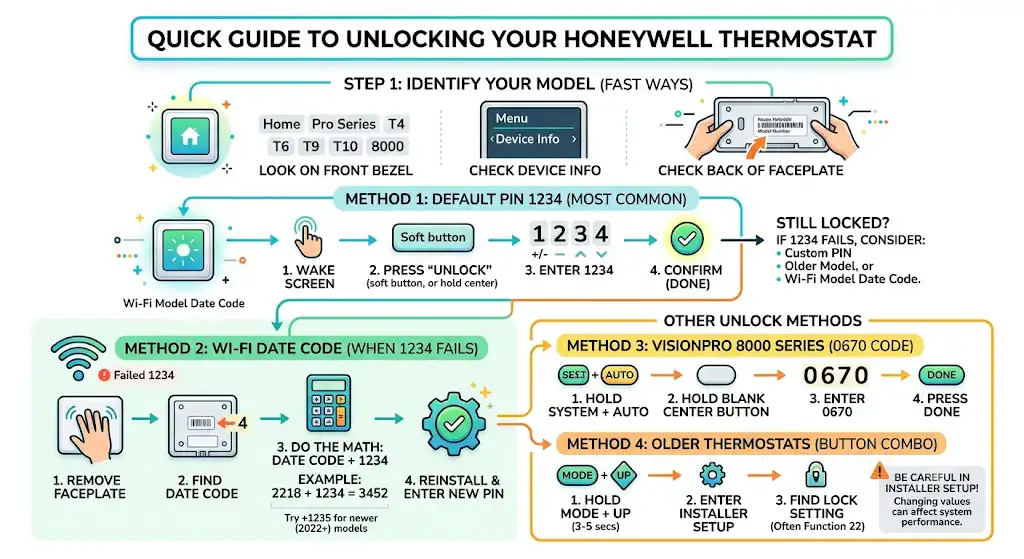
You don’t need the exact model number every time, but it helps.
Try these quick checks:
- Look on the front bezel for “Home,” “Pro Series,” “T4,” “T6,” “T9,” “T10,” or “8000.”
- Tap Menu and look for “Device Info” or “Dealer Info.”
- If you can remove the faceplate safely, the model number is often on the back or inside the front cover.
Method 1: Unlock most Honeywell models with the default PIN (usually 1234)
This is the most common Honeywell unlock process on modern digital units.
Steps
- Wake up the screen
Tap the screen or press the center button (varies by model). - Press Unlock or hold the center button until it asks for a code
Some models show a soft button that literally says Unlock. - Enter the PIN
Use the plus and minus buttons or up and down arrows to set each digit. - Use Select to move through digits
Enter 1, Select, then 2, Select, then 3, Select, then 4. - Confirm
Press Select (or Done) after the last digit.
Default Honeywell unlock code
For many Honeywell Home and Pro Series thermostats, the default is:
- 1234
If 1234 works, you’re done. If it doesn’t, don’t assume the thermostat is broken. It often means one of these is true:
- Someone set a custom PIN
- You have a Wi-Fi model using a date-code unlock method
- The model is an older commercial-style unit with an installer setting lock
Method 2: Honeywell Wi-Fi models (date code method when 1234 fails)
On certain Honeywell Wi-Fi enabled thermostats, there’s a built-in backup unlock method tied to a number on the thermostat itself.
In the last couple of years, I’ve seen more cases where 1234 doesn’t work consistently, especially on newer units or ones that have been enrolled into a home management setup.
When to use this method
Use this method if:
- Your thermostat is Wi-Fi capable, and
- 1234 does not unlock it
Steps (date code unlock)
- Remove the faceplate
Carefully pull the thermostat straight off the wall plate. Don’t yank it. If it feels stuck, wiggle gently side-to-side. - Find the date code
Look on the back of the faceplate for a 4-digit number near the serial number. It may look like a week/year style code. - Add the default offset
Most commonly, you add 1234 to that 4-digit number. Some newer units may require adding 1235 instead. - Reinstall the faceplate
- Enter the new code on the thermostat and confirm
Example
- Date code on back: 2218
- Add 1234: 2218 + 1234 = 3452
- Enter 3452 to unlock
If 1234 doesn’t work, try 1235
Some support docs and field reports indicate thermostats purchased in or after 2022 may behave differently. If your calculated code using 1234 fails, repeat the same math using 1235.
Here’s a simple reference table:
| Date code + 1234 | Date code + 1235 |
Important limitation: This approach does not work for all Honeywell thermostats. It’s mainly for specific Wi-Fi enabled devices.
Method 3: Honeywell 8000 Series unlock (0670 method)
The Honeywell VisionPRO 8000 series and some similar models often use an installer-style code process.
Common 8000 series unlock steps
- Press and hold System and Auto together
- While holding those, press and hold the blank button (lower center area) if your model has it
- When prompted, enter the code
A commonly referenced default is 0670 - Press Done
If you don’t see these buttons (System, Auto), you’re probably not on an 8000 series layout.
Method 4: Button-combination unlock for some older Honeywell thermostats
Some older non-Wi-Fi models use button combinations that take you into Installer Setup.
A common approach is:
- Press and hold Mode and Up together for 3 to 5 seconds
- If Installer Setup opens, navigate to a lock setting (often function 22 on certain models)
- Set it to 0 to unlock
Not every thermostat uses the same function numbers, so if you get into Installer Setup but don’t see lock controls, stop and look up the exact model. Changing installer settings incorrectly can affect system type, staging, or fan behavior.
Which unlock method should you try first (cheat sheet)
If you just want the fastest path, use this table:
| Honeywell Pro Series (common residential) | Simple screen, Menu button, sometimes “Pro Series” printed | PIN 1234 |
| Wi-Fi Honeywell (connected) | Wi-Fi icon, app-connected models | PIN 1234, then date code + 1234 (or +1235) |
| VisionPRO 8000 / similar | More buttons like System and Auto | 8000 method, code often 0670 |
| Older basic programmable | Physical buttons, no Wi-Fi | Mode + Up, then installer lock setting |
Troubleshooting if your Honeywell thermostat still won’t unlock
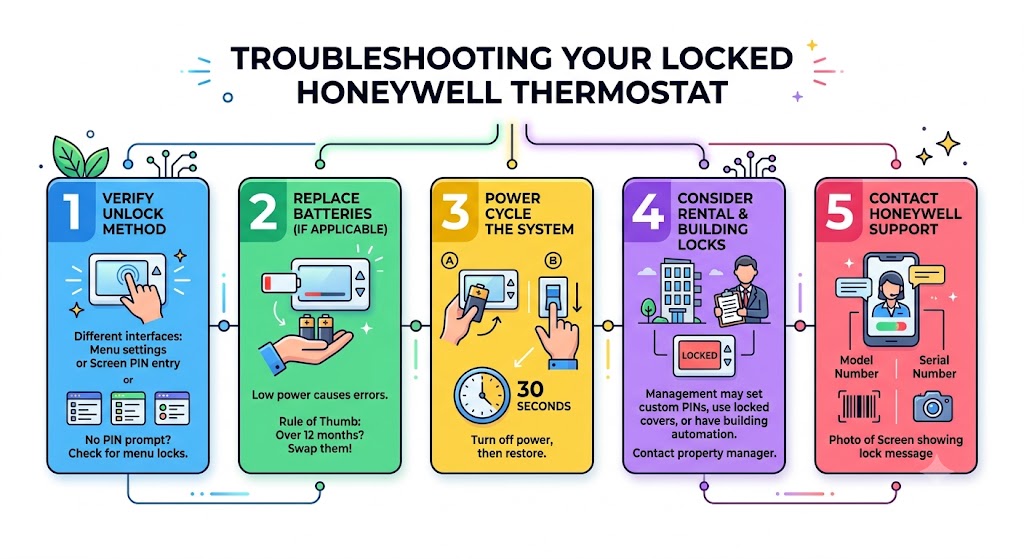
This is exactly how I troubleshoot on service calls.
1. Make sure you’re using the right unlock workflow
Honeywell uses different interfaces. If your screen never asks for a PIN, you might be in a menu lock, not a screen lock.
2. Replace batteries (if your model uses them)
Low power can cause weird behavior, delayed button response, or settings not saving.
My rule of thumb: if it has replaceable batteries and they’re older than 12 months, swap them before you go crazy troubleshooting.
3. Power cycle the thermostat
- If it’s battery powered, remove batteries for 30 seconds, then reinstall.
- If it’s powered by the HVAC system, turn off the furnace/air handler breaker for 30 seconds, then restore.
4. Check if you’re dealing with a landlord or building lock
In rentals, it’s common to have:
- A custom PIN set by management
- A locked cover
- A building automation setup that overrides local control
If you suspect that, it’s often faster to contact the property manager than to keep guessing codes.
5. Contact Honeywell support with model and serial
If you’re truly stuck, support can tell you model-specific options. Have:
- Model number
- Serial number
- A photo of the screen showing the lock message
Why Honeywell thermostats have a lock feature (and when it helps)
I actually like the lock feature when it’s used the right way, especially for:
- Child-proofing: prevents accidental changes that spike your bill
- Rentals: keeps settings reasonable between guests
- Energy control: helps maintain consistent setpoints
The downside is obvious: when you need heat right now and it’s locked, it feels like the thermostat is “broken” even though it’s just restricted.
After unlocking: why thermostat control matters for comfort and savings
Once you regain control, you can set the home up to be comfortable and efficient.
Here’s a practical “what people actually see” style table:
| 1 degree F | 1 to 3 percent |
| 2 degrees F | 2 to 6 percent |
| 3 degrees F | 3 to 9 percent |
| 4 degrees F | 4 to 12 percent |
Savings vary based on insulation, system efficiency, weather, and energy rates, but the main point is this: being locked out can cost you money if you can’t adjust for your schedule.
How to lock your Honeywell thermostat again (after you make changes)
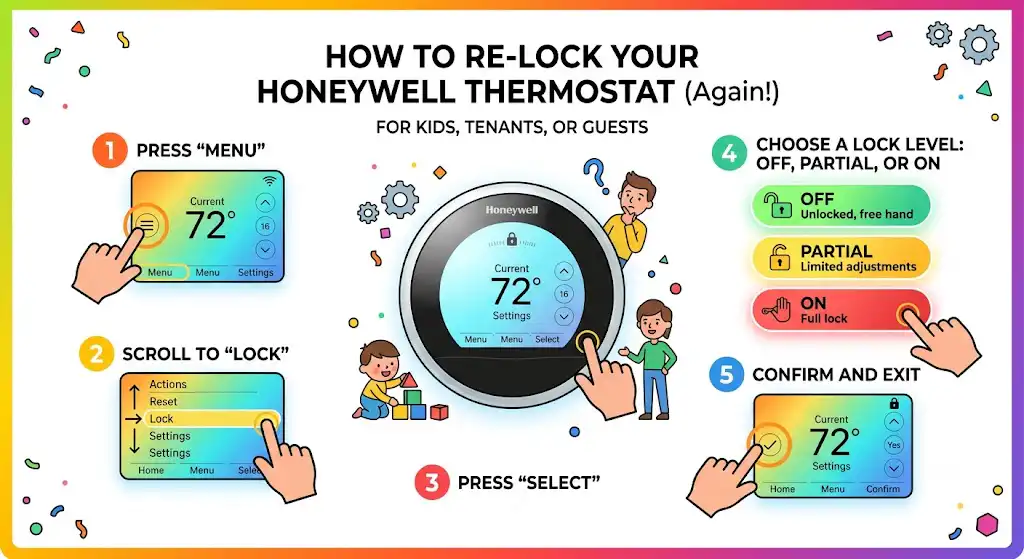
If you unlocked it because you needed access, you may still want to re-lock it afterward, especially if you have kids, tenants, or frequent guests.
Many Honeywell models follow a similar process:
- From the home screen, press Menu
- Scroll to Lock
- Press Select
- Choose:
- Off for unlocked
- Partial for limited access
- On for full lock
- Confirm and exit
My real-world tips (what I’ve learned doing this for a living)
- Always look for the lock icon first
I’ve seen homeowners troubleshoot “HVAC failures” for an hour when the system was fine and only the thermostat was locked. - Don’t start changing installer settings unless you’re sure
Installer setup menus control equipment type and staging. One wrong change can cause short cycling, no heat, or no cooling. - Take a photo before you change anything
If you do go into advanced menus, take a quick photo of the original settings so you can restore them.
Frequently asked questions
Why is my Honeywell thermostat locked?
Usually to prevent unauthorized changes, reduce energy waste, child-proof the controls, or because a landlord set restrictions for a rental.
Will unlocking my thermostat erase schedules or settings?
In most cases, no. Unlocking typically only restores access. A full factory reset is what usually wipes schedules.
I can change the temperature but not the schedule. Is it still locked?
Yes, that’s typically a partial lock. It allows basic temp changes but blocks programming and advanced settings.
What if I forgot a custom PIN?
If you’re the owner, use the Wi-Fi date-code method if supported, or contact Honeywell support with your model details. If you rent, your landlord or property manager may be the only one who can provide the PIN.
Bottom line
In my experience, the fastest unlock path is:
- Try 1234
- If it’s a Wi-Fi thermostat and 1234 fails, use the date code method (date code + 1234, then + 1235 if needed)
- If it’s an 8000-style thermostat, use the System and Auto method and try 0670