Hi, I’m Nathan. I’ve worked as an HVAC technician for over 10 years, and one of the most common “my house won’t follow the schedule” calls I get is simply a Honeywell thermostat stuck in Temporary Hold. The good news is you usually don’t need tools, a reset, or a service call. You just need to cancel the hold and tell the thermostat to resume the schedule.
Below I’ll show you the fastest way to turn Temporary Hold off, plus model-specific instructions (T4, T5, T6, Pro Series, 4000, 5000, T9, T10, Lyric Round), app steps, and what to do if the hold keeps coming back.
- What “Temporary Hold” means on Honeywell thermostats
- Temporary Hold vs Permanent Hold (know which one you’re canceling)
- Why you might want to turn Temporary Hold off
- How to Turn Off Temporary Hold on Honeywell Thermostat in 3 steps (universal method)
- Model-specific instructions (the exact buttons vary)
- Button labels by model (quick reference table)
- How to turn off Temporary Hold from your phone (Honeywell Home or Resideo app)
- If Temporary Hold keeps coming back
- Energy-saving settings that actually work (practical guidance I give homeowners)
- Prevent accidental holds (this saves a lot of frustration)
- FAQ: Temporary Hold on Honeywell thermostats
What “Temporary Hold” means on Honeywell thermostats
A Temporary Hold is a short-term override. It tells your thermostat:
- “Ignore my normal schedule for now”
- “Hold this temperature until the next scheduled change”
Why this feature exists (and when it’s actually helpful)
In real life, Temporary Hold is great when:
- The weather changes suddenly (cold snap or heat wave)
- You have guests
- You’re cooking and the house warms up
- You’ll be home earlier than normal
But if it stays on by accident, it can make your home feel “stuck” too hot or too cold.
Temporary Hold vs Permanent Hold (know which one you’re canceling)
This matters, because some people think they set Temporary Hold but actually switched to Permanent Hold.
| Temporary Hold | Overrides the schedule temporarily | Until the next scheduled change | Quick comfort changes |
| Permanent Hold | Overrides the schedule continuously | Until you manually cancel it | Schedule-free operation for a while |
HVAC tech tip from my experience: If your temperature has been “stuck” all day and never returns to schedule, it’s often Permanent Hold, not Temporary Hold.
Why you might want to turn Temporary Hold off
Here are the top reasons I see in homes I service:
1) You want your schedule back
If you’ve programmed a schedule for mornings, work hours, evenings, and nights, Temporary Hold blocks it until the next programmed time.
2) It can increase heating and cooling costs
Running outside your normal setpoints can raise energy use. The U.S. Department of Energy commonly recommends thermostat setbacks like 7 to 10°F for about 8 hours to reduce energy costs (typical guidance often cited around up to 10 percent savings per year when used correctly).
3) Comfort gets inconsistent
If you expected the house to warm up at 6 AM but it’s still holding last night’s setting, mornings can feel rough fast.
How to Turn Off Temporary Hold on Honeywell Thermostat in 3 steps (universal method)
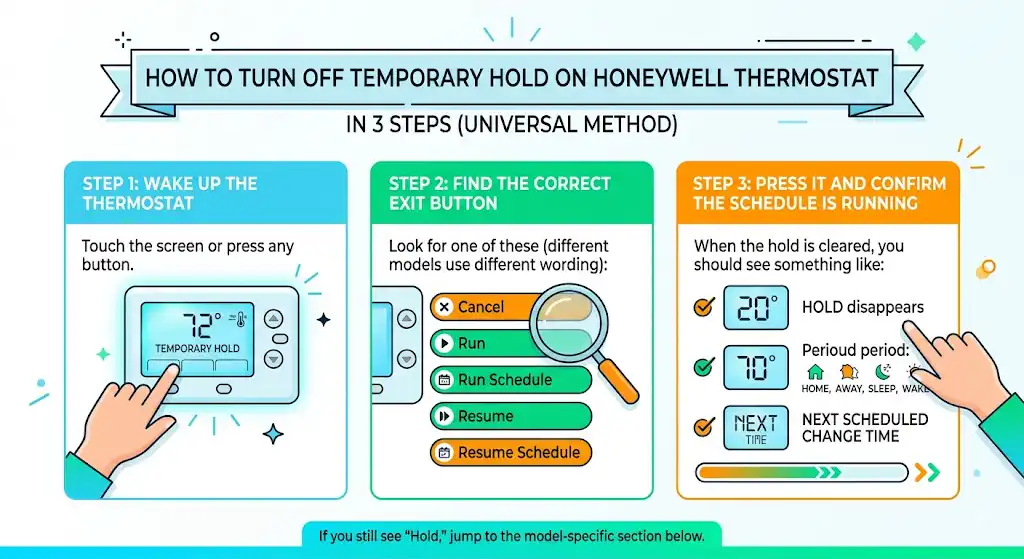
Step 1: Wake up the thermostat
- Touch the screen or press any button.
- Confirm you see Temporary Hold on the display.
Step 2: Find the correct exit button
Look for one of these (different models use different wording):
- Cancel
- Run
- Run Schedule
- Resume
- Resume Schedule
Step 3: Press it and confirm the schedule is running
When the hold is cleared, you should see something like:
- The word Hold disappears, or
- The screen shows the current scheduled period (Home, Away, Sleep, Wake), or
- The thermostat displays the next scheduled change time
If you still see “Hold,” jump to the model-specific section below.
Model-specific instructions (the exact buttons vary)
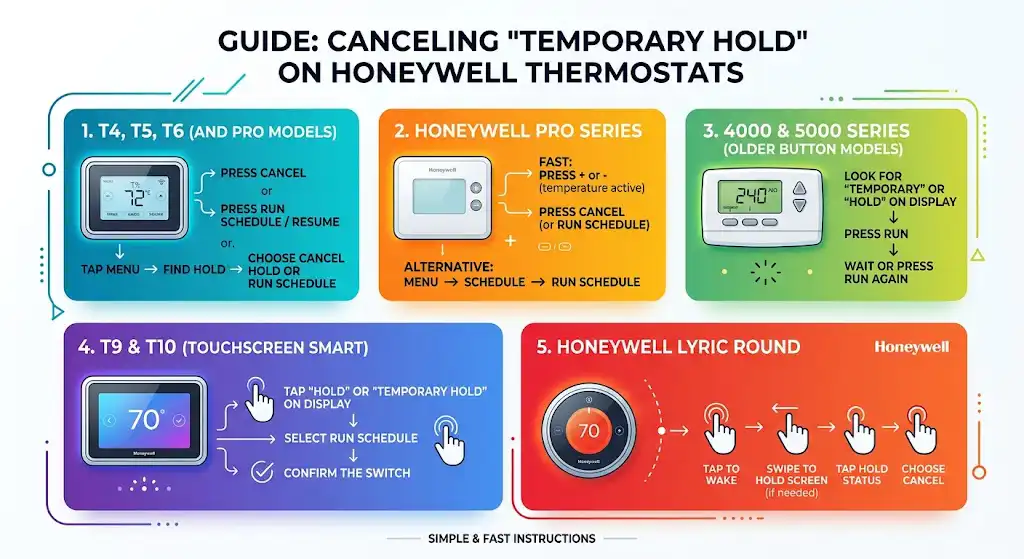
Honeywell Home T4, T5, T6 (and many Pro models)
Most of these are straightforward.
To cancel Temporary Hold:
- Press Cancel
or - Press Run Schedule / Resume
If your thermostat has a physical button layout:
- Tap Menu
- Find Hold
- Choose Cancel Hold or Run Schedule
Honeywell Pro Series (common in many homes)
On many Pro Series units, the fastest method is:
- Press + or – (so the set temperature becomes active)
- Press Cancel (or Run Schedule, depending on the model)
If you don’t see Cancel, try:
- Menu → Schedule → Run Schedule
Honeywell 4000 and 5000 Series (older button-style models)
These often use a Run button.
Do this:
- Look for “Temporary” or “Hold” on the display
- Press Run
- Wait a few seconds for the hold indicator to disappear
If it still shows Hold: press Run again. Some older models are a little slow to update.
Honeywell T9 and T10 (touchscreen smart thermostats)
These typically let you cancel directly from the hold message.
- Tap Hold or Temporary Hold on the display
- Select Run Schedule
- Confirm it switches back to your normal program
Honeywell Lyric Round
- Tap the thermostat to wake it
- Swipe to the hold screen (if applicable)
- Tap the hold status
- Choose Cancel to return to the schedule
Button labels by model (quick reference table)
| Cancel | Clears the active hold | T4, T5, T6, many Pro units |
| Run | Returns to program | 4000, 5000 and older models |
| Run Schedule | Returns to program schedule | T5, T6, T9, T10 |
| Resume / Resume Schedule | Same as Run Schedule | Some T-series and smart models |
| Hold | Opens hold options (Temporary vs Permanent) | Many Honeywell units |
How to turn off Temporary Hold from your phone (Honeywell Home or Resideo app)
If you have a WiFi Honeywell thermostat, you can usually cancel the hold without touching the thermostat.
- Open the Honeywell Home app or Resideo app (some systems also use Total Connect Comfort)
- Select your thermostat
- Find the current status (it will show Hold or Temporary Hold)
- Tap the hold and choose Cancel Hold or Run Schedule
My field note: If the app cancels the hold but the thermostat screen still shows it, give it a minute. If it doesn’t sync, reboot the thermostat or refresh the app connection.
If Temporary Hold keeps coming back
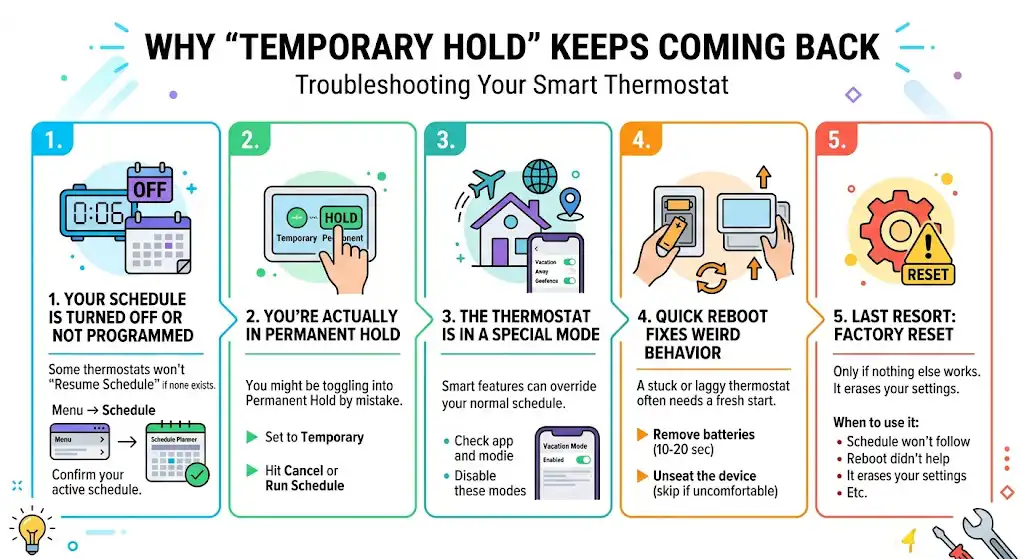
When a hold won’t stay off, it’s usually one of these causes.
1) Your schedule is turned off or not programmed
Some thermostats won’t “resume schedule” if there is no schedule to resume.
What to do:
- Go to Menu → Schedule
- Confirm there is an active schedule programmed
2) You’re actually in Permanent Hold
If you cancel Temporary Hold but it returns, you may be toggling into Permanent Hold.
What to do:
- Tap Hold
- Make sure it’s set to Temporary, not Permanent
- Then hit Cancel or Run Schedule
3) The thermostat is in a special mode (Vacation, Away, Smart Response, geofence)
Some smart features override normal schedules.
What to do:
- Check the app for Away or Vacation
- Disable it and re-enable your schedule
4) Quick reboot fixes weird behavior
If the screen is laggy or the thermostat is acting “stuck,” a reboot often helps.
Basic reboot idea:
- If it’s battery-powered, remove batteries for 10 to 20 seconds and reinstall
- If it’s powered from the wall, some models can be popped off the wall plate briefly and re-seated
(If you’re not comfortable pulling it off the wall, skip this and use the menu/app method.)
5) Last resort: factory reset
I only recommend this if:
- The thermostat won’t follow schedule no matter what
- You’ve confirmed the schedule exists
- Reboot didn’t help
A factory reset will remove your settings, so do it only when necessary.
Energy-saving settings that actually work (practical guidance I give homeowners)
Your exact best settings depend on your insulation, equipment, and comfort needs, but these are strong starting points.
Typical energy guidance (widely used rule of thumb)
Many energy programs recommend setbacks like:
- Winter: lower setpoint when sleeping or away
- Summer: higher setpoint when away
Simple schedule example you can copy
| Wake (home) | 68 to 70°F | 74 to 76°F |
| Away | 60 to 65°F | 78 to 82°F |
| Evening (home) | 68 to 70°F | 74 to 76°F |
| Sleep | 62 to 66°F | 76 to 78°F |
Real technician advice: Don’t chase perfect numbers. The bigger win is consistency. If Temporary Hold is constantly overriding your schedule, you lose the benefit of programming.
Prevent accidental holds (this saves a lot of frustration)
- Use the thermostat lock feature
Great if kids, guests, or accidental bumps are common. - Use shorter holds when available
Some models let you choose how long Temporary Hold lasts. If you always forget it, set it to something like 1 hour. - Set app alerts (smart models)
Some thermostats can notify you when the temperature is manually changed or when the schedule is overridden.
FAQ: Temporary Hold on Honeywell thermostats
What button turns off Temporary Hold?
Most often it’s Cancel, Run, Run Schedule, or Resume Schedule depending on your model.
Will turning off Temporary Hold erase my schedule?
No. Canceling Temporary Hold simply returns the thermostat to the existing schedule.
Why isn’t my thermostat returning to the programmed schedule after I cancel the hold?
In my experience, it’s usually one of these:
There is no schedule set (nothing to return to)
It’s actually on Permanent Hold
The system is in Away or Vacation mode through the app
The thermostat needs a reboot due to a minor glitch
Can Temporary Hold affect both heating and cooling?
Yes. It overrides the temperature target regardless of whether you’re in Heat or Cool, as long as that mode is active.