If your Nest Thermostat is acting weird, won’t connect to Wi Fi, or you’re moving and need to hand it off to someone else, a reset is usually the cleanest fix. I’ve been an HVAC technician for over a decade, and I can tell you this is one of the most common “smart thermostat” problems I get asked about. The good news is that resetting a Nest thermostat is straightforward as long as you pick the right type of reset.
Below I’ll walk you through the exact steps, explain what each reset actually deletes, and show you what to do after the reset so your heat and AC come back online quickly.
Quick answer (pick the right reset)
Use this as your decision guide:
| Screen frozen, glitchy behavior, minor bugs | Restart (soft reset) | Nothing important (no schedules wiped) |
| Wi Fi problems after changing router/password | Reset Network (or Wi Fi reset) | Wi Fi settings only |
| Schedule is a mess or you want to relearn | Reset Schedule | Schedule/learning data (varies by model) |
| You’re selling, gifting, moving out, or want a clean slate | Factory reset / All settings | Everything (account link, schedules, settings) |
If you’re not sure, I recommend starting with a Restart, then moving up to a Network reset, and only doing a Factory reset if you truly need it.
Why you might need to reset your Nest Thermostat
In real homes (not perfect lab setups), thermostats deal with Wi Fi drops, power interruptions, firmware updates, and HVAC quirks. Here are the most common reasons I see:
1) Troubleshooting and “it’s just not behaving”
A reset can help if you notice:
- Thermostat not responding or lagging
- App shows “offline” even though Wi Fi is fine
- Temperature reading looks wrong or stuck
- Heat/AC isn’t running the way it should (after you’ve confirmed your equipment is otherwise working)
2) You changed Wi Fi or replaced your router
This is a big one. New router name (SSID) or password usually means the thermostat needs to be reconnected.
3) You moved or you’re changing ownership
If you’re selling the home, returning the thermostat, gifting it, or moving and leaving it behind, you should remove it from your account and do a full reset so the next person can set it up properly.
4) You forgot your PIN or want to start fresh
A full reset can wipe the configuration and let you set it up again.
Before you reset: 3 things I always do (HVAC tech habit)

These steps save a lot of frustration later.
1) Make sure the thermostat has power
If the screen is blank, your issue may be power related, not software related. Common causes:
- Tripped furnace/air handler switch
- Tripped breaker
- Drain safety switch (common on AC systems)
- Loose or missing common wire C (some systems)
2) Write down your equipment wiring (seriously)
If you end up needing a factory reset, it’s nice to know what wires and equipment you have.
On most Nest models you can check:
- Settings > Equipment
I tell homeowners to snap a quick photo of the wiring/equipment screen and the actual wiring at the wall (if you’re comfortable removing the display).
3) Know which Nest thermostat you have
Reset menus vary slightly by model. Most homes have one of these:
- Nest Learning Thermostat (Gen 1, 2, 3) with a rotating ring
- Nest Thermostat E (ring style, simpler look)
- Nest Thermostat (2020) with touch strip (no rotating ring)
If yours has a ring you rotate, use the “ring” instructions below. If it’s the 2020 mirror faced model, use the “2020” section.
Types of resets (what each one actually does)
Here’s the clean breakdown.
| Restart | Reboots the thermostat | Frozen screen, glitches, small bugs |
| Network / Wi Fi reset | Clears Wi Fi info so you can reconnect | New router, changed password, Wi Fi issues |
| Schedule reset | Clears learned schedule/temperature program | Bad schedule, want to rebuild comfort pattern |
| Factory reset (All settings) | Wipes all settings and returns to “new” | Selling, moving, persistent issues |
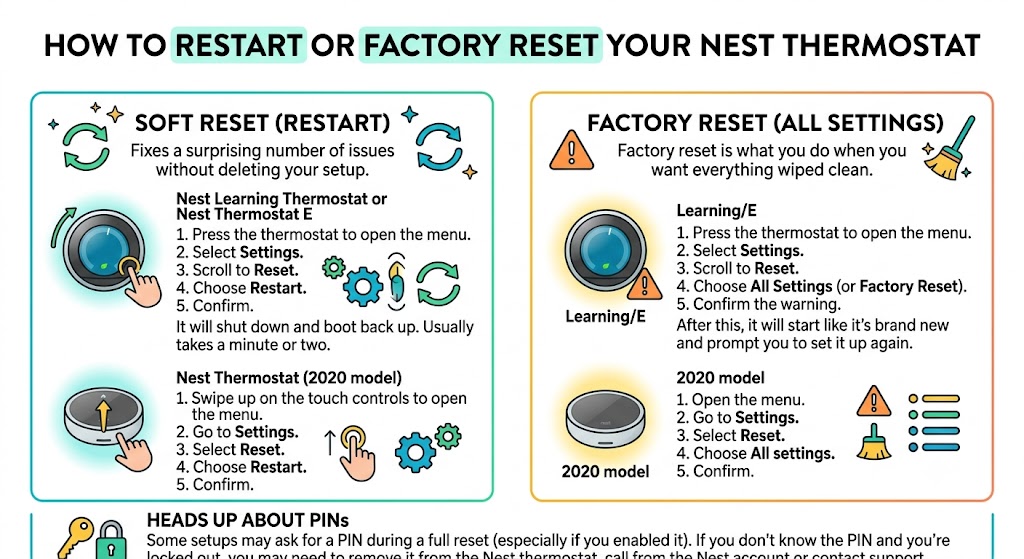
How to restart (soft reset) your Nest Thermostat
A restart fixes a surprising number of issues without deleting your setup.
For Nest Learning Thermostat or Nest Thermostat E (rotating ring)
- Press the thermostat to open the menu.
- Select Settings
- Scroll to Reset
- Choose Restart
- Confirm
It will shut down and boot back up. Usually takes a minute or two.
For Nest Thermostat (2020 model)
- Swipe up on the touch controls to open the menu.
- Go to Settings
- Select Reset
- Choose Restart
- Confirm
How to factory reset your Nest Thermostat (All settings)
Factory reset is what you do when you want everything wiped clean.
For Nest Learning Thermostat or Nest Thermostat E (rotating ring)
- Press the thermostat to open the menu.
- Select Settings
- Scroll to Reset
- Choose All Settings (or Factory Reset, depending on model)
- Confirm the warning
After this, it will start like it’s brand new and prompt you to set it up again.
For Nest Thermostat (2020 model)
- Open the menu
- Go to Settings
- Select Reset
- Choose All settings
- Confirm
Heads up about PINs
Some setups may ask for a PIN during a full reset (especially if you enabled it). If you don’t know the PIN and you’re locked out, you may need to remove it from the app first (or follow Google/Nest account recovery steps).
Optional resets: Network reset and Schedule reset
If you don’t want to wipe everything, this is often the smarter move.
Reset Wi Fi / Network (most common partial reset)
Use this when you changed internet equipment or the thermostat won’t reconnect.
- Go to Settings > Reset > Network (wording varies)
- Then reconnect to Wi Fi during setup.
Reset schedule (when the temperature changes are driving you crazy)
If the thermostat “learned” a schedule you don’t like, resetting just the schedule can be a good middle ground.
- Go to Settings > Reset > Schedule.
- Then rebuild your schedule manually, or let it learn again (model dependent)
If you’re selling your home or moving, remove it from your account first.
This part matters. I’ve seen homeowners factory reset but forget the account removal, then the next owner can’t set it up smoothly.
Remove Nest thermostat from the app (best practice)
If you use the Nest app
- Open the Nest app
- Choose the home (if you have multiple)
- Tap Settings (gear icon)
- Select your thermostat
- Tap Remove Thermostat
- Confirm
If you use the Google Home app
In many homes the thermostat is managed in Google Home now. The exact menu wording can vary, but you’re essentially removing the device from the Home structure before handing it off.
After removing it from your account, do the Factory reset / All settings at the thermostat.
After the reset: reconnect and set it up the right way

Once your Nest boots back up after a factory reset, it will guide you through setup. Here’s what I want you to focus on.
1) Reconnect to Wi Fi
- Select your Wi Fi network
- Enter the password carefully
- Keep the thermostat close enough to the router (at least during setup)
If your Wi Fi is spotty at the thermostat location, you may need a mesh node or better router placement. Smart thermostats are only as smart as their connection.
2) Confirm your HVAC equipment is detected correctly
During setup, pay attention to what it thinks you have:
- Gas heat vs heat pump
- 1 stage vs 2 stage
- AC present or not
- Fan control
If anything looks wrong, stop and correct it. Incorrect equipment configuration can cause comfort problems and, in rare cases, equipment short cycling.
3) Rebuild your schedule and energy settings
If you want energy savings without comfort complaints, keep your schedule simple at first.
A lot of homeowners ask if Nest actually saves money. Google Nest has reported average savings of about 10 to 12 percent on heating and about 15 percent on cooling for the Learning Thermostat in many households, but your actual results depend on your climate, insulation, equipment condition, and how you use schedules.
Practical tip from the field
If you’re uncomfortable when it does big temperature setbacks, use smaller changes (like 2 to 4 degrees) and let it run consistently.
Troubleshooting: when a reset doesn’t fix it
Here are the most common “still not working” situations I run into.
Thermostat won’t turn on after reset.
Check:
- Breaker and furnace/air handler switch
- Door switch on the furnace panel (some units won’t power on the controls if the door isn’t seated)
- C wire connection (if your system needs it)
- Drip pan float switch (AC drain backup can cut power)
Nest won’t connect to Wi Fi
Try:
- Restart the router
- Confirm the network is 2.4 GHz compatible if your setup is picky (many smart devices prefer 2.4)
- Move router or add mesh extender.
- Do a Network reset again and reconnect
Heat or AC doesn’t run after setup
This is where I tell homeowners to slow down:
- Confirm equipment type during setup.
- Confirm wires are detected.
- If you recently changed the HVAC system, the old settings can conflict (factory reset is helpful here)
- If you’re unsure about wiring, call a pro. Miswiring can blow a fuse on the control board.
My recommended reset path (fastest and safest)
If you’re dealing with a glitch and not selling the thermostat, do this in order:
- Restart
- Reset Network / Wi Fi (if the issue is connection related)
- Reset Schedule (if the issue is comfort/scheduling)
- Factory reset / All settings (last resort)
This approach fixes most problems without wiping everything unnecessarily.
FAQ: Resetting a Nest Thermostat
Will a factory reset delete everything?
Yes. A full factory reset (All settings) returns it to out of the box condition and wipes schedules, learned behavior, and settings.
Can I reset my Nest thermostat remotely from my phone?
In most cases, no. A true reset typically requires being physically at the thermostat.
How long does a restart or reset take?
A restart usually takes a minute or two. A full factory reset plus setup can take 10 to 20 minutes, depending on Wi Fi and system complexity.
What if my Nest thermostat is frozen and I can’t use the menu?
h model you have, tell me what it looks like and I can point you to the right method.
Nest only recommends manual methods when the screen won’t respond.
Nest Learning Thermostat / Nest Thermostat E: press and hold the thermostat ring for about 10 seconds until the screen goes black, then release to reboot.
Battery powered Nest models (where applicable): remove the display and pull batteries briefly, then reinstall.
If you’re not sure whic
How often should you reset a Nest thermostat?
Almost never as “maintenance.” I only reset when troubleshooting, changing networks, changing HVAC equipment, or transferring ownership.
Conclusion
Resetting your Nest Thermostat is usually simple once you choose the right reset. If you just need to clear a glitch, do a restart. If you’re changing Wi Fi, reset the network. And if you’re moving, selling, or want a clean slate, remove it from your account and do a full factory reset.