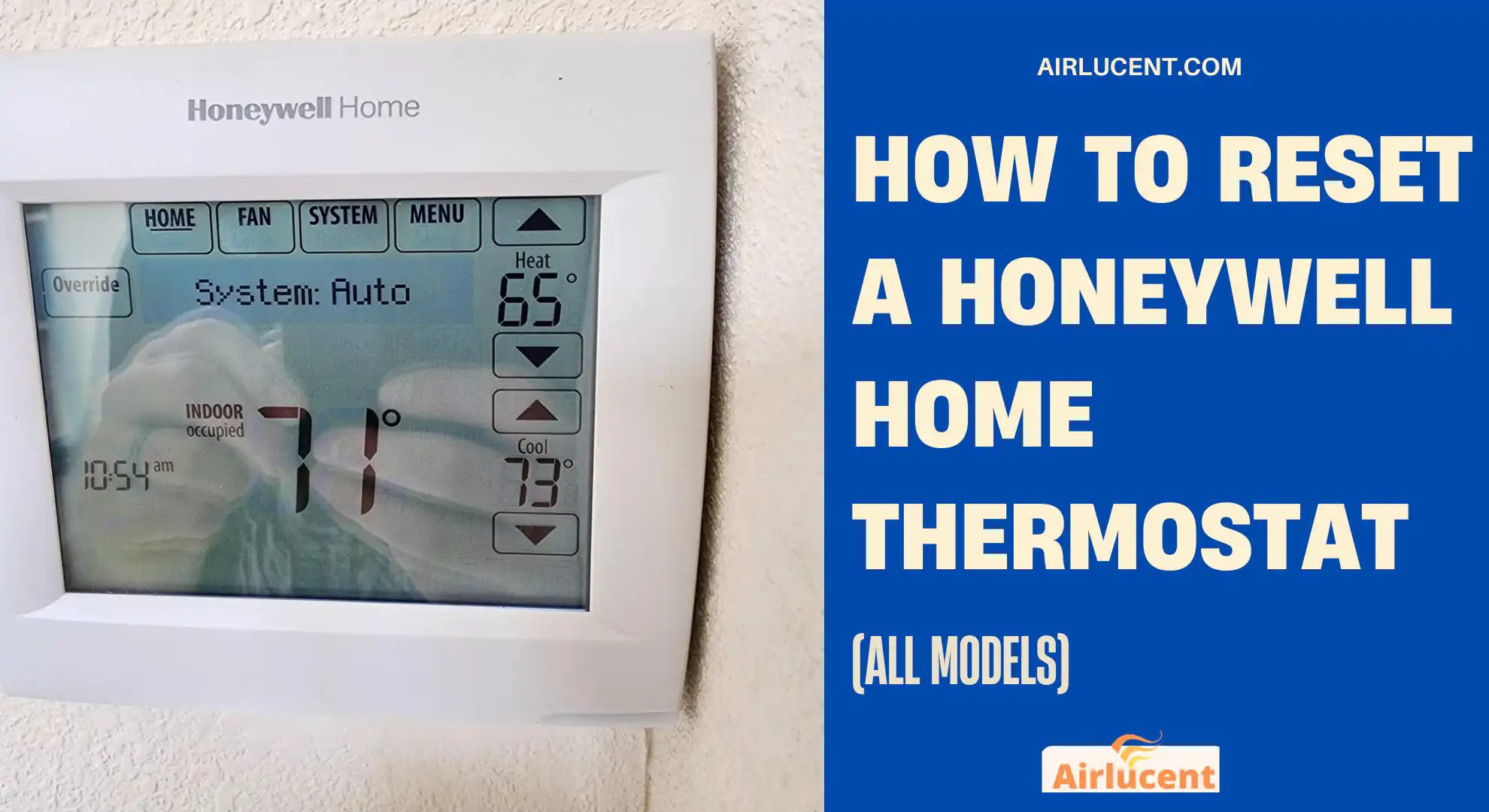
Your Honeywell thermostat is basically the control center of your whole heating and cooling system. When it starts acting up, the symptoms can look scary. Blank screen, wrong temperature, Wi-Fi dropping, heat not turning on, AC short cycling.
After 10 plus years working as an HVAC technician, I can tell you something reassuring. A reset fixes a lot of thermostat problems, especially on Honeywell Home and Resideo models. The key is doing the right kind of reset for your specific model, because a factory reset is very different from a Wi-Fi reset or a schedule reset.
In this guide, I’ll walk you through:
- How to identify your Honeywell model
- Which reset you actually need
- Exact reset steps for the major Honeywell thermostat families
- How to reset without a reset button
- What to do after the reset so you do not end up right back in the same problem
If you want, you can skim to the table and jump straight to your model.
- What problems does resetting a Honeywell thermostat fix?
- Identify your Honeywell thermostat model (fast and reliable)
- Types of resets (and which one you should choose)
- Before you reset: my quick checklist
- Honeywell thermostat reset instructions by model (all the common ones)
- Honeywell T9 reset (RCHT9510WF, RCHT9610WF)
- Honeywell T10 reset (THX321WF)
- Honeywell T5, T5 plus, T6 reset (RCHT8610WF, RCHT8612WF, TH6220WF2, TH6320WF2)
- Honeywell Smart and Lyric Round reset (TH8732WFH)
- Honeywell Smart Wi-Fi 9000 reset (RTH9580WF, RTH9585WF, TH9320WF)
- Honeywell FocusPRO 6000 reset (TH6320WF1, RTH6580WF)
- Honeywell VisionPRO 8000 reset (TH8320WF, RTH8580WF)
- VisionPRO TH8321WF reset (special case)
- Honeywell 1000, 2000, 4000 series (basic models)
- How to reset a Honeywell thermostat without a reset button
- After the reset: what you should do next (do not skip this)
- Common reset scenarios and what I recommend
- How resetting can impact comfort and energy use (quick stats that matter)
- When to call a professional (I am being honest here)
- Frequently asked questions
- Conclusion
What problems does resetting a Honeywell thermostat fix?
In real homes, these are the most common reasons I reset Honeywell thermostats:
- The screen is frozen or the touch controls will not respond
- The thermostat is reading the wrong temperature
- The schedule is messed up and keeps overriding your manual changes
- The thermostat keeps losing Wi-Fi or will not reconnect after router changes
- The app shows the thermostat offline
- The system will not start after a power outage or electrical flicker
- You are moving, replacing the router, or setting it up for a new owner
When a reset is not the right fix
A reset will not fix:
- A furnace or AC that has a safety lockout, failed part, or fault code
- A clogged drain line tripping a float switch (common on AC)
- A blown low voltage fuse on the control board
- Loose, broken, or miswired thermostat wires
Identify your Honeywell thermostat model (fast and reliable)
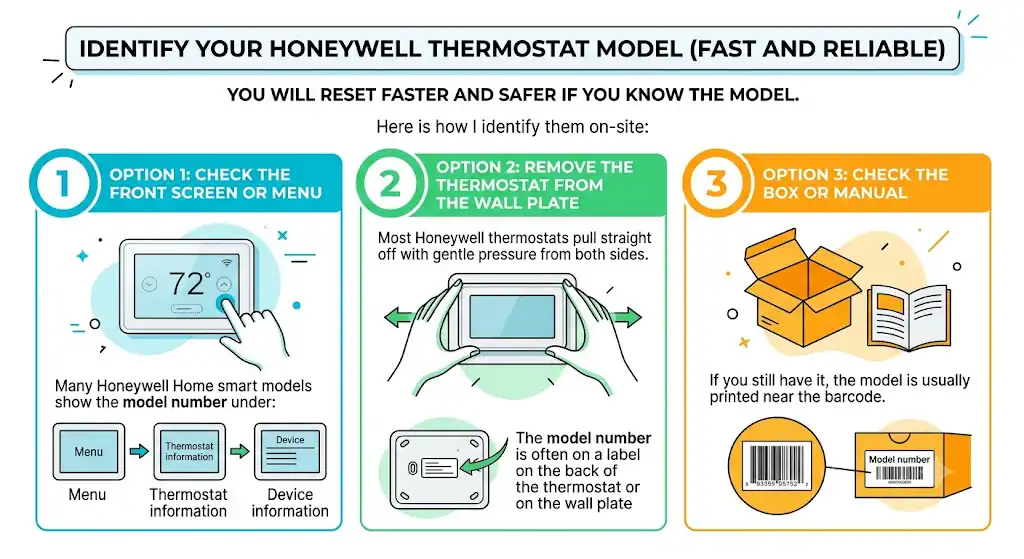
You will reset faster and safer if you know the model.
Here is how I identify them on-site:
Option 1: Check the front screen or menu
Many Honeywell Home smart models show the model number under:
- Menu
- Thermostat information
- Device information
Option 2: Remove the thermostat from the wall plate
Most Honeywell thermostats pull straight off with gentle pressure from both sides.
- The model number is often on a label on the back of the thermostat or on the wall plate
Option 3: Check the box or manual
If you still have it, the model is usually printed near the barcode.
Types of resets (and which one you should choose)
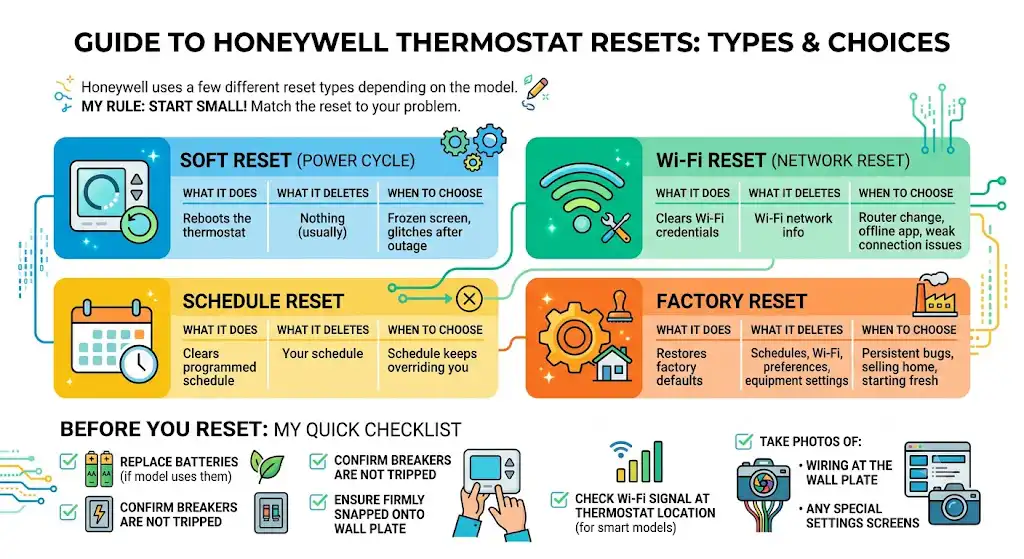
Honeywell uses a few different reset types depending on the model.
Reset type comparison table
| Soft reset (power cycle) | Reboots the thermostat | Nothing (usually) | Frozen screen, glitches after outage |
| Wi-Fi reset (network reset) | Clears Wi-Fi credentials | Wi-Fi network info | Router change, offline app, weak connection issues |
| Schedule reset | Clears programmed schedule | Your schedule | Schedule keeps overriding you |
| Factory reset | Restores factory defaults | Schedules, Wi-Fi, preferences, equipment settings | Persistent bugs, selling home, starting fresh |
My rule: start small. If you only have a Wi-Fi issue, do not jump straight to factory reset.
Before you reset: my quick checklist
Do these first. It saves time and prevents unnecessary resets.
- Replace batteries (if your model uses them)
- Confirm breakers are not tripped.
- Make sure the thermostat is firmly snapped onto the wall plate
- Check your Wi-Fi signal at the thermostat location (for smart models)
- Take photos of:
- Wiring at the wall plate
- Any special settings screens you might want to recreate later
Honeywell thermostat reset instructions by model (all the common ones)
Below are the reset steps that match the major Honeywell Home thermostat families people actually have installed.
Model reset cheat sheet (find yours here first)
| T9 and T10 | RCHT9510WF, RCHT9610WF, THX321WF | Menu then Reset |
| T5, T5 plus, T6 | RCHT8610WF, RCHT8612WF, TH6220WF2, TH6320WF2 | Menu then Advanced then Reset |
| Smart Round Lyric | TH8732WFH | Button combos with icons |
| Smart Wi-Fi 9000 | RTH9580WF, RTH9585WF, TH9320WF | Menu or Preferences |
| FocusPRO 6000 and similar | TH6320WF1, RTH6580WF | Menu hold then reset options |
| VisionPRO 8000 series | TH8320WF, RTH8580WF | Menu hold then reset options |
| Basic 1000, 2000, 4000 | varies | Mostly power cycle, limited menus |
Now let’s go model by model.
Honeywell T9 reset (RCHT9510WF, RCHT9610WF)
Factory reset (T9)
- Press Menu
- Scroll to Reset
- Select Factory Reset
- Confirm
Wi-Fi reset (T9)
- Press Menu
- Scroll to Wi-Fi
- Select Reset Wi-Fi or Change Network (wording varies)
- Follow prompts to reconnect
Schedule reset (T9)
- Press Menu
- Go to Schedules
- Select Reset Schedule
- Confirm
HomeKit reset (T9, if enabled)
- Press Menu
- Scroll to Reset HomeKit
- Follow prompts to unlink and reconnect
Honeywell T10 reset (THX321WF)
The T10 menus are very similar to the T9.
Factory reset (T10)
- Press Menu
- Scroll to Reset
- Choose Factory Reset
- Confirm
Wi-Fi reset (T10)
- Press Menu
- Scroll to Wi-Fi
- Select Reset Wi-Fi
- Reconnect with your network credentials
Schedule reset (T10)
- Press Menu
- Go to Schedules
- Select Reset Schedule
- Confirm
HomeKit reset (T10)
- Press Menu
- Scroll to Reset HomeKit
- Follow prompts
Honeywell T5, T5 plus, T6 reset (RCHT8610WF, RCHT8612WF, TH6220WF2, TH6320WF2)
These are some of the most common Honeywell installs I see in homes.
Factory reset (T5 and T6)
- Press and hold Menu until Advanced Settings shows
- Scroll to Reset
- Select Factory Reset
- Confirm
Wi-Fi reset (T5 and T6)
- Press Menu
- Go to Wi-Fi settings
- Select Change Wi-Fi or Reset Wi-Fi
- Follow prompts
Schedule reset (T5 and T6)
- Press Menu
- Scroll to Schedules
- Choose Reset Schedule
- Confirm
HomeKit reset (if supported)
- Press and hold Menu for Advanced Settings
- Scroll to Reset HomeKit
- Confirm
Honeywell Smart and Lyric Round reset (TH8732WFH)
These round models use icon combinations.
Factory reset (Lyric Round)
- Press and hold the Cloud icon
- While holding Cloud, press Weather
- Release and let it reset
Wi-Fi reset (Lyric Round)
- Press and hold the Cloud icon
- While holding Cloud, press Fan
- Reconnect through the Honeywell Home app
Schedule reset (Lyric Round)
This is typically done in the app:
- Open the app
- Go to Schedules
- Select Reset (or delete schedules and rebuild)
HomeKit reset (Lyric Round)
- Hold Cloud
- While holding, press Home
- Follow prompts to reconnect HomeKit
Honeywell Smart Wi-Fi 9000 reset (RTH9580WF, RTH9585WF, TH9320WF)
Factory reset (Wi-Fi 9000)
Two common menu styles exist depending on firmware:
Method A (common on many units)
- Press Menu
- Go to Preferences
- Select Restore Factory Defaults
- Select Yes
Method B (some versions)
- Press and hold Menu for about 10 seconds
- Release when you see Factory Reset
- Confirm
Wi-Fi reset (Wi-Fi 9000)
- Press and hold Menu for about 10 seconds
- Release when you see Wi-Fi Reset
- Confirm and reconnect
Schedule reset (Wi-Fi 9000)
- Press Menu
- Tap Settings
- Tap Schedule
- Tap Reset Schedule
HomeKit reset (if present)
- Press and hold Menu for about 10 seconds
- Release when you see HomeKit Reset
- Confirm
Honeywell FocusPRO 6000 reset (TH6320WF1, RTH6580WF)
Factory reset (FocusPRO 6000)
- Press and hold Menu for about 10 seconds
- Release when Factory Reset appears
- Confirm
Wi-Fi reset (FocusPRO 6000, Wi-Fi models)
- Press and hold Menu for about 10 seconds
- Release when Wi-Fi Reset appears
- Confirm
Schedule reset (FocusPRO 6000)
- Press Menu
- Select Settings
- Select Schedule
- Select Reset Schedule
HomeKit reset
Many FocusPRO models do not use HomeKit. If your screen shows HomeKit reset, use the same hold Menu method and select it.
Honeywell VisionPRO 8000 reset (TH8320WF, RTH8580WF)
Factory reset (VisionPRO 8000)
- Press and hold Menu for about 10 seconds
- Release when Factory Reset appears
- Confirm
Wi-Fi reset (VisionPRO 8000)
- Press and hold Menu for about 10 seconds
- Release when Wi-Fi Reset appears
- Confirm
Schedule reset (VisionPRO 8000)
- Press Menu
- Settings
- Schedule
- Reset Schedule
HomeKit reset
Only applies if your unit supports HomeKit and shows it in the reset menu.
VisionPRO TH8321WF reset (special case)
This one often requires the installer options password method.
Factory reset (TH8321WF)
- Press Menu
- Go to Dealer Information
- Scroll down and write down the Date Code.
- Press Done
- Scroll to Installer Options
- When prompted, enter the Date Code as the password.
- Select Reset to Defaults
- Select Yes
Honeywell 1000, 2000, 4000 series (basic models)
These older units often do not have fancy reset menus.
Best practical reset method (older basic Honeywell)
- Turn the thermostat to Off.
- If it has batteries, remove them.
- Turn HVAC power off at the breaker for 5 to 10 minutes.
- Reinstall batteries (match polarity correctly)
- Turn the breaker back on.
- Set the thermostat back to Heat or Cool and test
If the screen stays blank after new batteries and a power cycle, you likely have a power problem (common causes are a blown furnace control fuse or transformer issues).
How to reset a Honeywell thermostat without a reset button

A lot of homeowners search this because their thermostat has no obvious reset pinhole. In the field, I usually use one of these three methods.
Method 1: Power cycle at the breaker (soft reset)
- Turn off the HVAC system breaker.
- Wait 60 seconds (or up to 5 minutes if it was really glitchy)
- Turn the breaker back on.
- Check operation
This fixes many “frozen screen” issues after a power flicker.
Method 2: Reset through the menu (factory, Wi-Fi, schedule)
If your thermostat has a menu, you typically have reset options in there. Use the model steps above.
Method 3: Battery trick (battery models)
This is an old-school trick that sometimes clears weird behavior.
- Remove the batteries
- Wait 1 to 2 minutes
- Reinstall batteries correctly
Some guides mention reinserting batteries backwards briefly. I do not recommend that unless the manufacturer explicitly documents it, because it can damage electronics on certain designs.
After the reset: what you should do next (do not skip this)
A reset is only step one. Here is how I finish the job so the problem stays solved.
1. Reconfigure your basics
After a factory reset, you may need to set:
- System type (furnace, heat pump, etc.)
- Heat and cool staging (single stage vs multi stage)
- Fan settings
- Temperature units
- Time and date
- Schedule preferences
If you are not sure whether you have a heat pump, look for an O/B wire at the thermostat wall plate.
2. Reconnect Wi-Fi and app (smart models)
- Confirm you are connecting to the 2.4 GHz Wi-Fi band if your thermostat does not support 5 GHz.
- Make sure the router is not too far away.
- If the signal is weak, a mesh node or extender near the thermostat location often fixes recurring disconnects.
3. Check firmware updates
Smart thermostats receive updates that fix connectivity and stability issues. If your Honeywell Home app prompts for an update, do it.
4. Run a quick heat and cool test
I always test both modes:
- Set Heat 2 to 3 degrees above room temp and confirm it starts.
- Set Cool 2 to 3 degrees below room temp and confirm it starts.
- Confirm the fan behaves correctly in Auto and On.
Common reset scenarios and what I recommend
Here is a practical troubleshooting table from what I see most often in homes.
| Screen frozen or laggy | Power cycle (soft reset) | Factory reset |
| App shows offline | Wi-Fi reset, check 2.4 GHz | Factory reset then re-pair |
| Keeps changing temp by itself | Schedule reset | Factory reset, then rebuild schedule |
| Wrong room temp reading | Relocate thermostat or check drafts | Calibration setting (if available) or replace unit |
| Blank screen | Replace batteries or check breaker | Call a pro to check 24V power and fuse |
How resetting can impact comfort and energy use (quick stats that matter)
Resetting itself does not save energy, but getting your schedule and controls working properly does.
A couple of useful benchmarks:
- ENERGY STAR notes that smart thermostats that earn the label deliver average energy savings of about 8 percent, roughly 50 dollars per year for many homes.
- The U.S. Department of Energy commonly reports that you can save up to 10 percent a year on heating and cooling by setting your thermostat back 7 to 10 degrees for 8 hours a day.
In plain terms, if your thermostat is glitching and not following your settings, you can easily lose the savings you should be getting.
When to call a professional (I am being honest here)
Stop DIY and call a technician if:
- You reset and the screen stays blank even with new batteries.
- The thermostat reboots repeatedly (power issue or short)
- The furnace or air handler blows a fuse every time the thermostat calls for heating or cooling.
- You smell burning, see soot, or hear unusual noises from HVAC equipment.
- You have a heat pump with AUX heat and are not sure how it should be configured.
Frequently asked questions
Will a factory reset delete my schedules and Wi-Fi?
Yes. A factory reset typically wipes schedules, Wi-Fi credentials, and most custom settings. If you only need to fix Wi-Fi, do a Wi-Fi reset instead.
How often should you reset a Honeywell thermostat?
Almost never as routine maintenance. I reset only when there is a real issue like freezing, wrong behavior, or connectivity problems.
Why does my Honeywell thermostat keep losing Wi-Fi?
The most common causes I see are:
Weak signal at the thermostat location
Connecting to 5 GHz when the device needs 2.4 GHz
Router band steering issues
Mesh systems that roam aggressively
Old firmware
A Wi-Fi reset plus improving the signal solves it most of the time.
Do I need to turn off the power before a menu reset?
Usually no, if you are only using on-screen menu options. If you are removing the thermostat from the wall, yes, shut off the power to be safe.
Conclusion
Resetting a Honeywell Home thermostat is one of the simplest ways to clear glitches, fix Wi-Fi issues, and stop schedule problems. The trick is choosing the right reset type and following the exact steps for your model.
If you tell me your Honeywell model number and what it is doing (blank screen, offline, wrong temp, not turning on heat, etc.), I can point you to the best reset method and what to check next, the same way I would on a service call.