Hi, I’m Nathan. I’ve been an HVAC technician for over 10 years, and a big part of my job has been helping homeowners set up smart thermostats the right way the first time. If you already have one thermostat in the Honeywell Home app (or the Resideo app) and you’re trying to add another one, I’ll walk you through it step by step in plain language.
By the end, you’ll have your second thermostat showing up in the app, connected to Wi‑Fi, and named correctly so you can actually tell which one is which.
Before You Start (Important HVAC Reality Check)
A lot of people ask me, “Can I just add another thermostat for better control?”
You can add another thermostat to the app easily, but whether you can add another thermostat to the same HVAC system depends on your equipment:
- If you have one furnace and one AC with no zoning panel, you usually cannot run two thermostats on the same system.
- If your home is zoned (zone board + multiple thermostats) or you have separate systems (one upstairs, one downstairs), then multiple thermostats is correct.
If you’re not sure which you have, tell me your equipment setup and thermostat models and I can help you confirm.
What You’ll Need (Quick Checklist)
Here’s what I recommend having ready before you open the app:
| Item | Why it matters | My HVAC tech note |
|---|---|---|
| 2.4 GHz Wi‑Fi network name and password | Most Honeywell Wi‑Fi thermostats connect on 2.4 GHz | If you only try 5 GHz, setup often fails |
| Thermostat powered on and mounted | It must boot fully to enter setup mode | Low voltage issues are common on new installs |
| Phone Bluetooth turned on | Many models use Bluetooth (BLE) to pair | BLE pairing is smoother than old Wi‑Fi-only flows |
| Location permissions enabled | Some phones require it for BLE scanning | Especially on Android |
| Updated app (Honeywell Home or Resideo) | Prevents bugs and connection errors | Outdated apps cause “device not found” a lot |
Honeywell App vs Resideo App (Which One Should You Use?)
Honeywell’s thermostat apps have shifted over time. Depending on your model and when you bought it, you might see either app recommended.
- Honeywell Home app: common for many consumer models.
- Resideo app: often used for newer integrations and some newer devices.
If your first thermostat is already inside one app, I strongly recommend adding the second thermostat to the same app and same account so you can control both from one dashboard.
Thermostat Compatibility (What Usually Works)
Most Wi‑Fi Honeywell Home thermostats support multiple devices under one account. Here’s a practical compatibility snapshot from what I see most often in the field.
| Thermostat model (common examples) | Adds to app as another device | Needs Wi‑Fi | Notes from real setups |
|---|---|---|---|
| T5 Wi‑Fi, T5 Smart | Yes | Yes | Very common in homes, usually straightforward |
| T6 Pro Wi‑Fi | Yes | Yes | Often installed by contractors, can use BLE setup |
| T9 Smart / T10 Pro | Yes | Yes | Great multi-room control when paired with sensors |
| Lyric T5 (older branding) | Usually yes | Yes | App experience can vary by firmware |
| Non Wi‑Fi “Round” basic models | No (or limited) | No | Won’t show in app like a smart thermostat |
If you can’t find your model in the app list, check the thermostat packaging or model number inside the thermostat menu, then match it in the app’s device list.
Step-by-Step: Add Another Thermostat to the Honeywell Home App (or Resideo)
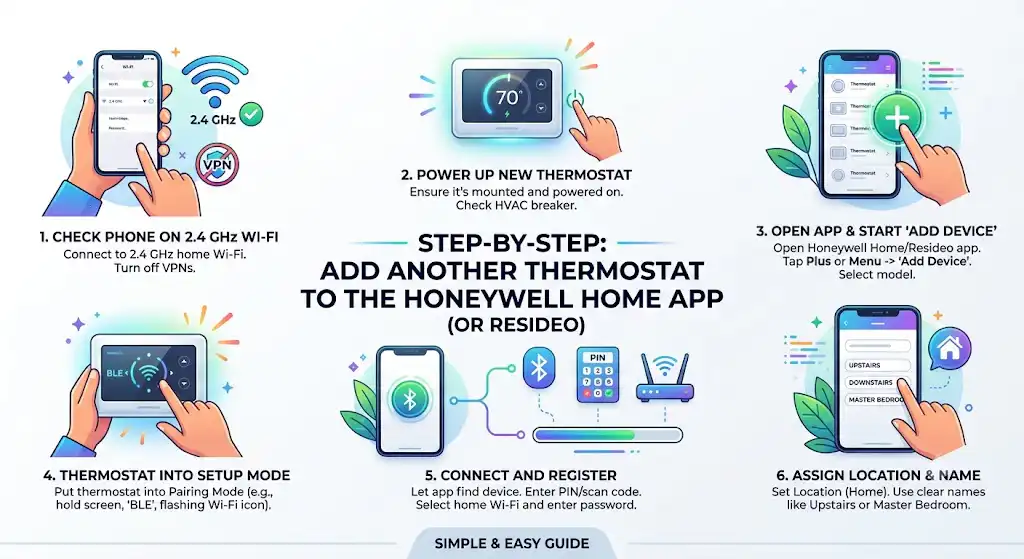
Step 1: Make Sure Your Phone Is on 2.4 GHz Wi‑Fi
This is the number one setup killer.
- On your phone, connect to your home Wi‑Fi.
- Confirm it’s 2.4 GHz (many routers combine 2.4 and 5 GHz under one name, which can still work, but if setup fails, split them temporarily).
- Turn off any VPN temporarily (I’ve seen VPNs block device registration).
Step 2: Power Up the New Thermostat
- Make sure the thermostat is mounted and powered on.
- If it’s blank, you may have a wiring issue, a tripped float switch, or no power to the HVAC transformer.
If you’re comfortable, check that your HVAC breaker is on. If not, this is a good moment to call a pro, because setup won’t work without stable power.
Step 3: Open the App and Start “Add Device”
- Open Honeywell Home or Resideo app.
- From the home screen, tap the Plus sign or open the Menu.
- Tap Add Device.
- Select your thermostat model (example: T5, T6 Pro Wi‑Fi, T9, etc.).
The app will walk you through the exact screens for your model, but the next step is always the same: put the thermostat into pairing or setup mode.
Step 4: Put the Thermostat Into Setup Mode (Pairing Mode)
This varies slightly by model, but these are the most common prompts:
- Some models: Press and hold the thermostat screen until it shows a setup prompt, a loading animation, or BLE.
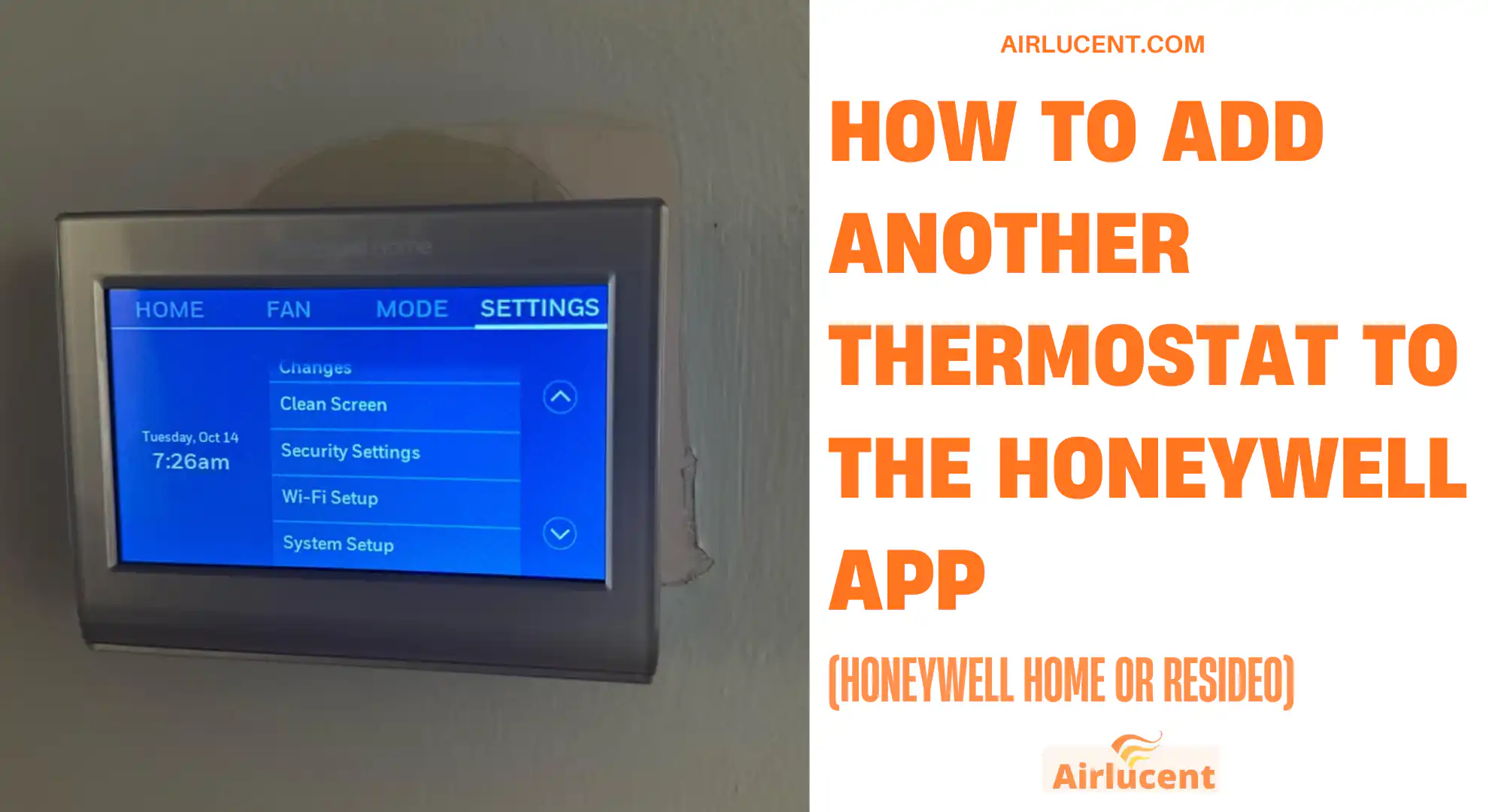
- Some models: Use Menu then Wi‑Fi Setup or Connect.
- Some models: Hold a specific button combination (the app usually shows you exactly what to do).
What you’re looking for is a sign the thermostat is ready to pair, such as:
- “SETUP”
- “Wi‑Fi Setup”
- “BLE”
- A flashing Wi‑Fi icon
- A pairing animation
Step 5: Connect and Register (Wi‑Fi + Code/PIN)
Once the thermostat is discoverable:
- Let the app find the thermostat via Bluetooth (common on newer models).
- If prompted, enter the PIN or scan the code (usually on the thermostat screen or in the thermostat’s menu).
- Select your home Wi‑Fi network and enter the password.
- Wait for it to connect and register.
If it hangs at “Connecting,” don’t panic. Give it a solid minute. If it fails twice, jump to the troubleshooting section below. In my experience, it’s usually Wi‑Fi band or phone permissions.
Step 6: Assign Location and Name It (Do This Carefully)
Once it’s connected, the app will ask you to assign:
- Location (your home)
- Thermostat name (this is the label you’ll see every day)
Use clear names like:
- Upstairs
- Downstairs
- Master Bedroom
- Basement
- Guest Room
This avoids mistakes later when you’re adjusting temperatures remotely.
What You Should See When It’s Done
When setup is complete, you should see both thermostats on your app dashboard. You can tap between them to adjust temperature, schedule, and modes.
If you also use another platform (like energy programs or event-based demand response apps), note that multiple compatible Honeywell thermostats can typically be connected there as well, as long as the thermostats are supported by that platform.
Pro Tips (From My 10+ Years in the Field)
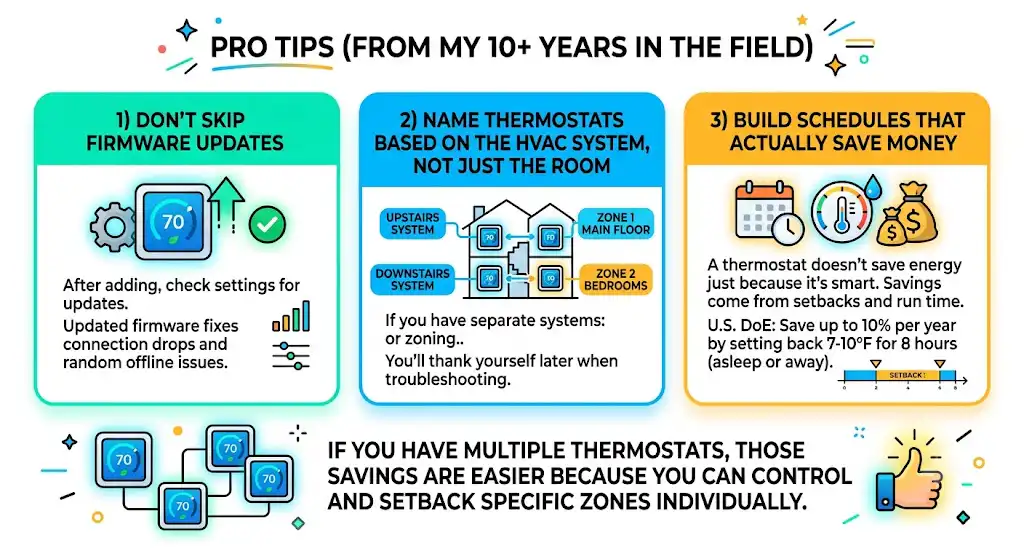
1) Don’t Skip Firmware Updates
After the thermostat is added, go into its settings and check for updates if the option exists. Updated firmware fixes connection drops and random offline issues.
2) Name Thermostats Based on the HVAC System, Not Just the Room
If you have two separate systems, I like:
- Upstairs system
- Downstairs system
If you have zoning:
- Zone 1 Main floor
- Zone 2 Bedrooms
You’ll thank yourself later when troubleshooting.
3) Build Schedules That Actually Save Money
A thermostat doesn’t save energy just because it’s smart. The savings come from setbacks and smarter run time.
A reliable benchmark: the U.S. Department of Energy notes you can save around up to 10 percent per year on heating and cooling by setting back temperatures 7 to 10 degrees Fahrenheit for about 8 hours per day (when you’re asleep or away).
If you have multiple thermostats, those savings are easier because you can reduce conditioning in unused zones.
Common Problems (And Fixes That Actually Work)
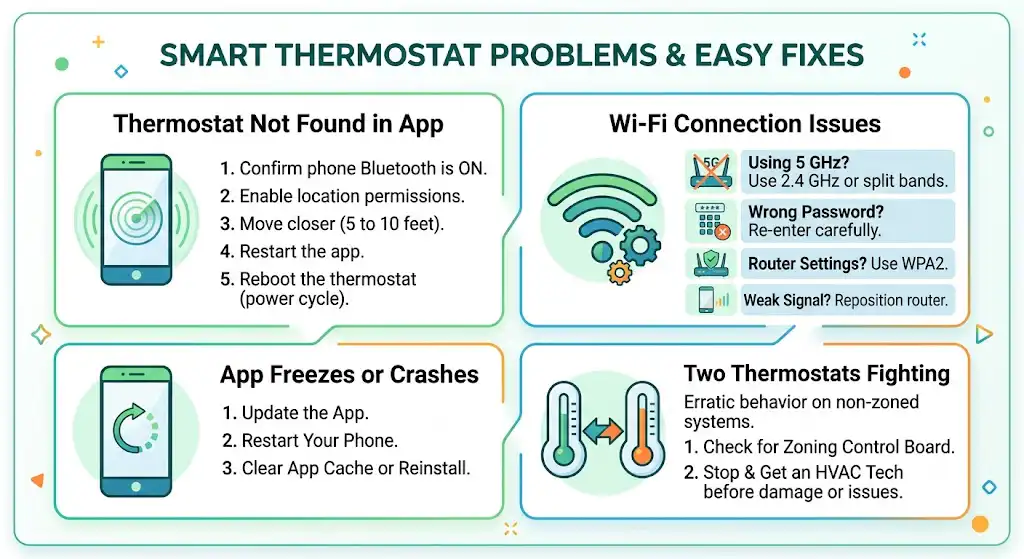
Thermostat Not Found in the App
Try this order:
- Confirm phone Bluetooth is ON.
- Enable location permissions for the app (especially Android).
- Move closer to the thermostat (within 5 to 10 feet).
- Restart the app.
- Reboot the thermostat (power cycle at the breaker if needed).
Won’t Connect to Wi‑Fi
This is usually one of these:
| Cause | What it looks like | Fix |
|---|---|---|
| Using 5 GHz network | Fails during Wi‑Fi selection or after password entry | Use 2.4 GHz or split bands temporarily |
| Wrong Wi‑Fi password | Quick failure after entering password | Re-enter carefully, watch capitals |
| Router security settings | Thermostat connects then drops | Use WPA2, avoid enterprise/captive portals |
| Weak signal | Connects sometimes, goes offline later | Move router, add mesh node, or improve signal |
App Freezes or Crashes
- Update the app
- Restart your phone
- Clear app cache (Android) or reinstall (iPhone/Android)
Two Thermostats Fighting Each Other
If you installed two thermostats on one system without a zoning panel, you can get erratic behavior.
What to do:
- Confirm whether you have a zoning control board
- If not zoned, stop and get an HVAC tech involved before equipment damage or comfort issues happen
Best Practices for Managing Multiple Thermostats in the App
Use One Account, One Home Location
Keep everything under one login, then use the “Location” feature to organize if you manage more than one property.
Set Different Schedules Per Floor
In real homes, upstairs and downstairs behave differently. You usually want:
- Upstairs cooling earlier in the day (heat rises)
- Downstairs heating differently (basements lag behind)
Turn On Alerts
If your model supports alerts, enable:
- Temperature alerts (freeze protection in winter)
- Filter reminders
- System status notifications
FAQ
Can I add more than two thermostats to the Honeywell app?
Yes, as long as each thermostat is compatible and connected to Wi‑Fi, you can typically add multiple thermostats under one account.
Do both thermostats need to be on the same Wi‑Fi?
Most of the time, yes, especially during setup. After setup, they just need reliable internet. If you’re adding thermostats at different properties, you can still manage them in the app, but each thermostat must connect to its own local Wi‑Fi.
Can I control upstairs and downstairs separately?
Yes, if you have:
Two separate HVAC systems, or
A zoned system with a zoning panel and multiple thermostats
If you’re unsure which you have, look near your furnace or air handler for a zone control board with multiple thermostat wires landing in it.
When I Recommend Calling a Pro
As a technician, I’m all for DIY when it’s safe. But call for help if:
- The thermostat won’t power on (likely wiring, transformer, fuse, float switch, or control board issue)
- You’re trying to run two thermostats on one non-zoned system
- You have unknown wires or the system short cycles after installation
A small wiring mistake can blow a low-voltage fuse or damage a control board, and that gets expensive fast.
Summary: Adding Another Honeywell Thermostat to the App
If you want the clean version:
- Connect your phone to 2.4 GHz Wi‑Fi
- Open Honeywell Home or Resideo
- Tap Plus sign or Add Device
- Put thermostat in setup/pairing mode (often shows BLE or setup)
- Enter PIN/code if asked
- Connect to Wi‑Fi
- Assign location and give it a clear name