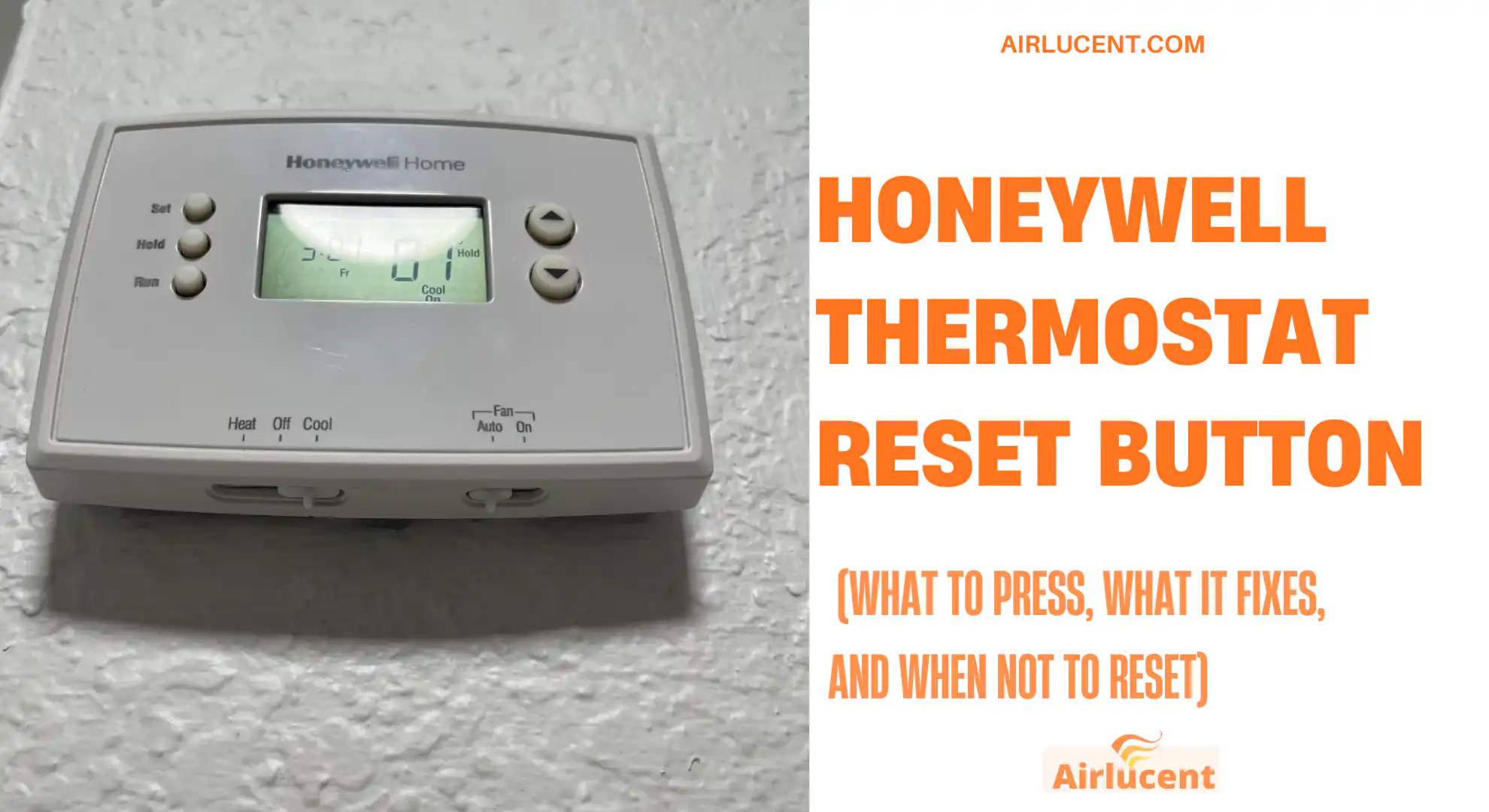
Hi, I’m Nathan. I’ve worked as an HVAC technician for over 10 years, and I’ve lost count of how many service calls ended with a simple thermostat reset. If your Honeywell thermostat is acting strange, reading the wrong temperature, refusing to connect to Wi-Fi, or the screen is frozen, resetting is often the fastest, safest first move you can make before you start chasing bigger HVAC issues.
Here’s the important thing most people don’t realize:
Most Honeywell thermostats do not have a single physical reset button.
Instead, Honeywell uses reset options in the menu, a button combination, a battery “power flip,” or a hidden installer menu depending on the model.
This guide walks you through all of it in plain language, with model-based instructions, troubleshooting tips I use in the field, and what to do after the reset so you’re not stuck reconfiguring everything blindly.
- What a Honeywell Thermostat Reset Actually Does
- When Resetting a Honeywell Thermostat Makes Sense
- Quick Safety Checklist Before You Reset (Do This First)
- Where Is the Honeywell Thermostat Reset Button?
- Reset Methods by Honeywell Thermostat Type (Most Common Models)
- Method 1: Reset From the Menu (T4, T5, T6 and Many Touchscreen Models)
- Method 2: Button Combination Reset (Common Honeywell Trick)
- Method 3: FocusPRO 6000 Factory Reset (Traditional Honeywell Reset Codes)
- Method 4: VisionPRO 8000 Factory Reset (Hidden Menu)
- Method 5: Basic Honeywell Thermostat Battery Reset (Reverse Polarity Trick)
- Method 6: Hard Reset (Power Cycle) If the Thermostat Is Glitched or Blank
- What to Do After a Reset (So You Don’t Create New Problems)
- Common Problems a Reset Fixes (and What It Will Not Fix)
- Troubleshooting Guide (Symptom to Solution)
- Real Stats That Matter (Thermostat Settings and Comfort)
- When You Should Not Keep Resetting
- How to Reset the Lock on a Honeywell Thermostat
- FAQs
- Final Thoughts From Me
What a Honeywell Thermostat Reset Actually Does
A reset is basically a controlled reboot. Depending on the reset type, it can:
- Clear software glitches and frozen screens
- Recalibrate or reinitialize sensors and system logic
- Restore factory defaults (wipes schedules and custom settings)
- Reset Wi-Fi and smart-home pairing on some smart models
Soft reset vs factory reset (big difference)
- Soft reset (restart or power cycle): Keeps most of your settings. Best for minor glitches.
- Factory reset: Returns the thermostat to default settings. This can remove schedules, Wi-Fi pairing, equipment setup, and preferences.
When Resetting a Honeywell Thermostat Makes Sense

These are the most common scenarios I see in real homes:
1) The display is frozen or the thermostat is unresponsive
A reset can restore normal touch or button response.
2) The temperature reading is clearly wrong
If it says 70°F but the room feels like 78°F, a reset can clear sensor glitches. (If it’s consistently wrong, placement or airflow issues may be the real cause, more on that later.)
3) Wi-Fi or app issues (smart thermostats)
If you’re getting constant disconnects, failure to register, or the app can’t see the thermostat, a reset often brings the radio and pairing process back to normal.
4) After changing batteries
Some battery-powered Honeywell models behave oddly right after replacement. A restart or battery reset usually cleans that up.
5) Seasonal changeover problems
Switching from heating season to cooling season exposes settings mistakes fast. A reset can help, especially after power outages.
6) You bought a house and want a clean slate
Factory reset is ideal when you inherit someone else’s schedules, lock codes, or weird configuration choices.
Quick Safety Checklist Before You Reset (Do This First)
I’m big on preventing avoidable damage and confusion. Before you reset, do this:
| Take a photo of your current settings and wiring (if accessible) | Helps you restore schedules and avoids wiring guesswork |
| Set your HVAC system to Off at the thermostat | Prevents a call for heat or cool mid-reset |
| If you’ll remove the thermostat from the wall, turn off power at the furnace or breaker | Protects the control board, especially if you have a C wire |
| Confirm your model name/series | Reset steps vary a lot by series |
If you don’t know your model, pull the thermostat straight off the wall plate (most snap off) and look for a label on the back/
Where Is the Honeywell Thermostat Reset Button?
Here’s the honest answer from the field:
- Older basic thermostats might not have any reset option in menus, but you can “reset” them using a battery trick.
- Programmable and touchscreen models usually have a reset option under Menu or Settings.
- Some Honeywell models use a button combo like Fan + Up Arrow to access reset functions.
- Some traditional models use an installer menu with code numbers (the “hidden” setup screen).
Reset Methods by Honeywell Thermostat Type (Most Common Models)
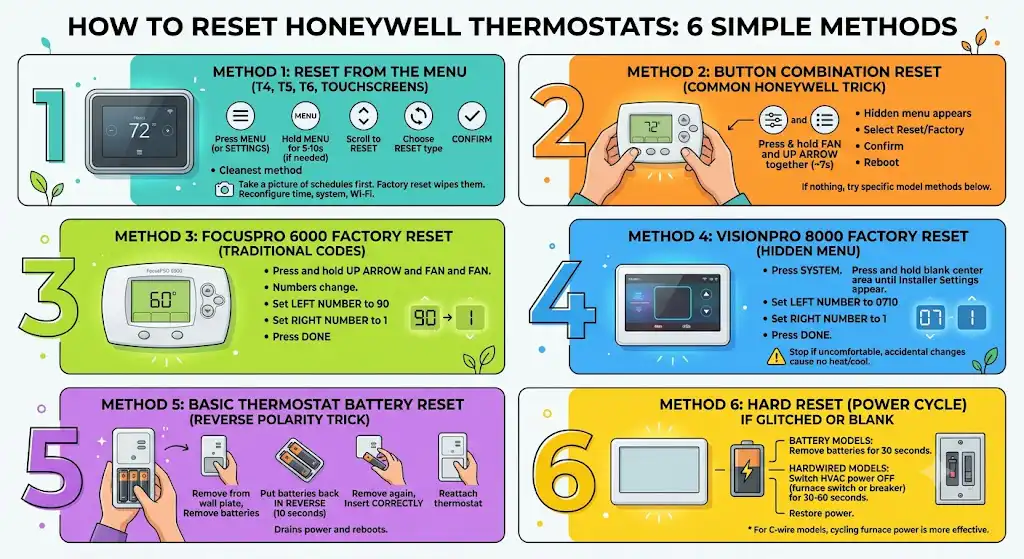
Use this table to jump to the right method.
| T4, T5, T6 (programmable, many touchscreen models) | Menu reset or Fan + Up Arrow combo | Wi-Fi issues, glitches, general problems |
| FocusPRO 6000 | Installer menu numbers (set 90 and 1) | Full factory reset |
| VisionPRO 8000 | Hidden installer menu (0710 and 1) | Factory reset and setup cleanup |
| Basic non-programmable battery models | Battery reverse-polarity reset | Blank screen, stuck logic, weird behavior |
| Any model (universal) | Power cycle (off at breaker or remove batteries) | Quick “soft reset” for minor issues |
Method 1: Reset From the Menu (T4, T5, T6 and Many Touchscreen Models)
This is the cleanest method when your thermostat supports it.
Steps
- Press Menu (or Settings).
- Hold Menu for 5 to 10 seconds if needed to enter advanced options.
- Scroll until you see Reset.
- Choose the reset type (often Factory Reset).
- Confirm.
- When it restarts, reconfigure date, time, system type, and Wi-Fi if applicable.
If you rely on schedules, take a picture first. A factory reset usually wipes them.
Method 2: Button Combination Reset (Common Honeywell Trick)
Many Honeywell thermostats allow a reset menu via a two-button hold.
Steps (common on several models)
- Press and hold Fan and the Up Arrow together for about 7 seconds.
- A hidden reset or setup screen should appear.
- Select Reset or Factory options if shown.
- Confirm and allow the thermostat to reboot.
If nothing happens after 7 to 10 seconds, your model likely uses a different method (or you’re not on a compatible screen). Move to the model-specific resets below.
Method 3: FocusPRO 6000 Factory Reset (Traditional Honeywell Reset Codes)
I see FocusPRO 6000 thermostats constantly in older homes and rentals. The reset is not obvious, but it works when done correctly.
Steps (FocusPRO 6000)
- Press and hold Up Arrow and Fan together.
- You’ll see numbers change on the screen.
- Set the left number to 90.
- Set the right number to 1.
- Press Done.
That restores factory defaults.
Method 4: VisionPRO 8000 Factory Reset (Hidden Menu)
VisionPRO 8000 models use a hidden screen area to access the installer menu.
Steps (VisionPRO 8000)
- Press System.
- Press and hold the blank center area on the screen (middle button area) until installer settings appear.
- Set the left number to 0710.
- Set the right number to 1.
- Press Done.
If you’re not comfortable changing installer codes, stop here and take a photo before you change anything else. I’ve fixed a lot of “no heat” calls caused by an accidental setup change in this menu.
Method 5: Basic Honeywell Thermostat Battery Reset (Reverse Polarity Trick)
For simple battery-powered Honeywell thermostats with no menu reset, this is the classic.
Steps
- Remove the thermostat from the wall plate.
- Remove the batteries.
- Put the batteries back in backwards (reverse polarity) for 10 seconds.
- Remove them again.
- Reinsert the batteries correctly.
- Reattach the thermostat.
This drains stored power and forces a clean reboot.
Method 6: Hard Reset (Power Cycle) If the Thermostat Is Glitched or Blank
If your thermostat is blank or locked up, a hard reset is often step one.
Options
- Battery models: remove batteries for 30 seconds, reinstall
- Hardwired models: switch HVAC equipment power off at the furnace switch or breaker for 30 to 60 seconds, then restore power
Important: If your thermostat is powered by a C wire and your furnace control board, cycling the furnace power is usually more effective than just popping the thermostat off.
What to Do After a Reset (So You Don’t Create New Problems)
After a factory reset, your thermostat may not know what equipment you have. That matters.
Post-reset setup checklist
| Heat type (gas, electric, heat pump) | Wrong selection can cause short cycling or no heat |
| Fan control (equipment vs thermostat) | Prevents fan running nonstop or not running when it should |
| Schedule and temperature holds | Keeps comfort consistent and avoids surprise temperature swings |
| Wi-Fi connection and app pairing | Restores remote control features |
| Date and time | Prevents schedule from running at the wrong hours |
If you have a heat pump, don’t guess. Incorrect heat pump configuration is one of the fastest ways to end up with “it blows cold air in heat mode” complaints.
Common Problems a Reset Fixes (and What It Will Not Fix)
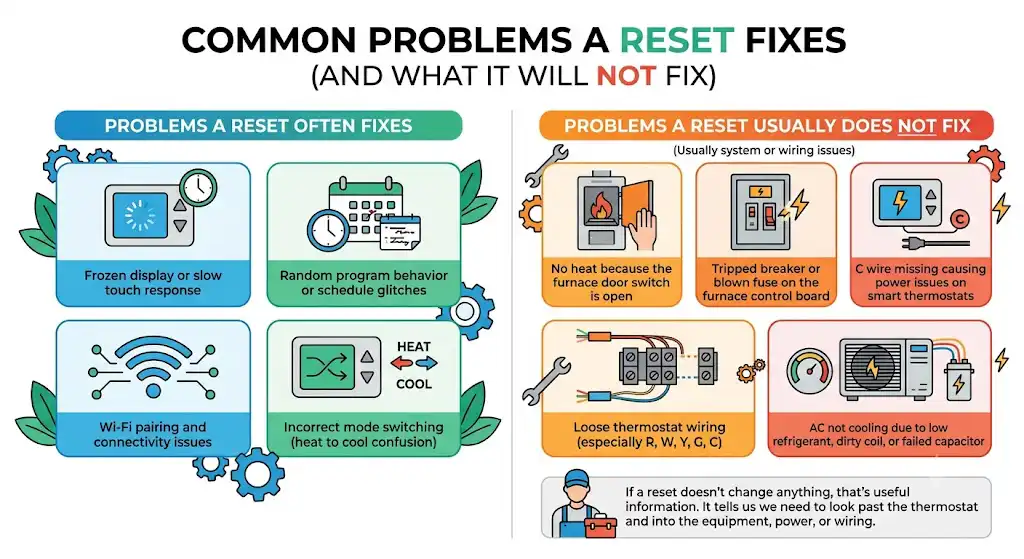
Problems a reset often fixes
- Frozen display or slow touch response
- Random program behavior or schedule glitches
- Wi-Fi pairing and connectivity issues (especially after router changes)
- Incorrect mode switching (heat to cool confusion due to software hiccups)
Problems a reset usually does not fix
From my HVAC service experience, these are usually system or wiring issues, not thermostat software:
- No heat because the furnace door switch is open
- Tripped breaker or blown fuse on the furnace control board
- C wire missing causing power issues on smart thermostats
- Loose thermostat wiring (especially R, W, Y, G, C)
- AC not cooling due to low refrigerant, dirty coil, or failed capacitor
If a reset doesn’t change anything, that’s useful information. It often tells me we need to look past the thermostat and into the equipment, power, or wiring.
Troubleshooting Guide (Symptom to Solution)
| Thermostat screen is blank | Check batteries or breaker, then power cycle | Check furnace switch, door panel, 3A fuse |
| Wrong temperature reading | Reset, then wait 20 to 30 minutes | Check placement, drafts, return air proximity |
| Won’t connect to Wi-Fi | Reset Wi-Fi/router, then thermostat reset | Confirm 2.4 GHz network, re-register in app |
| Heat or AC won’t turn on | Check mode, setpoint, and power cycle | Check wiring, float switch, safety switches |
| Fan runs constantly | Check fan setting Auto vs On | Confirm wiring and equipment fan control setup |
| Schedule disappeared | Factory reset likely wiped it | Rebuild schedule or restore from app if supported |
Real Stats That Matter (Thermostat Settings and Comfort)
I like to keep things practical. Resets are about restoring control, but proper setup is where you win long-term.
- ENERGY STAR notes that using a properly programmed thermostat can reduce heating and cooling costs by around 10 percent per year depending on how it’s used and the home. That only happens if the thermostat is set up correctly after a reset.
- In my day-to-day work, a big chunk of “HVAC not working” complaints end up being power, thermostat configuration, or simple control issues rather than major component failure.
If you reset and then reconfigure carefully, you often save yourself an unnecessary service call.
When You Should Not Keep Resetting
I’m going to be direct here because I’ve seen homeowners get stuck in a reset loop.
Don’t keep factory resetting if:
- The screen keeps going blank (likely power problem)
- Wi-Fi fails repeatedly (network settings, router band, or thermostat radio issue)
- Your system still won’t heat or cool after you confirm correct settings (may be an HVAC equipment fault)
- The thermostat reboots randomly (often a C-wire or voltage stability issue)
At that point, resetting is no longer troubleshooting. It’s just wiping clues.
How to Reset the Lock on a Honeywell Thermostat
Lock settings vary by model, but here’s the common approach:
- Press and hold Menu for 5 to 10 seconds.
- Look for Lock or Security settings.
- If prompted for a code, try the default commonly used on some models such as 1234 or 0000 (only if you never set a custom code).
- Choose Unlock or Reset Lock.
If you inherited a lock code (new house, rental, prior owner), a factory reset may be required to remove it, but some models still retain security settings. In that case, model-specific documentation or Honeywell support is the cleanest route.
FAQs
What is a hard reset on a Honeywell thermostat?
A hard reset usually means removing power:
- Remove batteries for 30 seconds, or
- Turn off HVAC power at the furnace switch or breaker for 30 to 60 seconds
My Honeywell thermostat is unresponsive. What should I do?
- Confirm it has power (batteries or breaker).
- Power cycle it.
- If it comes back on, do a menu reset if needed.
- If it stays dead, check the furnace door switch, fuse, and wiring.
Will resetting delete my schedule and settings?
A factory reset usually will. A simple power cycle usually won’t. When in doubt, assume factory reset wipes schedules and take a photo first.
Final Thoughts From Me
If your Honeywell thermostat is acting weird, a reset is often the fastest way to get your comfort back without guessing or wasting money. The key is choosing the right reset method for your model and knowing when the thermostat is not the real problem.