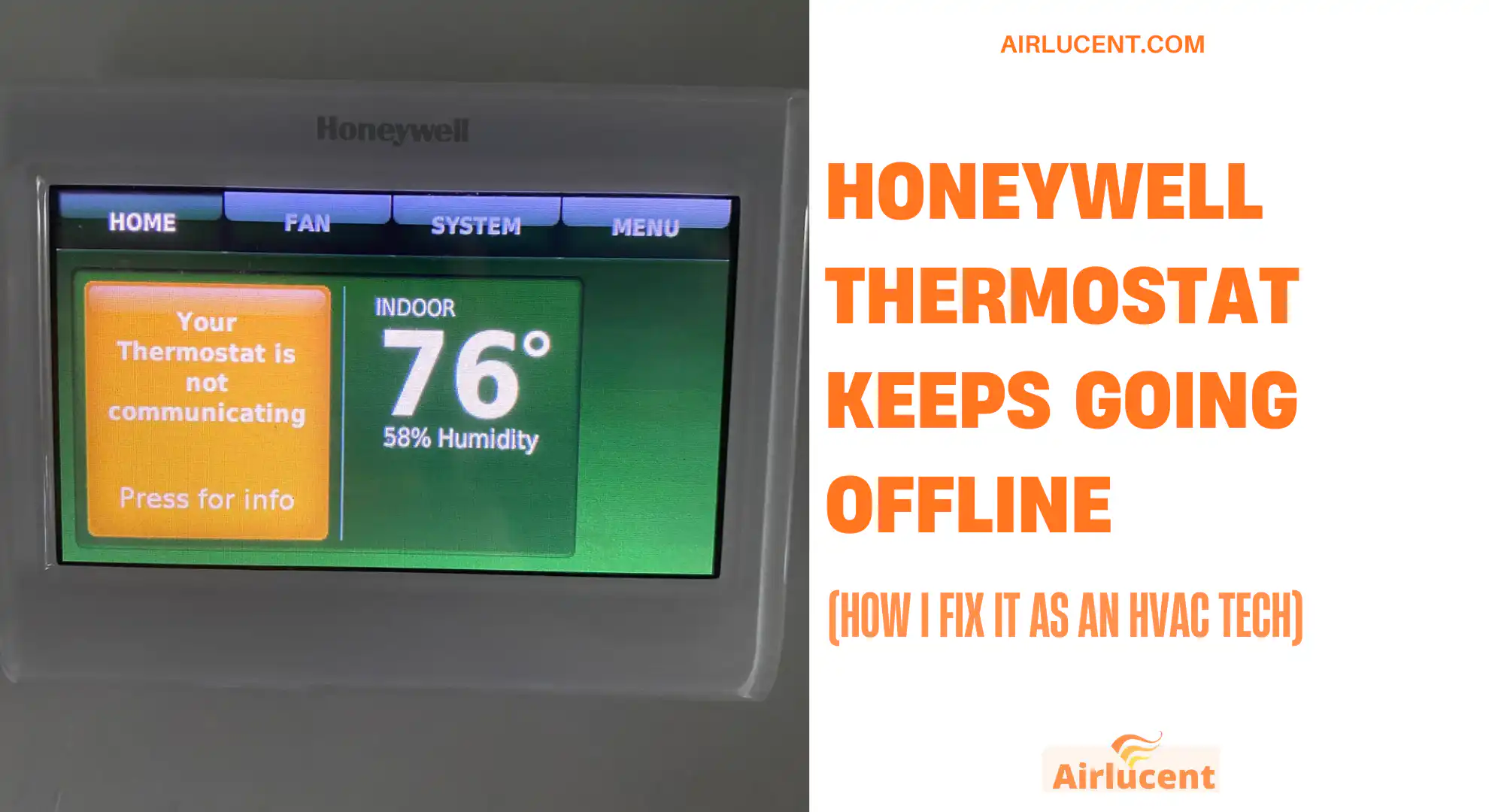
Hi, I’m Nathan. I’ve worked as an HVAC technician for over 10 years, and “my Honeywell thermostat keeps going offline” is one of the most common smart-thermostat complaints I get from homeowners. The good news is that this issue is usually fixable without replacing the thermostat.
Below is the exact troubleshooting flow I use so you can get your Honeywell back online and keep it online.
- Common causes and best fixes (at a glance)
- Step 1: Restart the router (and do it the right way)
- Step 2: Confirm the thermostat is actually within Wi-Fi range
- Step 3: Make sure you’re on 2.4 GHz (this is a big one)
- Step 4: Check whether the issue is your ISP (internet provider)
- Step 5: Check thermostat power and the C-wire (even if the screen looks fine)
- Step 6: Power cycle the thermostat to reset the Wi-Fi radio
- Step 7: Check the thermostat’s IP address (this tells you what’s really happening)
- Step 8: App and cloud sync fixes (thermostat online, app says offline)
- Step 9: Update the thermostat firmware (and the router firmware)
- Step 10: Reconnect Wi-Fi on the thermostat (Change Network)
- Step 11: Factory reset (last resort)
- Extra fixes that matter in real homes (but most guides skip)
- My recommended troubleshooting order (print this)
- When to call an HVAC tech (and what to tell them)
- Final thoughts (from my experience)
Common causes and best fixes (at a glance)
| Thermostat goes offline randomly, then returns | Dual-band band steering switching 2.4/5 GHz | Split Wi-Fi names and connect thermostat to 2.4 GHz |
| App says offline but thermostat looks connected | App token or cloud sync issue | Force close app, log out and back in, reinstall app if needed |
| Offline after a power outage | Router hung or thermostat Wi-Fi radio needs a reset | Power cycle thermostat and router |
| Offline frequently, especially at night | Weak signal or interference | Improve router placement or add a quality mesh node near thermostat |
| Screen is on, but it won’t stay online | C-wire loose or unstable power | Check C-wire at thermostat and at HVAC control board |
| Connects to Wi-Fi but no internet | DHCP/IP issue on router | Confirm IP address and DHCP settings |
Step 1: Restart the router (and do it the right way)

Routers run 24/7 and they freeze more often than people think. A simple restart clears temporary memory and reassigns connections.
What I recommend
- Unplug the router (and modem if you have a separate one)
- Wait 30 seconds
- Plug modem in first (wait until fully online)
- Plug router in next
Step 2: Confirm the thermostat is actually within Wi-Fi range
A Honeywell thermostat may connect with a weak signal, but it won’t stay stable.
Real-world signal targets I use on service calls
- Strong connection: -30 to -60 dBm
- Usually stable: -61 to -67 dBm
- Often drops offline: -68 dBm or weaker
Easy way to test without tools
Stand next to the thermostat with your phone and check Wi-Fi strength. If your phone struggles there, the thermostat will struggle too.
What to do if signal is weak
- Move the router more central (even a few feet helps)
- Avoid placing the router behind TVs, metal objects, or inside cabinets
- Add a mesh node or extender (preferably a mesh system, not a cheap repeater)
Tip from the field: If the thermostat is on an exterior wall, that insulation and framing can reduce signal more than you’d expect.
Step 3: Make sure you’re on 2.4 GHz (this is a big one)
This is one of the top long-term causes of “keeps going offline.”
Many Honeywell/Resideo thermostats are 2.4 GHz only. If your router uses one Wi-Fi name for both bands (band steering), the router may “helpfully” push devices between 2.4 and 5 GHz. Some thermostats don’t handle that well and will drop.
What I do for homeowners
- Create two Wi-Fi names:
- HomeWiFi 2.4
- HomeWiFi 5
- Connect the thermostat to HomeWiFi 2.4
If you’re using a mesh system, look for settings like:
- Band steering
- Smart connect
- Auto-switch to best band
Step 4: Check whether the issue is your ISP (internet provider)
If Wi-Fi is working but the internet is down, the thermostat will appear offline in the app.
Quick test
- Connect your phone to the same Wi-Fi
- Open a few live websites or stream a short video
If other devices also have no internet, you’re looking at an ISP outage or modem issue. In that case:
- Power cycle modem and router
- If still down, contact your ISP
Step 5: Check thermostat power and the C-wire (even if the screen looks fine)
This is the part most DIY guides miss: your thermostat can look “on” but still have unstable power that knocks the Wi-Fi radio offline.
What to look for
- A C-wire (common wire) connected at the thermostat
- A secure C-wire connection at the HVAC control board (furnace/air handler)
If your C-wire is loose, the thermostat may reboot its Wi-Fi chip or fail to maintain a connection even though the display stays active.
Basic wiring check (safe version)
- Turn off power to the HVAC system at the breaker
- Remove thermostat from wall plate
- Confirm the C terminal has a wire firmly connected
- Put thermostat back, restore power
If you’re comfortable opening your furnace panel, check that the C-wire is also tight at the control board. If you’re not comfortable, this is a good moment to call a pro.
Step 6: Power cycle the thermostat to reset the Wi-Fi radio
Resideo (Honeywell Home) commonly recommends removing the faceplate to reset connectivity.
The method that works most often
- Pull the thermostat off the wall plate
- Wait 30 seconds
- Reattach
- Wait up to 2 minutes and re-check Wi-Fi status
This clears short-term memory and forces the Wi-Fi module to reinitialize.
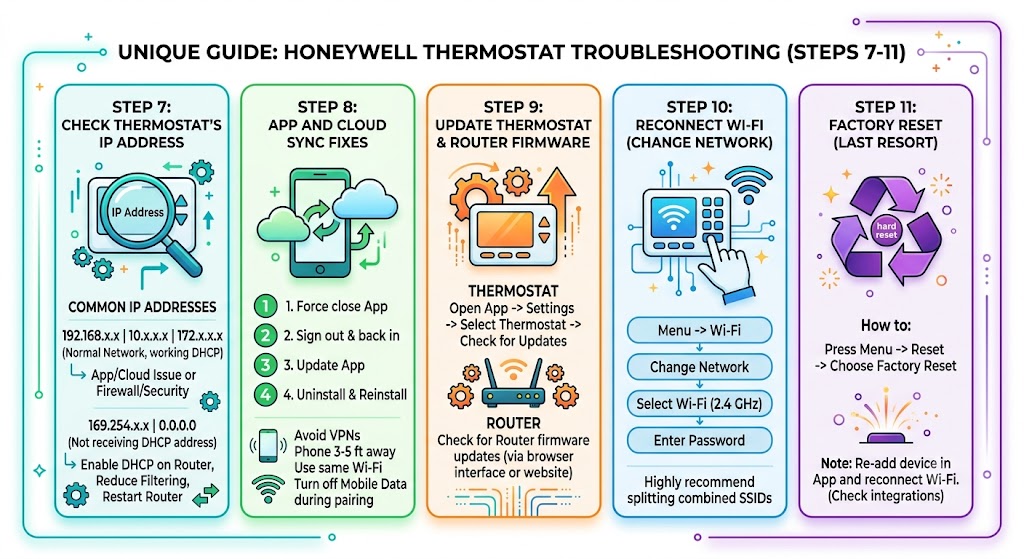
Step 7: Check the thermostat’s IP address (this tells you what’s really happening)
If your thermostat shows it’s connected to Wi-Fi but still appears offline, the IP address can reveal whether it’s getting internet access.
How to interpret common IP addresses
| 192.168.x.x or 10.x.x.x or 172.x.x.x | Normal home network IP (DHCP working) | App/cloud issue or firewall/security setting |
| 169.254.x.x or 0.0.0.0 | Not receiving a proper DHCP address | Enable DHCP on router, reduce security filtering, restart router |
If you see 169.254.x.x, the thermostat is basically saying: I can talk to the Wi-Fi network, but I’m not being given a usable network address to reach the internet.
Router setting that matters here
- DHCP must be enabled
Honeywell connected devices typically behave best on standard home DHCP settings (not static IP rules unless configured correctly).
Step 8: App and cloud sync fixes (thermostat online, app says offline)
I see this a lot: the thermostat is connected, but the app lags behind.
What I do in this order
- Force close the app (don’t just minimize it)
- Reopen and sign out and back in
- Update the app
- If still stuck, uninstall and reinstall
Also avoid VPN apps during setup. In the field, I’ve seen VPNs, privacy filters, and “smart network switching” settings block pairing or control.
If you’re pairing:
- Keep your phone 3 to 5 feet from the thermostat
- Turn off mobile data temporarily, and stay on the same Wi-Fi network you want the thermostat on
Step 9: Update the thermostat firmware (and the router firmware)
Many Honeywell thermostats update automatically, but if you’re stuck in an offline loop, a pending update or glitch can be part of it.
On the Honeywell Home or Resideo app (typical process)
- Open the app
- Go to Settings
- Select your thermostat
- Check for updates (if available)
Step 10: Reconnect Wi-Fi on the thermostat (Change Network)
If the network password changed, the router was replaced, or the thermostat latched onto the wrong band, reconnecting cleanly helps.
Typical thermostat steps
- Menu
- Wi-Fi
- Change Network
- Select your Wi-Fi (2.4 GHz)
- Enter password
Step 11: Factory reset (last resort)
If none of the above works, a factory reset can clear corrupted network settings. The exact steps vary by model, but many Honeywell models follow this general path:
- Press Menu
- Scroll to Reset
- Choose Factory Reset
After reset, you’ll need to re-add the thermostat in the app and reconnect Wi-Fi.
Note: If your thermostat is part of a home automation setup, a factory reset may require re-linking those integrations too.
Extra fixes that matter in real homes (but most guides skip)
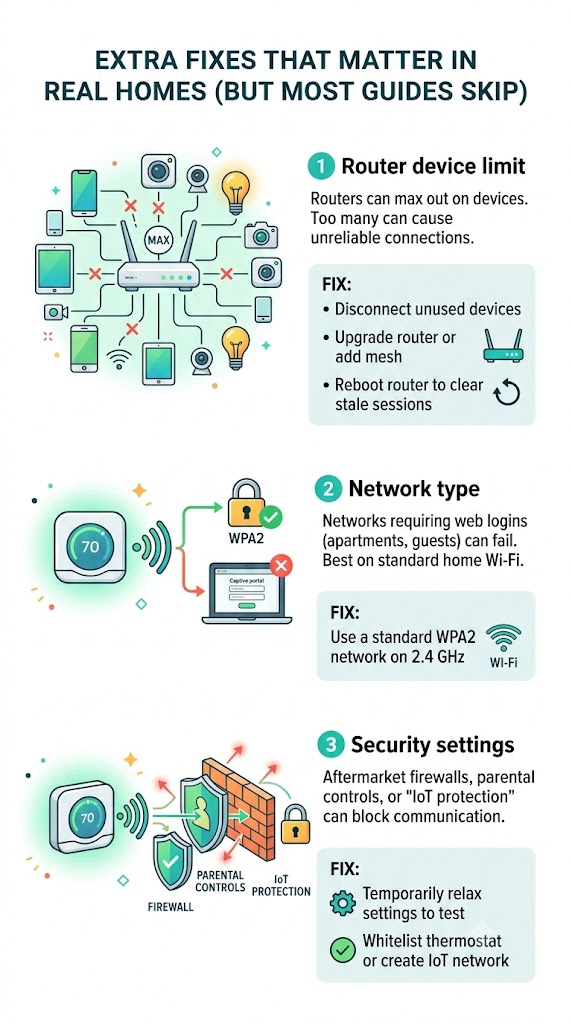
1) Router device limit
Some routers max out on connected devices. If you’ve got a lot of smart devices, cameras, and phones, the router may stop assigning new connections reliably.
Fix:
- Disconnect unused devices
- Upgrade router or add mesh
- Reboot router to clear stale sessions
2) Network type
Honeywell thermostats generally work best on standard home Wi-Fi. Networks that require a web login page (common in apartments, guest networks, and some business Wi-Fi) can fail.
Fix:
- Use a standard WPA2 network on 2.4 GHz
3) Security settings
Aftermarket firewalls, aggressive parental controls, or some “IoT protection” features can block communication.
Fix:
- Temporarily relax those settings to test
- If needed, whitelist the thermostat or create an IoT network
My recommended troubleshooting order (print this)
- Confirm internet works on another device
- Power cycle thermostat (off wall 30 seconds)
- Restart modem and router
- Split Wi-Fi bands and connect to 2.4 GHz
- Check signal strength at thermostat location
- Verify C-wire and stable power
- Check thermostat IP address and confirm DHCP
- Fix app sync (log out/in, reinstall)
- Firmware update (thermostat and router)
- Factory reset
When to call an HVAC tech (and what to tell them)
Call a pro if:
- You suspect a loose C-wire at the control board
- The thermostat powers on but repeatedly disconnects despite strong Wi-Fi
- You’re seeing other HVAC symptoms (system short cycling, not heating/cooling properly)
What to tell your technician (this speeds up the visit):
- Thermostat model
- App you use (Honeywell Home, Resideo, Total Connect Comfort)
- Whether your Wi-Fi name is shared between 2.4 and 5
- Any IP address info you found
- Whether the C-wire is connected at the thermostat
Final thoughts (from my experience)
When a Honeywell thermostat keeps going offline, it’s rarely a “bad thermostat.” In most homes I work in, the permanent fix is either:
- Locking the thermostat to a dedicated 2.4 GHz network, or
- Fixing unstable power at the thermostat (usually C-wire related), or
- Cleaning up router behavior like DHCP issues or band steering.