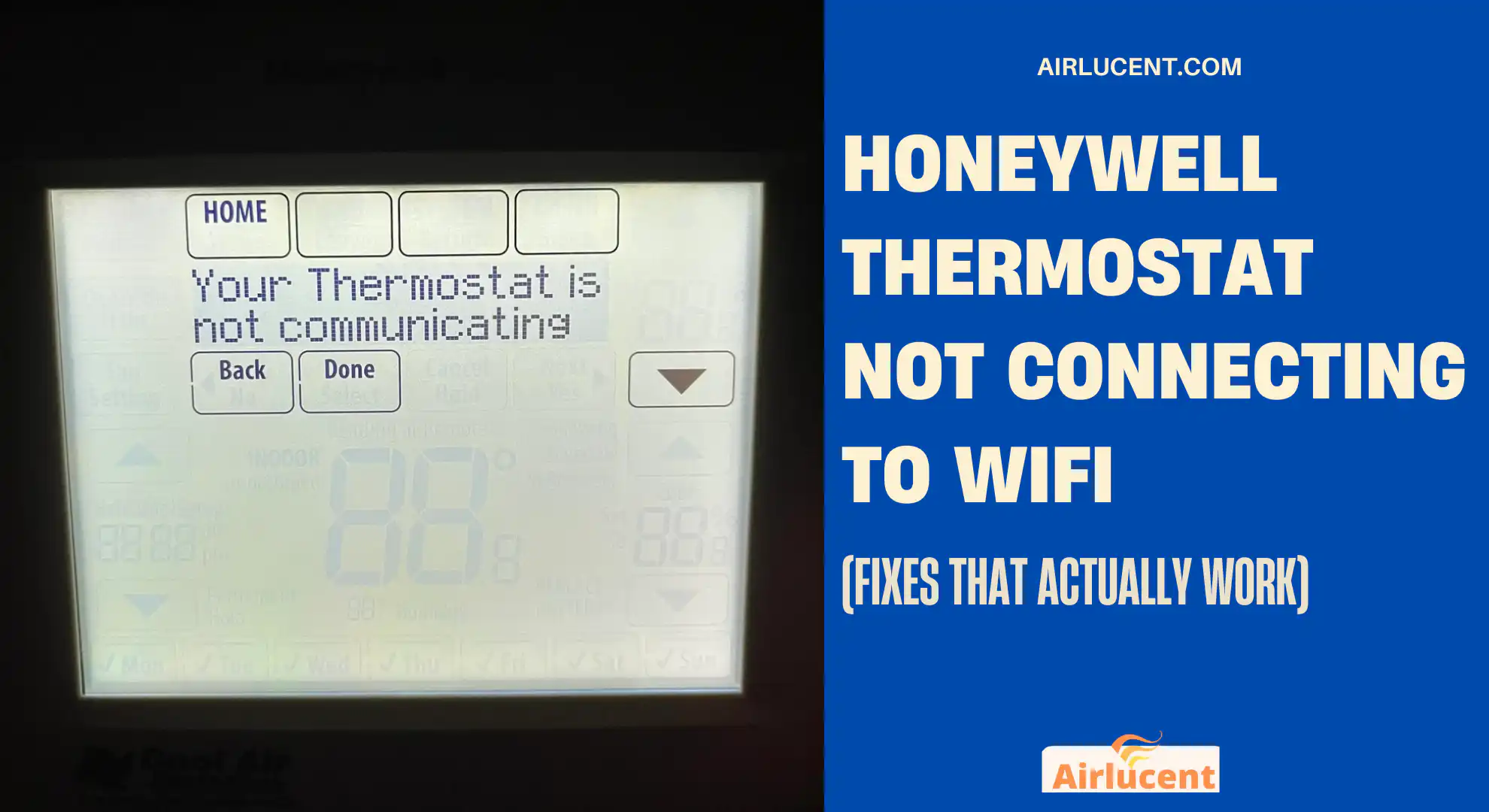
Hi, I’m Nathan. I’ve been an HVAC technician for over 10 years, and I’ve helpeda lot of homeowners get Honeywell thermostats back online after the dreaded WiFi disconnect. The good news is that most “not connecting to WiFi” issues are caused by a small handful of problems you can fix yourself in 10 to 30 minutes.
In this guide, I’ll walk you through the same troubleshooting steps I use on service calls, in the right order, so you don’t waste time.
- Why WiFi matters on a Honeywell thermostat (and what you lose without it)
- Before troubleshooting: confirm your thermostat model and app
- The most common causes (and the fastest fix)
- Step-by-step troubleshooting (in the order I recommend)
- Step 1: Confirm your home WiFi is actually stable
- Step 2: Make sure you’re using 2.4 GHz (this is the big one)
- Step 3: Power cycle the thermostat (the right way)
- Step 4: Reconnect WiFi cleanly (forget network first)
- Step 5: Fix router settings that block smart devices
- Step 6: Extenders and mesh systems (common setup trap)
- Step 7: App-side fixes (don’t skip this)
- Step 8: Firmware updates (thermostat and router)
- Step 9: Factory reset (last resort)
- When it’s time to call for help (and who to call)
- Prevent future WiFi drops (what I recommend in real homes)
- FAQ: Honeywell thermostat WiFi issues
Why WiFi matters on a Honeywell thermostat (and what you lose without it)
When your thermostat is offline, it still heats and cools your home, but you usually lose the features that make it “smart”:
- Remote control from your phone (change temperature while you’re away)
- Smart home integration (Alexa, Google Home, routines)
- Alerts (temperature alerts, system notifications)
- Energy insights and scheduling tweaks based on usage
- Automatic firmware updates
Before troubleshooting: confirm your thermostat model and app
Honeywell WiFi thermostats are commonly managed in:
- Resideo / Honeywell Home app (many T-series models)
- Total Connect Comfort (some older WiFi models)
The most common causes (and the fastest fix)
Here’s the exact pattern I see most often in homes.
Common causes and fixes table
| Thermostat sees WiFi but won’t connect | Wrong password or 5 GHz band | Re-enter password carefully, use 2.4 GHz, separate SSIDs |
| Thermostat won’t even see your WiFi name | Weak signal or router band steering | Improve signal, move router, temporarily disable band steering, test 2.4 GHz |
| Connected before, now offline | Router changed, new password, firmware glitch | Reboot router + thermostat, “Forget network” then reconnect |
| Stuck at “Connecting…” | WPA3-only, enterprise/guest captive portal, extender confusion | Set WPA2/WPA2-WPA3 mixed, avoid guest networks, connect to main router first |
| App can’t find thermostat | Phone permissions or Bluetooth/location issue | Allow permissions, toggle Bluetooth/WiFi, reinstall app |
| Drops connection randomly | Weak signal, interference, mesh node handoff | Add extender/mesh node, lock 2.4 IoT network, adjust placement |
Step-by-step troubleshooting (in the order I recommend)
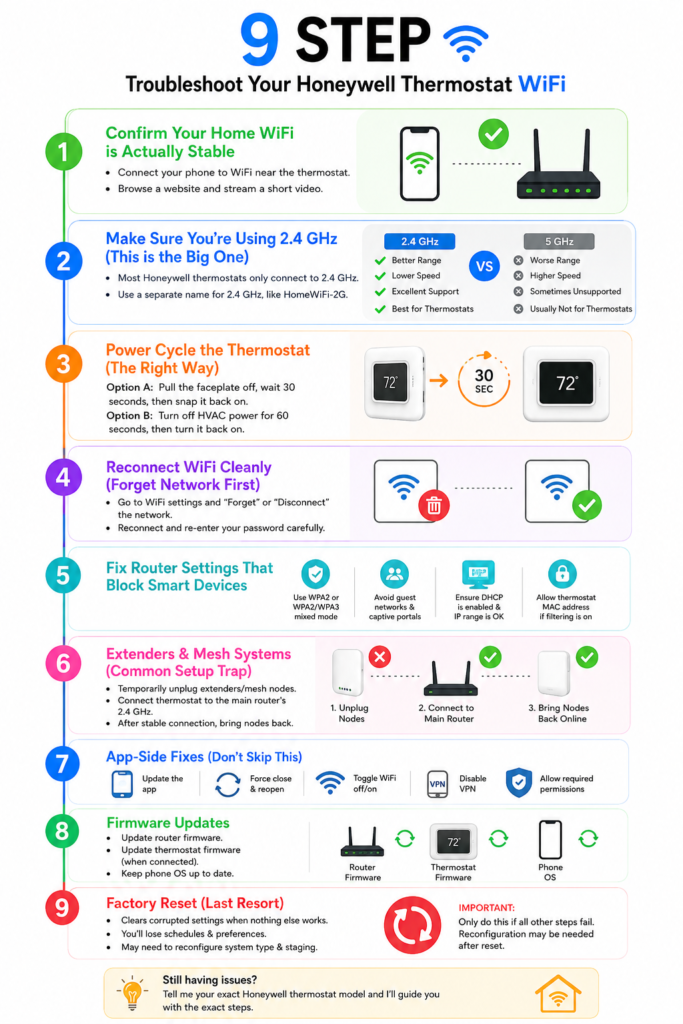
Step 1: Confirm your home WiFi is actually stable
This sounds basic, but it matters.
1A. Test the internet and WiFi
Stand near the thermostat with your phone and:
- Connect to your WiFi
- Load a website and stream a short video
If your phone struggles there too, your thermostat is not the problem. You need better coverage in that area.
1B. Reboot modem and router properly
I recommend this order:
- Unplug modem and router
- Wait 30 seconds
- Plug in modem first, wait until fully online
- Plug in router, wait 2 to 3 minutes
A “quick reset” fixes a surprising number of DHCP and routing hiccups.
Step 2: Make sure you’re using 2.4 GHz (this is the big one)
Most Honeywell thermostats only connect to 2.4 GHz WiFi.
Why 2.4 GHz matters (simple comparison)
| Range through walls | Better | Worse |
| Speed | Lower | Higher |
| Common smart device support | Excellent | Sometimes unsupported |
| Best for thermostats | Yes | Usually no |
What I want you to check in your router settings
- Your router should broadcast 2.4 GHz
- Ideally give 2.4 GHz a different name, like:
- HomeWiFi-2G
- HomeWiFi-5G
Step 3: Power cycle the thermostat (the right way)
Different Honeywell models vary, but these two approaches cover most:
Option A: Pull the faceplate (common and safe)
- Pull the thermostat straight off the wall plate
- Wait 30 seconds
- Snap it back on
This clears minor software glitches and forces a fresh WiFi handshake.
Option B: Turn off HVAC power (if needed)
If it’s hardwired or acting frozen:
- Turn off the furnace/air handler switch or breaker for 60 seconds
- Turn it back on
If you’re not comfortable doing that, skip it and continue below
Step 4: Reconnect WiFi cleanly (forget network first)
If it connected before but won’t now, I like to “wipe and rejoin.”
On the thermostat
Look for something like:
- WiFi settings
- Network
- Disconnect / Forget
Then reconnect and re-enter your password carefully.
On some Honeywell models: WiFi reset via installer option
Some Honeywell thermostats have an installer menu where a WiFi profile can be reset. A common example homeowners run into is:
- Enter Installer Setup (varies by model)
- Find Function/Option 39
- Set it to 0 to reset WiFi settings
Important: Honeywell models differ a lot. If you tell me your exact model, I can give you the correct button sequence without guessing.
Step 5: Fix router settings that block smart devices
This is where I see a lot of “everything else works, but not the thermostat.”
5A. Security mode: use WPA2 (or WPA2/WPA3 mixed)
Many IoT devices dislike:
- WPA3-only
- enterprise authentication (802.1x)
Best compatibility setting:
- WPA2-Personal (AES)
or - WPA2/WPA3 mixed mode
5B. Avoid guest networks and captive portals
Thermostats can’t complete logins that require:
- “Accept Terms and Conditions”
- web pop-up portal sign-ins
Use your normal home SSID, not guest.
5C. DHCP and IP address issues
If your router is low on available IP addresses, devices fail silently.
- Make sure DHCP is enabled
- Increase DHCP range if needed
- Rebooting the router often clears conflicts
5D. MAC address filtering (Access Control)
If your router only allows approved devices:
- Find the thermostat’s MAC address (in network settings)
- Add it to the allowed list
Step 6: Extenders and mesh systems (common setup trap)
I install and troubleshoot a lot of homes with mesh WiFi. The most common mistake is pairing the thermostat to an extender node that later shifts channels or hands off poorly.
What I recommend for initial setup
- Temporarily unplug extenders/extra mesh nodes
- Connect the thermostat directly to the main router’s 2.4 GHz
- After it’s stable, bring nodes back online
Step 7: App-side fixes (don’t skip this)
Sometimes the thermostat is fine, but the app setup fails.
Try these quick fixes
- Update the Honeywell Home/Resideo app
- Force close and reopen the app
- Toggle your phone’s WiFi off/on
- Temporarily disable VPN
- Ensure permissions are allowed (common on Android):
- Location (often required for Bluetooth discovery)
- Bluetooth
- Local network access (iPhone)
If setup still fails, uninstall and reinstall the app.
Step 8: Firmware updates (thermostat and router)
Outdated firmware can cause connection failures after router updates.
What to update
- Router firmware (in router admin panel)
- Thermostat firmware (if accessible once connected)
- Phone OS (occasionally impacts pairing)
Step 9: Factory reset (last resort)
If you’ve tried everything and it still won’t connect, a factory reset can clear corrupted settings.
What to know before you do it:
- You’ll lose schedules, preferences, and equipment settings
- You may need to reconfigure system type and staging on certain installs
If you’re not sure your system is set up correctly (heat pump vs gas furnace, O/B reversing valve, staging), this is where I recommend caution. I’ve fixed comfort issues caused by incorrect reconfiguration after a reset.
Troubleshooting checklist you can screenshot
Use this order:
- Reboot modem/router (30 seconds unplug)
- Pull thermostat faceplate (30 seconds)
- Confirm 2.4 GHz SSID and password
- Separate 2.4 and 5 GHz names
- Forget network and reconnect
- WPA2 or WPA2/WPA3 mixed (not WPA3-only)
- Avoid guest networks/captive portals
- Disable extenders/mesh nodes during pairing
- Check MAC filtering and DHCP
- Factory reset if needed
When it’s time to call for help (and who to call)
After 10+ years in HVAC, here’s how I decide who should get involved:
Call Honeywell/Resideo support if:
- The thermostat WiFi chip seems dead (never sees any networks)
- The unit repeatedly fails pairing across multiple routers
- There’s a known outage or model-specific issue
Call an HVAC technician (someone like me) if:
- The thermostat has power issues (random reboots, blank screen)
- You suspect wiring problems, missing common wire, or transformer issues
- You’re not confident about system configuration after a reset
Call an IT/network pro if:
- Your network uses advanced firewall rules, VLANs, or enterprise security
- You have complex mesh behavior, custom DNS filtering, or strict access control
Prevent future WiFi drops (what I recommend in real homes)
Once you’re connected, keeping it stable is the goal.
Best practices that actually reduce disconnects
- Keep an unchanged SSID and password (smart devices hate frequent changes)
- Put the router in a central spot, not inside a metal cabinet
- Consider a dedicated 2.4 GHz “IoT” network for thermostats and smart devices
- Update router firmware a couple times per year
- If your area has power flickers, a small UPS for the modem/router can help
FAQ: Honeywell thermostat WiFi issues
Why does my Honeywell thermostat connect to WiFi but still shows offline in the app?
Usually it’s one of these:
Wrong app/platform (Honeywell Home vs Total Connect Comfort)
Account pairing issue (thermostat registered to a different account)
Temporary cloud/service issue
DNS or firewall filtering on the router
Try logging out/in of the app and rebooting the router. If it persists, remove the thermostat from the account and re-add it (only if you’re sure you won’t lose critical settings).
Can a low battery cause WiFi problems?
Yes. On battery-powered models, low batteries can cause weak WiFi behavior or random drop-offs. Replace with fresh name-brand batteries and try again.
Why does it fail on 5 GHz even though my phone works fine?
Phones support 5 GHz easily. Many thermostats don’t. They’re designed for range and compatibility, not speed.