Hi, I’m Nathan. I’ve worked as an HVAC technician for over 10 years, and I’ve seen just about every Honeywell touchscreen issue you can imagine. The good news is this: most Honeywell thermostat touch screen problems come down to power, a simple lockup, or a connection issue, and you can usually troubleshoot it in under 30 minutes.
In this guide, I’ll walk you through the same checks I do on service calls, starting with the fastest fixes first. I’ll also show you when it’s time to stop and call a pro, especially if there’s a risk of blowing a fuse or damaging your HVAC control board.
Table Of Contents
- Why the Touch Screen Matters More Than You Think
- First: Identify Your Exact Symptom (This Changes the Fix)
- Quick Fix Checklist (Do These First)
- Troubleshooting Table: Symptom to Fix (My Field Cheat Sheet)
- Step-by-Step Fixes (In the Order I’d Do Them at Your House)
- If the Screen Is Blank: Follow This Power Path
- If the Screen Is On but Touch Won’t Work
- Resets: Soft Reset vs Factory Reset (Know the Difference)
- Wiring Problems That Can Make the Touchscreen Act Weird
- Touchscreen Calibration Issues (When Touch Registers Wrong)
- How Long Do Honeywell Touchscreen Thermostats Usually Last?
- When I Recommend Calling a Professional
- Temporary Workarounds If the Touchscreen Is Down
- Should You Replace the Thermostat Instead?
- FAQs
- Why is my Honeywell thermostat screen on but not responding to touch?
- Why is my Honeywell thermostat completely blank even after battery replacement?
- What does “Cool On” blinking mean on a Honeywell thermostat?
- Can a power surge damage a Honeywell touchscreen thermostat?
- How often should I clean the touchscreen?
Why the Touch Screen Matters More Than You Think
On a Honeywell touchscreen thermostat, the display is not just “the screen.” It’s your control panel for:
- Setting heat and cool modes
- Changing setpoints and fan settings
- Scheduling and setbacks (where real energy savings happen)
- Wi-Fi setup and equipment settings on smart models
First: Identify Your Exact Symptom (This Changes the Fix)
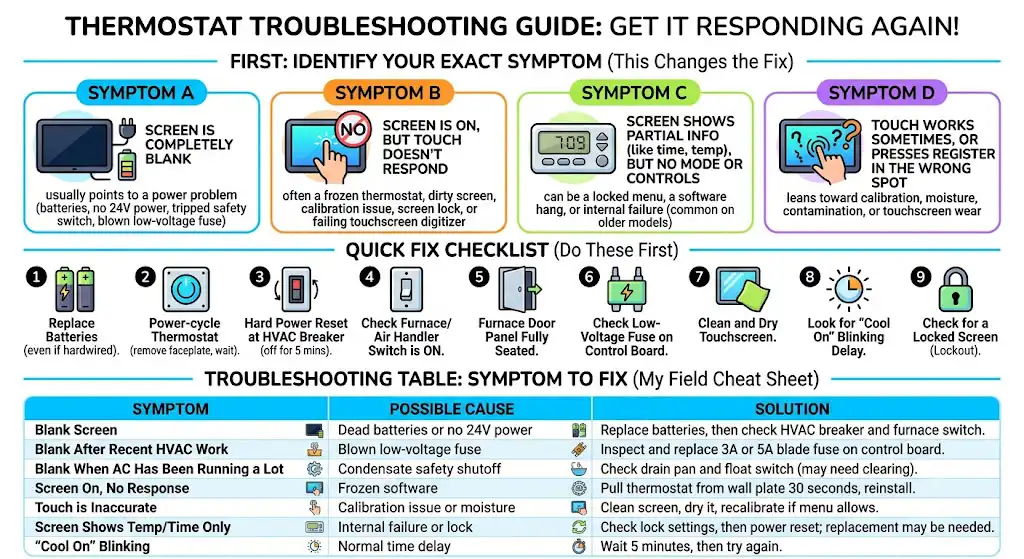
Before you start pressing buttons, figure out which bucket you’re in:
Symptom A: Screen is completely blank
This usually points to a power problem (batteries, no 24V power, tripped safety switch, blown low-voltage fuse).
Symptom B: Screen is on, but touch doesn’t respond
This is often a frozen thermostat, dirty screen, calibration issue, screen lock, or a failing touchscreen digitizer.
Symptom C: Screen shows partial info (like time, temp), but no Mode or controls
On older models (I see this a lot on units nearing end-of-life), this can be a locked menu, a software hang, or internal failure.
Symptom D: Touch works sometimes, or presses register in the wrong spot
That leans toward calibration, moisture, contamination, or touchscreen wear.
Quick Fix Checklist (Do These First)
These are the fastest fixes I try first because they solve a big chunk of calls:
- Replace batteries (even if it’s “hardwired”)
- Power-cycle the thermostat (remove faceplate, wait, reattach)
- Hard power reset at the HVAC breaker (off for 5 minutes)
- Check furnace or air handler switch is ON
- Make sure the furnace door panel is fully seated
- Check for a blown 3A or 5A low-voltage fuse on the control board
- Clean and dry the touchscreen
- Look for a 5-minute compressor protection delay (Cool On blinking)
- Check if the screen is locked (lockout)
I’ll break each one down step by step below.
Troubleshooting Table: Symptom to Fix (My Field Cheat Sheet)
| Blank screen | Dead batteries or no 24V power | Replace batteries, then check HVAC breaker and furnace switch |
| Blank after recent HVAC work | Blown low-voltage fuse | Inspect and replace 3A or 5A blade fuse on control board |
| Blank when AC has been running a lot | Condensate safety shutoff or float switch | Check drain pan and float switch (may need clearing) |
| Screen on, no response | Frozen software | Pull thermostat from wall plate 30 seconds, reinstall |
| Touch is inaccurate | Calibration issue or moisture | Clean screen, dry it, recalibrate if menu allows |
| Screen shows temp/time only, no mode | Internal failure or lock | Check lock settings, then power reset; replacement may be needed |
| “Cool On” blinking | Normal time delay | Wait 5 minutes, then try again |
Step-by-Step Fixes (In the Order I’d Do Them at Your House)
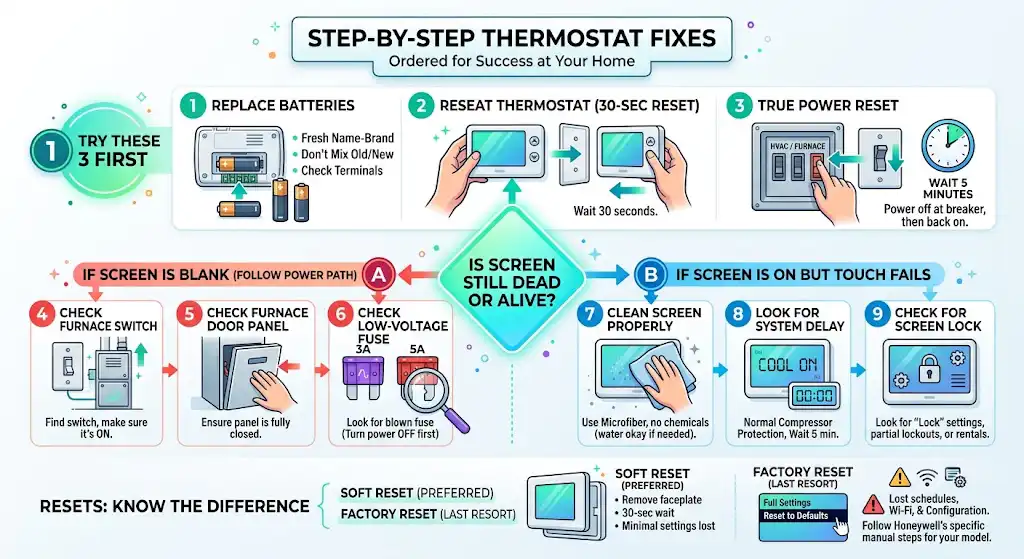
1) Replace the Batteries (Yes, Even on Many Hardwired Thermostats)
A lot of Honeywell thermostats use batteries as backup power. When those batteries get weak, you can see weird behavior: dim screens, slow response, or random freezing.
What I tell homeowners:
- Replace with fresh name-brand batteries
- Don’t mix old and new
- Check battery terminals for corrosion
2) Reseat the Thermostat on the Wall Plate (The 30-Second Reset)
This sounds too easy, but I fix a surprising number of touchscreen issues this way.
- Gently pull the thermostat straight off the wall plate
- Wait 30 seconds
- Push it back on firmly
Why it works: if the pins or connectors aren’t making clean contact, the thermostat can power up but glitch out or lose touch response.
3) Do a True Power Reset (Breaker Off for 5 Minutes)
If reseating didn’t work, do a full reset.
- Turn OFF the breaker for the furnace or air handler (and sometimes the outdoor unit if needed)
- Leave it OFF for 5 minutes
- Turn it back ON and wait for the thermostat to boot
This clears minor lockups and forces the HVAC control board to reboot too.
Safety note from me as a tech: If you’re unsure which breaker is which, stop here. Guessing can lead to turning off the wrong circuit while you’re working.
If the Screen Is Blank: Follow This Power Path
When the screen is dead, I treat it like a power problem until proven otherwise.
4) Check the Furnace or Air Handler Switch
Many systems have a light-switch-style disconnect near the furnace. It gets bumped off all the time.
- Find the switch on or near the indoor unit
- Make sure it’s ON
5) Check the Furnace Door Panel (Important)
Most furnaces have a safety switch that kills power if the blower door isn’t seated correctly.
- Make sure the access panel is fully closed and latched
If you recently changed a filter, this is one of the first things I check.
6) Check the Low-Voltage Fuse (3A or 5A Blade Fuse)
If the thermostat is blank and you recently:
- changed thermostat wiring
- had a power surge
- had AC service
- had a short in thermostat wires
What to look for:
- A small automotive-style blade fuse, usually purple (3A) or red (5A), depending on brand
Important: Turn power off before opening panels. If you don’t know what you’re looking at, this is a good point to call a technician because replacing a fuse without fixing the short can blow it again instantly.
If the Screen Is On but Touch Won’t Work
7) Clean the Screen Properly (No Chemicals)
Touchscreens can become less responsive from residue, kitchen grease, dust, or moisture.
What I do:
- Use a clean microfiber cloth
- If needed, slightly dampen with water only
- Wipe gently and dry completely
Avoid: ammonia cleaners, alcohol sprays, heavy wet cloths. Liquids can migrate into the bezel.
8) Look for a Built-In System Delay (Very Common)
If you see “Cool On” blinking (or similar), many systems are in a compressor protection delay. During this time, the thermostat may ignore some inputs or appear “stuck.”
- Wait about 5 minutes
- Try again
This is normal behavior, not a failure.
9) Check for Screen Lock or Lockout
Some Honeywell thermostats have screen lock features, and some installers enable partial lockouts.
What you can do:
- Look for a lock icon
- Try pressing Menu and checking for “Lock” settings (wording varies by model)
If you’re in a rental, or the system was installed with a locked installer setup, you may need the installer or property manager to unlock it.
Resets: Soft Reset vs Factory Reset (Know the Difference)
10) Soft Reset (Preferred)
This is the least risky reset:
- Pull the faceplate off for 30 seconds
- Or cycle HVAC power at the breaker for 5 minutes
11) Factory Reset (Last Resort)
A factory reset can fix deeper software issues, but you will lose:
- schedules
- Wi-Fi settings
- preferences
- sometimes equipment configuration (on certain models)
Because reset steps vary by model, I recommend:
- find your model number (usually on the back of the faceplate or in Menu > About)
- follow Honeywell’s specific manual steps for that model
Wiring Problems That Can Make the Touchscreen Act Weird
If your thermostat is powered by the HVAC system (most are), it needs a stable 24V supply. In the real world, I see these wiring-related causes a lot:
- Loose R or C wire (common wire)
- Corroded thermostat terminals
- Damaged thermostat cable staples
- Shorted wire causing the control board fuse to pop
A quick wiring check you can do safely
- Turn off the HVAC breaker
- Remove the thermostat carefully
- Look for loose wires that slipped out of terminals
- Make sure wire insulation is not under the clamp (only copper should be clamped)
Touchscreen Calibration Issues (When Touch Registers Wrong)
Some touchscreen models allow calibration in settings. If you tap one button and another activates, calibration can help.
Common reasons calibration goes off:
- slight internal drift over time
- exposure to humidity
- physical pressure or impact on the screen
How Long Do Honeywell Touchscreen Thermostats Usually Last?
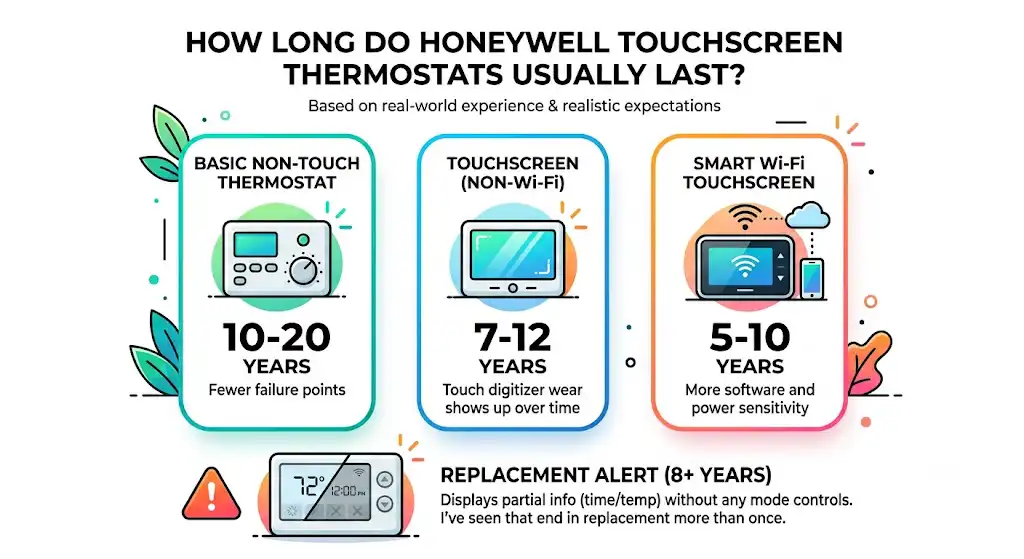
In my experience, lots of Honeywell thermostats run a long time, but touchscreen models can start acting up as they age (especially in high-humidity areas, kitchens, or busy hallways).
Here’s a realistic expectation table:
| Basic non-touch thermostat | 10 to 20 years | Fewer failure points |
| Touchscreen non-Wi-Fi | 7 to 12 years | Touch digitizer wear shows up over time |
| Smart Wi-Fi touchscreen | 5 to 10 years | More software and power sensitivity |
If yours is around 8+ years old and it suddenly only displays partial info (time/temp) with no mode controls, I’ve seen that end in replacement more than once.
When I Recommend Calling a Professional
Call a technician if any of these are true:
- You smell burning or see heat damage
- The thermostat is blank and you’ve already replaced batteries and confirmed breakers
- You suspect a blown fuse but aren’t comfortable opening the furnace panel
- The HVAC system itself is also dead (no fan, no heat, no AC)
- The touchscreen is cracked or has liquid damage
- You replaced the thermostat and it still won’t power on (could be no 24V, bad transformer, safety switch issue)
Warranty reminder
Many Honeywell thermostats come with limited warranties (often around 1 to 5 years depending on model and sales channel). If yours is still covered, avoid invasive repairs that could complicate a warranty claim.
Temporary Workarounds If the Touchscreen Is Down
If you have a smart Honeywell model:
- Use the Honeywell app (if the thermostat is still online)
- Use voice control (Alexa or Google Assistant) if previously set up
If the app works but the screen won’t respond, that’s a strong clue the HVAC system has power and the issue is likely the touchscreen hardware.
Should You Replace the Thermostat Instead?
I tell homeowners to consider replacement if:
- The thermostat is older and repeatedly freezes
- The touch response is inconsistent even after resets and cleaning
- You’ve confirmed stable power and good wiring
- The screen is physically damaged
If you upgrade, look for:
- a model with strong reviews for screen responsiveness
- a C-wire compatible setup (or add a C-wire or power adapter if needed)
- a screen that’s readable at your mounting height and lighting
FAQs
Why is my Honeywell thermostat screen on but not responding to touch?
Most commonly it’s a frozen thermostat, a screen lock, residue on the screen, or a touchscreen digitizer starting to fail. Start with reseating the faceplate and doing a full breaker reset.
Why is my Honeywell thermostat completely blank even after battery replacement?
Then you’re likely missing 24V power from the HVAC system. Check the furnace switch, the blower door panel safety switch, and the low-voltage fuse on the control board.
What does “Cool On” blinking mean on a Honeywell thermostat?
Usually it means a normal compressor protection delay. Wait about 5 minutes and try again.
Can a power surge damage a Honeywell touchscreen thermostat?
Yes. Surges can damage the thermostat or blow the low-voltage fuse on the furnace control board. If you’ve had recent storms or electrical work, suspect surge-related issues.
How often should I clean the touchscreen?
Once a month is a good baseline in most homes. If it’s near a kitchen or gets touched a lot, clean it more often using a dry microfiber cloth.