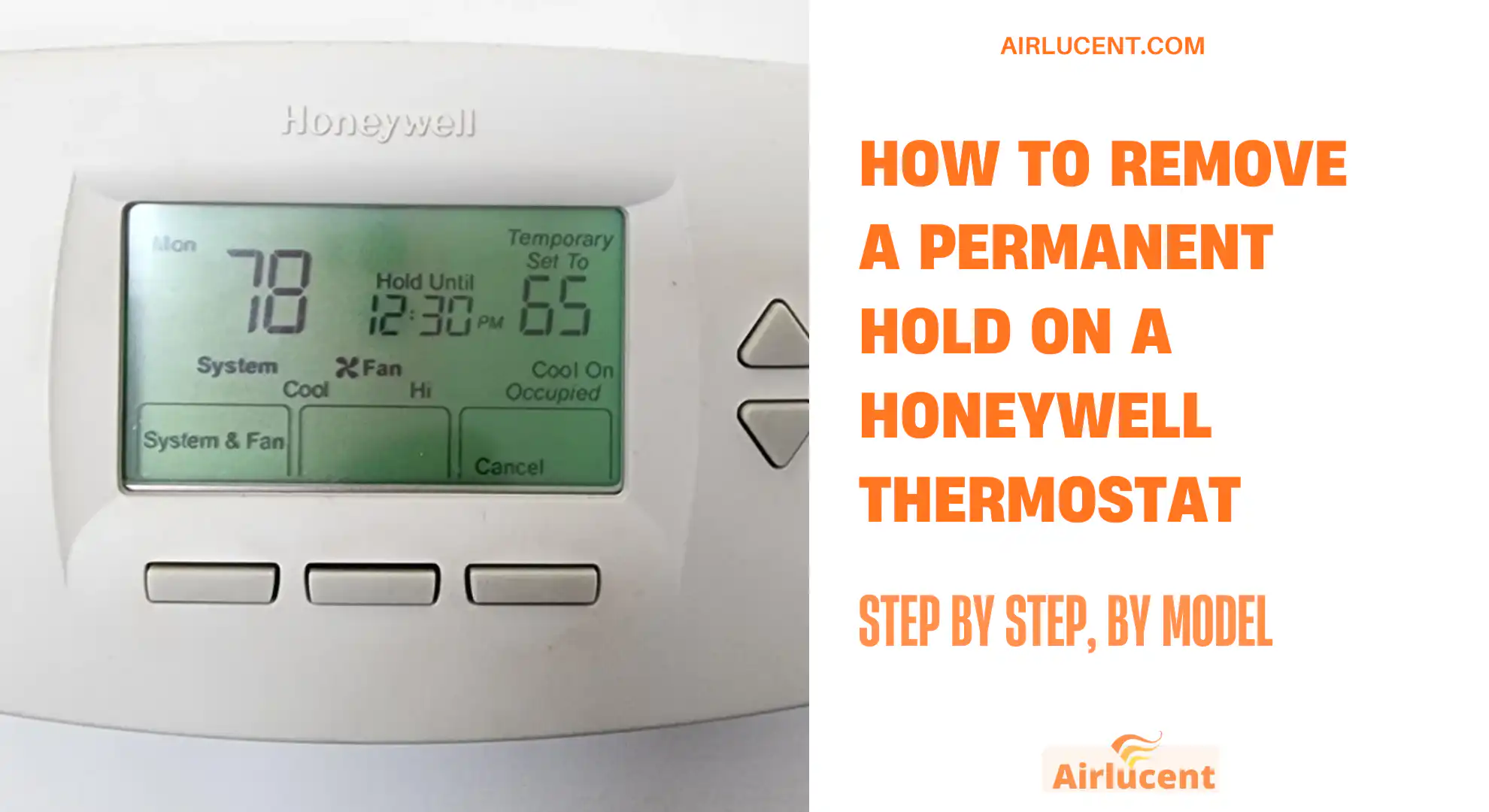
Nathan here. I’ve been an HVAC technician for over 10 years, and I’ve walked a lot of homeowners through this exact situation, like more times than I can count. If your Honeywell thermostat is stuck on Permanent Hold , it usually means the thermostat is basically ignoring your saved program, and it keeps one temperature running nonstop until you cancel that hold.
The good news is that on most Honeywell models, getting rid of a permanent hold takes like 10 to 30 seconds once you know the right button spot. Not a big deal once you’re looking at it the correct way.
Quick answer (works on many models)
Try these in order:
- Press Hold and then select Cancel Hold or Run Schedule.
- If you do not see that, press Cancel (some models have a Cancel button)
- If you still do not see it, tap the up or down arrow to change the temperature once
Then press Run, Run Schedule, or Use Schedule when it appears
What Permanent Hold means (and why it happens)
A Honeywell thermostat can run in two general modes:
- Following Schedule / Run Program
The thermostat automatically changes temperature based on your programmed times. - Hold
The thermostat stops following the schedule and holds a fixed temperature.
Temporary hold vs permanent hold
- Temporary Hold usually lasts until the next scheduled change (like the next time period in your schedule).
- Permanent Hold does not expire. It stays on until someone cancels it.
Common reasons I see permanent hold turned on
- Someone adjusted the temperature and hit Hold by accident.
- A previous homeowner used Hold instead of updating the schedule.
- The schedule feature was turned off in settings.
- A phone app (Honeywell Home or Total Connect Comfort) is placing a hold remotely.
- The thermostat is in a mode that favors manual setpoints instead of scheduling.
First step: identify what kind of Honeywell thermostat you have
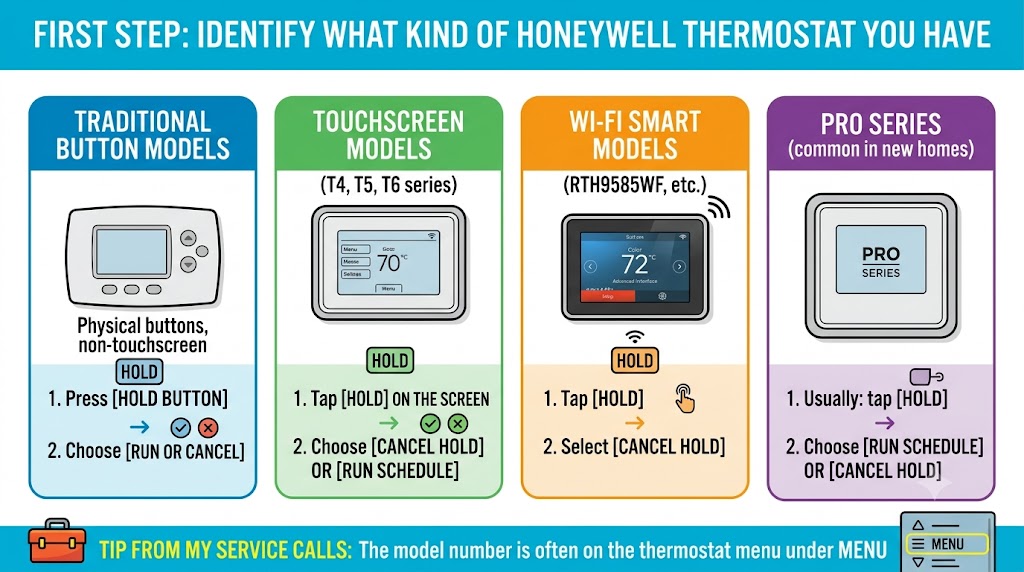
Different Honeywell families look similar but behave differently.
Here’s a quick guide I use in the field.
Honeywell thermostat types and how the Hold screen usually looks
| Traditional button models | Physical buttons, non-touchscreen | Hold button then Run or Cancel |
| Touchscreen models (T4, T5, T6 series) | Touchscreen, simple menus | Tap Hold on the screen, then Cancel Hold or Run Schedule |
| Wi-Fi smart models (RTH9585WF, etc) | Color touchscreen, Wi-Fi features | Tap Hold, then Cancel Hold |
| Pro Series (common in new homes) | Often says “Pro Series” on the face | Usually: tap Hold then choose Run Schedule or Cancel Hold |
Tip from my service calls: The model number is often on the thermostat menu under Menu > About, or printed on the backplate behind the thermostat face.
How to remove Permanent Hold by thermostat style
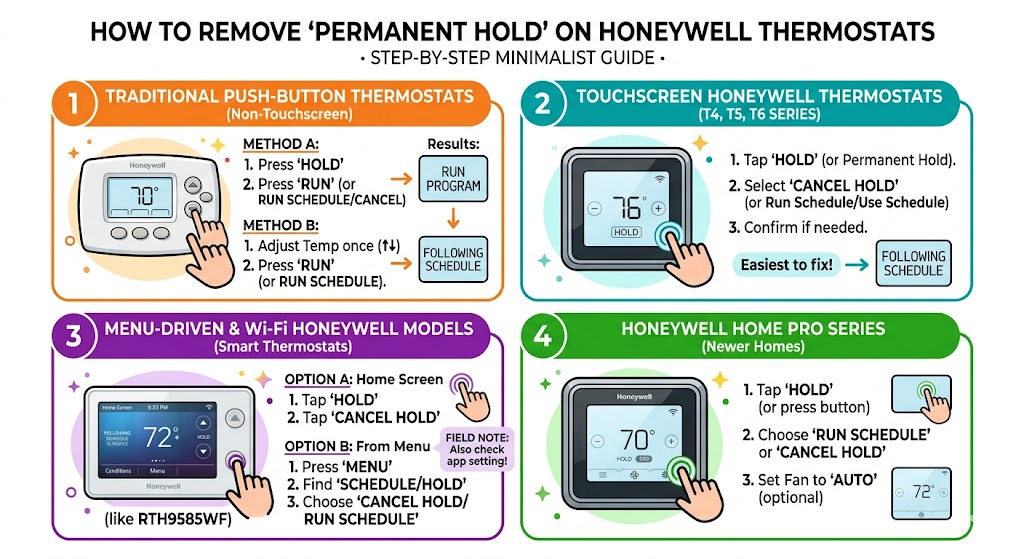
1) Traditional push-button Honeywell thermostats (non-touchscreen)
These are the models with physical buttons and a small display. Common examples are many RTH series thermostats.
Method A: Hold button then Run or Cancel
- Press Hold
- Look for Run, Run Program, Run Schedule, or Cancel
- Press that option to return to the schedule
Method B: Adjust temp once, then press Run
If you do not see a clear cancel option:
- Tap Up or Down once to change the set temperature.
- Watch the screen for Run or Run Schedule.
- Press Run or Run Schedule
What you should see after it works: the display usually stops saying Hold and shows something like Run Program or Following Schedule.
2) Touchscreen Honeywell thermostats (T4, T5, T6 series)
These are extremely common. In my experience, they’re also the easiest to fix once you know the right spot on the screen.
Steps
- On the main screen, tap Hold or Permanent Hold.
- Select Cancel Hold or Run Schedule or Use Schedule (wording varies)
- Confirm if the thermostat asks.
If you do not see Hold on the home screen, check for wording like Following Schedule. That typically means there is no hold active.
3) Menu-driven and Wi-Fi Honeywell models (smart thermostats)
These include models that use an app and have deeper menus. A common example is the Honeywell RTH9585WF style color touchscreen.
Option A: Cancel from the home screen
- From the home screen, tap Hold (or where it says Permanent Hold)
- Tap Cancel Hold
- The display should switch back to Following Schedule.
Option B: Cancel from the Menu
If you cannot find it on the main screen:
- Press Menu
- Find Schedule or Hold
- Choose Cancel Hold or Run Schedule
Field note: If a thermostat is connected to Wi-Fi and the hold keeps returning, I immediately check whether someone is adjusting it in the app. I’ve had that happen many times.
4) Honeywell Home Pro Series thermostats (common in newer homes)
If your thermostat just says Pro Series, it’s often a T4 Pro or T6 Pro style interface.
Try this (works on most Pro Series)
- Tap Hold (or press the button next to Hold if it’s not a touchscreen)
- Choose Run Schedule or Cancel Hold
- Set Fan back to Auto if someone changed it (optional, but common)
If you cancel the hold and it still does not follow a schedule, the schedule may be disabled. See the section below.
If you cancelled Permanent Hold but it keeps coming back
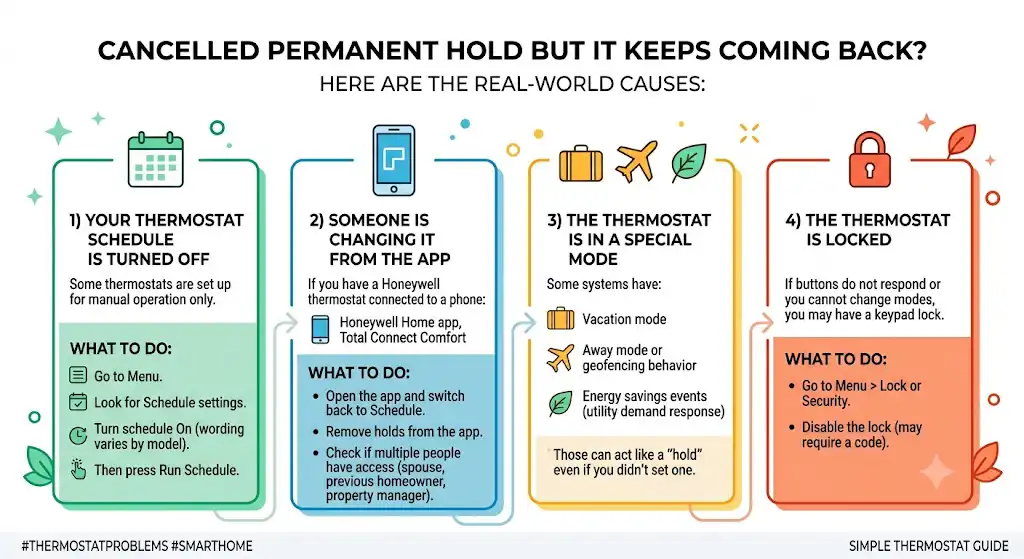
This is where I spend the most time on service calls. Here are the real-world causes.
1) Your thermostat schedule is turned off
Some thermostats are set up for manual operation only.
What to do:
- Go to Menu
- Look for Schedule settings.
- Turn schedule On (wording varies by model)
- Then press Run Schedule.
2) Someone is changing it from the app
If you have a Honeywell thermostat connected to a phone:
- Honeywell Home app
- Total Connect Comfort
Any manual change from the app can create a hold depending on the settings.
What to do:
- Open the app and switch back to Schedule.
- Remove holds from the app
- Check if multiple people have access (spouse, previous homeowner, property manager)
3) The thermostat is in a special mode
Some systems have:
- Vacation mode
- Away mode or geofencing behavior
- Energy savings events (utility demand response on certain systems)
Those can act like a “hold” even if you didn’t set one.
4) The thermostat is locked
If buttons do not respond or you cannot change modes, you may have a keypad lock.
What to do:
- Go to Menu > Lock or Security.
- Disable the lock (may require a code)
If you do not know the code, you may need the installer, or you’ll need to reset the thermostat and reconfigure it.
What you should see when the Hold is actually removed
These are common status messages and what they mean.
| Permanent Hold | Temperature is locked until cancelled | Yes, cancel hold |
| Temporary Hold | Holding temp until next schedule period | Optional |
| Following Schedule | Schedule is active | No |
| Run Schedule or Run Program | Schedule is active or ready to resume | No |
| Cool On or Heat On | Equipment is being commanded on (may be a short delay) | No, unless system never starts |
Why removing a permanent hold matters (comfort and energy)
When your thermostat is stuck on one temperature all day, it often wastes energy compared to a reasonable schedule.
A widely cited U.S. Department of Energy guideline is that you can save up to about 10 percent per year on heating and cooling by setting back 7 to 10 degrees Fahrenheit for around 8 hours a day (when you are asleep or away). Real savings depend on insulation, system type, weather, and your comfort preferences.
Quick example schedule that usually works well
- Winter: lower setpoint at night and while away
- Summer: higher setpoint while away, comfortable setpoint when home
If your thermostat is locked in Permanent Hold, you lose those automatic adjustments.
If the system still does not turn on after you remove the hold
Canceling hold only tells the thermostat to go back to its schedule. It does not fix system-side problems.
Here’s what I recommend checking quickly:
Basic checks
- Make sure the thermostat is in the right mode: Heat or Cool.
- Set the temperature at least 3 degrees beyond room temp to force a call.
- Wait 5 minutes (many systems have compressor protection delays)
- Check the furnace switch (looks like a light switch near the furnace or air handler)
- Check breakers for furnace/air handler and outdoor AC
If you switch the fan from Auto to On and still get zero airflow, that’s usually not a thermostat hold issue. That points to power, safety switches, or equipment issues.
My best practical tips (what I tell homeowners)
Use this mini checklist
- Cancel hold from the home screen first.
- If you do not see Cancel Hold, change the temp once and look for Run Schedule.
- Confirm schedule is enabled in the menu.
- If it keeps returning, check the phone app for holds.
- If controls are unresponsive, check if the thermostat is locked.
FAQ
Where is the Hold button on a Honeywell thermostat?
On many models, it is a physical button labeled “Hold”. On touchscreens, it is usually a word on the display such as Hold or Permanent Hold that you tap.
Why does my thermostat say Permanent Hold after I change the temperature?
Some thermostats are configured so that a manual change creates a permanent hold automatically. Cancel it with Run Schedule or adjust the “hold duration” setting if your model allows it.
How do I find my exact model number?
Common places:
Menu > About on many digital models
A label on the back of the thermostat faceplate (you may need to gently pull it off the wall plate)