I’m Nathan. I’ve worked as an HVAC technician for over 10 years, and I’ve installed, tested, and troubleshot a lot of Nest thermostats in real homes, not just in perfect “lab conditions.” When a homeowner tells me, “I set it to 76 and it ends up at 72,” I already know what I’m looking for.
Most of the time, your Nest is not broken. It’s doing what it was designed to do, just not what you want it to do.
In this guide, I’m going to walk you through the 7 most common reasons your Nest thermostat keeps changing temperature, how to prove which one is happening in your home, and the quickest fixes. I’ll also show you when the thermostat is innocent and the real issue is your HVAC system, wiring, placement, or airflow.
- Quick takeaways (so you can fix it fast)
- Why this happens (in plain English)
- First: confirm what is changing (temperature or setpoint)
- A quick diagnostic table (symptom to fix)
- The 7 most common reasons your Nest thermostat keeps changing temperature (and how to fix each)
- 1. Your Nest is following a schedule you forgot about
- How to confirm
- How to fix it
- My HVAC-tech tip
- 2. Auto-Schedule is “learning” things you didn’t mean to teach it
- How to fix it
- Best practice
- 3. Eco Mode is turning on because Nest thinks you’re away
- How to confirm
- Fix option A: make Eco less extreme
- Fix option B: turn off Auto-Eco or Home Away features
- My real-world advice
- 4. Home Away Assist is using phone location and getting it wrong
- Fix
- Quick check
- 5. Early-On is pre-heating or pre-cooling before scheduled times
- Fix
- When I recommend keeping it on
- 6. A remote sensor is controlling the temperature from the wrong room
- How to confirm
- Fix
- Sensor placement guidelines (what I use)
- 7. The thermostat is reading the wrong temperature (location, drafts, sunlight, or HVAC behavior)
- How to test quickly (my field method)
- Fixes that actually help
- When this is not a Nest problem
- How to Stop Nest From Changing Temperature (My 5-minute checklist)
- Don’t ignore this: multiple users, Google Home routines, and voice assistants.
- Wi‑Fi, software updates, and glitches (what’s real and what’s rare)
- Why your electric bill can still be high (even with a “smart” thermostat)
- When it’s time to call an HVAC technician (and what to tell them)
- Frequently Asked Questions
- Why does my Nest thermostat change temperature in the middle of the night?
- How accurate is a Nest thermostat temperature reading?
- Can weather changes cause Nest to adjust temperature?
- Does Nest still save energy if it keeps changing temperatures?
- Can I override Nest and keep it from changing anything automatically?
- Final thoughts
Quick takeaways (so you can fix it fast)
If your Nest changes the set temperature on its own, it’s almost always one of these:
- A schedule is running (manual or auto-created)
- Auto-Schedule is “learning” changes you didn’t mean to teach it
- Eco Mode or Home Away Assist thinks nobody is home.
- Early-On is pre-heating or pre-cooling
- A remote sensor is controlling the temperature in a different room.
- Software, Wi‑Fi, or account access is causing conflicts.
- The thermostat is reading the wrong temperature due to location, drafts, sunlight, or HVAC issues.
If you want the fastest “stop the madness” approach, jump to this section:
How to Stop Nest From Changing Temperature (My 5-minute checklist)
Why this happens (in plain English)
Nest is a smart thermostat. Smart thermostats don’t just hold a number like old-school models. They try to predict comfort and save energy using:
- schedules and learning behavior
- occupancy detection (motion and phone location)
- weather and pre-conditioning features
- room sensors
- app access (you, spouse, kids, guests, Alexa/Google voice commands)
That’s great when it matches your life. It’s frustrating when it doesn’t.
First: confirm what is changing (temperature or setpoint)
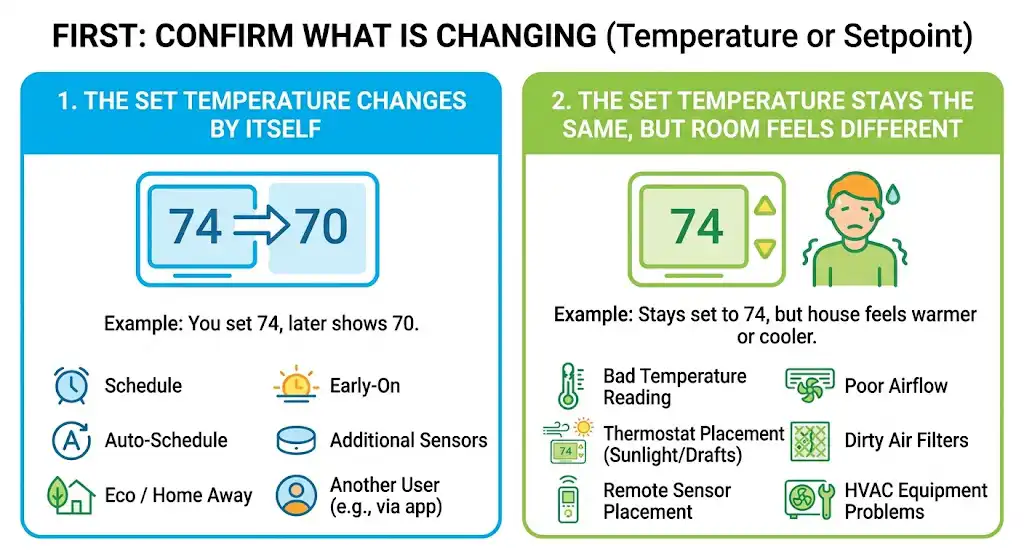
Before changing settings, figure out which of these you’re seeing:
1) The set temperature changes by itself
Example: You set 74, and later it shows 70 with no one touching it.
That points to Schedule, Auto-Schedule, Eco/Home Away, Early-On, sensors, or another user.
2) The set temperature stays the same, but the room feels different
Example: It stays set to 74, but the house feels warmer or cooler than usual.
That points to bad temperature reading, thermostat placement, sunlight/drafts, sensor placement, airflow, dirty filters, or equipment problems
A quick diagnostic table (symptom to fix)
| Setpoint changes at predictable times | Schedule or Early-On | Check Schedule and turn off Early-On |
| Setpoint changes when you leave or stop moving | Eco Mode or Home Away Assist | Adjust Eco temps or disable Home Away Assist |
| Setpoint changes even with no schedule | Auto-Schedule learning | Turn Auto-Schedule off |
| House heats or cools based on a different room | Remote sensor priority | Change sensor priority or disable sensors |
| Random changes after app notifications or voice commands | Multiple users or smart assistant routines | Audit users, routines, and Google Home automations |
| Nest reads 2 to 6 degrees off | Placement, sunlight, drafts, bad mounting | Relocate, shade, seal drafts, or contact support |
| HVAC runs a lot and comfort swings | System short-cycling, airflow issues | Replace filter, check vents, call an HVAC tech if needed |
The 7 most common reasons your Nest thermostat keeps changing temperature (and how to fix each)
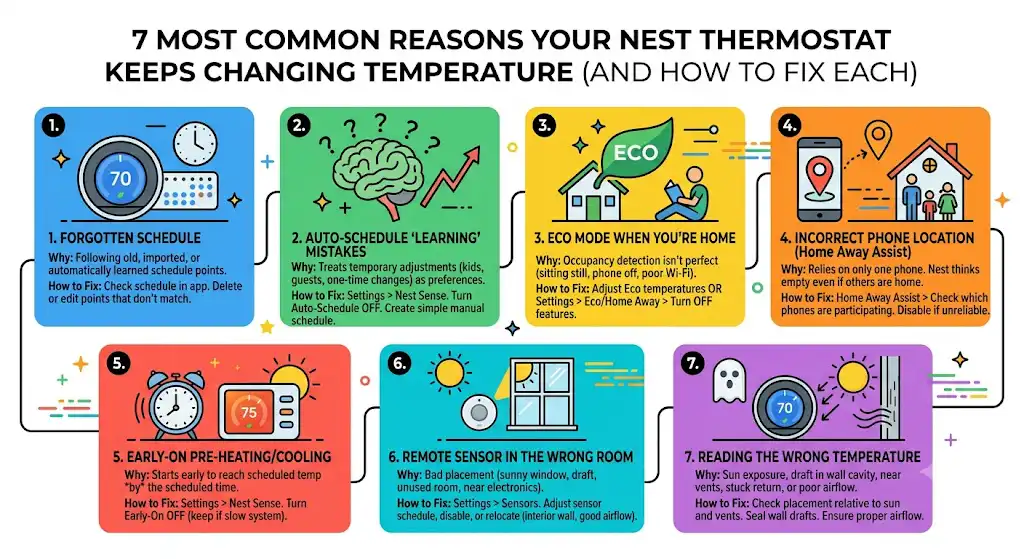
1. Your Nest is following a schedule you forgot about
This is the number one cause I see in homes.
Sometimes the schedule was:
- created by you months ago
- created by a previous homeowner
- imported during setup
- built automatically by Nest, learning your manual adjustments
How to confirm
On the thermostat or in the app, check the schedule view. If you see dots or blocks at times you didn’t create, that’s your answer.
How to fix it
- Open the Nest app or Google Home app (depends on your model)
- Find Schedule
- Delete or edit the temperature points that don’t match your current routine
My HVAC-tech tip
If your work schedule changes seasonally (school year vs summer, work-from-home days, etc.), Nest doesn’t magically know that. You have to re-train it or disable learning.
2. Auto-Schedule is “learning” things you didn’t mean to teach it
Auto-Schedule watches your manual changes and assumes they are intentional preferences. Here’s what happens in real homes:
- You bump the temp up one night because you’re sick.
- Your kids crank the heat while you’re at work.
- A guest stays over and changes it.
- You change it for one weekend and forget.
Nest can treat that as a pattern and repeat it later.
How to fix it
Turn off Auto-Schedule so the thermostat stops creating new schedule points:
- Go to Settings
- Find Nest Sense (or similar, depending on model)
- Set Auto-Schedule to Off
Then manually build a schedule that reflects how you actually live.
Best practice
If you want Nest to stay consistent, run it like this:
- Auto-Schedule off
- Simple schedule with 2 to 4 changes per day max
- Eco only when you truly want it
3. Eco Mode is turning on because Nest thinks you’re away
Eco Mode is designed to save energy by relaxing the temperature when you’re gone. The problem is that occupancy detection is not perfect.
I’ve seen Eco kick on when:
- you’re home but sitting still (reading, working quietly)
- Your phone location is off or not shared
- Your phone isn’t home, but your family is
- You have poor Wi‑Fi, and the device loses updates
How to confirm
If the thermostat shows Eco or you see Eco temps in the app history, that’s the cause.
Fix option A: make Eco less extreme
Instead of turning Eco off, set Eco temps closer to comfort:
- In summer, don’t let Eco get too warm.
- In winter, don’t let Eco go too cold.
Fix option B: turn off Auto-Eco or Home Away features
Depending on your Nest model:
- Settings > Eco > Auto-Eco Off
or - Settings > Home Away Assist > turn off phone location or presence sensing.
My real-world advice
If you have a household with multiple people coming and going, Eco can be more annoying than helpful unless everyone’s phone location is integrated correctly.
4. Home Away Assist is using phone location and getting it wrong
This is related to Eco, but it’s important enough to call out separately.
Home Away Assist can use:
- motion sensors in the thermostat
- your phone GPS location (and other household members’ phones)
If only your phone is linked and you leave, Nest may assume the house is empty even if your partner or kids are home.
Fix
- Go to Home Away Assist
- Check which phones are participating.
- If it’s unreliable, disable phone-based presence or disable Home Away Assist entirely.
Quick check
If your Nest changes temperature right after you leave your neighborhood, this is almost always the trigger.
5. Early-On is pre-heating or pre-cooling before scheduled times
Early-On is supposed to make the home reach your scheduled temperature by the scheduled time. That means it starts earlier.
Example:
- Schedule says 72 at 7:00 AM.
- Nest starts heating at 6:20 AM.
- You wake up and think it “changed on its own”
It did, but it’s doing what Early-On is meant to do.
Fix
- Settings > Nest Sense > Early-On Off
When I recommend keeping it on
If you have:
- radiant heat
- a slow, high-mass home
- a system that takes a long time to recover
Otherwise, it can feel unpredictable.
6. A remote sensor is controlling the temperature from the wrong room
Nest temperature sensors are great, but placement and priority matter.
I’ve walked into homes where the sensor was:
- near a sunny window
- in a drafty hallway
- in a room that nobody uses
- placed near a TV, lamp, or gaming console
Then the whole house heats or cools trying to satisfy that one “bad” reading.
How to confirm
In the app:
- Settings > Sensors
- Check which sensor is active during the time you’re seeing the changes.
Fix
- Change the sensor schedule so the thermostat uses the right room at the right time.
- Or disable the sensor temporarily to test
Sensor placement guidelines (what I use)
| interior wall, chest height | exterior walls |
| rooms you actually occupy | near windows and doors |
| away from supply vents | direct sunlight |
| consistent airflow area | kitchens (big heat swings) |
7. The thermostat is reading the wrong temperature (location, drafts, sunlight, or HVAC behavior)
Sometimes the setpoint isn’t changing. The measured temperature is.
Nest thermostats can be thrown off by:
- direct sun hitting the thermostat part of the day
- being mounted above a supply duct in the wall
- being near a return grille pulling hot attic air
- being near a kitchen
- drafts inside the wall cavity (common in older homes)
- a stuck-open return or a poor door undercuts affecting airflow
How to test quickly (my field method)
- Put a reliable thermometer next to the thermostat for 15 minutes.
- Compare readings
- If Nest is consistently off by more than about 2 degrees, suspect placement or a mounting issue
Fixes that actually help
- Shade it from the sun (even changing nearby blinds can help)
- Seal wall drafts behind the thermostat (a little foam gasket helps)
- Make sure it’s firmly mounted and not wobbling.
- If it’s in a terrible location, relocate it or use sensors correctly.
When this is not a Nest problem
If your HVAC system is short-cycling, overheating, freezing up, or has airflow restrictions, Nest can look like the culprit even though it’s just reacting to unstable equipment performance.
How to Stop Nest From Changing Temperature (My 5-minute checklist)
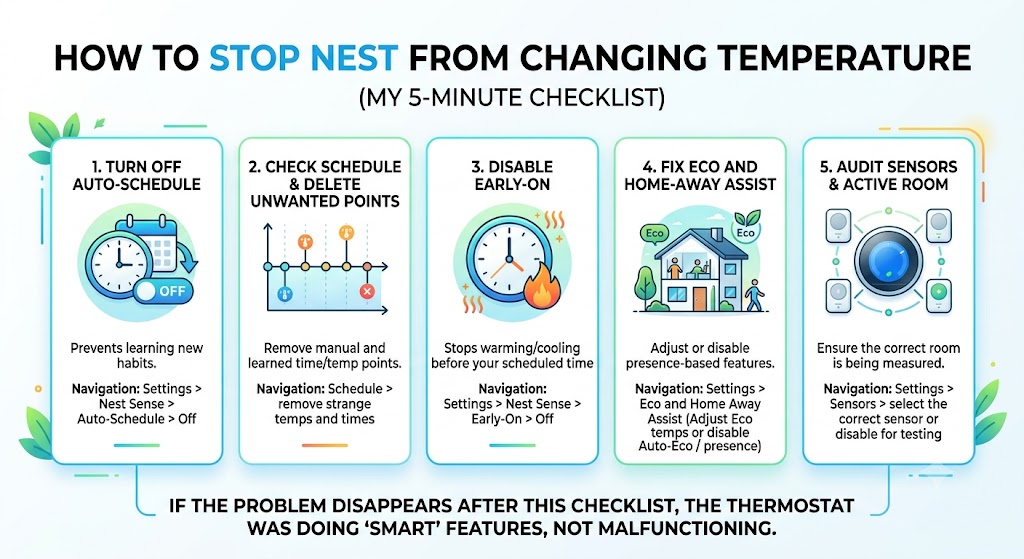
If you want control back right now, do this in order:
Step 1: Turn off Auto-Schedule
Settings > Nest Sense > Auto-Schedule > Off
Step 2: Check Schedule and delete unwanted points
Schedule > remove strange temps and times
Step 3: Disable Early-On
Settings > Nest Sense > Early-On > Off
Step 4: Fix Eco and Home Away Assist
Settings > Eco and Home Away Assist
Either adjust Eco temps or disable Auto-Eco / presence features
Step 5: Audit sensors and active room
Settings > Sensors > select the correct sensor or disable for testing
If the problem disappears after this checklist, the thermostat was doing “smart” features, not malfunctioning.
Don’t ignore this: multiple users, Google Home routines, and voice assistants.
This is another common one I see. If your Nest is tied into:
- Google Home routines
- Alexa routines
- IFTTT-style automations
- a shared family account
Then the temperature can change without anyone physically touching the thermostat.
What to check
- In Google Home: Automations and routines
- In Nest/Google Home: Household members with access
- Any old phones or tablets still logged in
Quick rule
If you can’t explain a change, assume an automation did it until proven otherwise.
Wi‑Fi, software updates, and glitches (what’s real and what’s rare)
Most “glitch” reports end up being settings, not firmware. But I have seen cases where:
- Wi‑Fi drops and the thermostat desyncs briefly.
- An app update resets a preference
- The thermostat needs a restart after a long uptime
What I recommend
- Confirm the thermostat is connected to a stable Wi‑Fi.
- Reboot the thermostat (simple restart)
- Check for software updates.
- If the issue continues, back up your settings and consider a factory reset
If you do a full reset and it still changes setpoints with all smart features off, then we start thinking hardware or account automation.
Why your electric bill can still be high (even with a “smart” thermostat)
A Nest can help, but it can’t fix:
- poor insulation
- duct leakage
- oversized equipment short-cycling
- dirty coils
- plugged filters
- bad airflow design
- extreme outdoor temperatures
Also, frequent setpoint swings can increase runtime. In the field, I often see better comfort and sometimes better cost control when homeowners stop micromanaging the thermostat and use a stable schedule.
A simple comfort and efficiency table (good starting points)
These are common starting ranges many HVAC pros suggest, then you fine-tune based on comfort and humidity:
| Summer | 74 to 78 F | 74 to 78 F | 78 to 82 F |
| Winter | 68 to 72 F | 65 to 68 F | 60 to 66 F |
If you have humidity issues, the “right” temperature may be higher or lower depending on how your home holds moisture.
Nest model differences (important so you don’t chase the wrong menu)
Different Nest thermostats are managed in different apps:
| Nest Learning Thermostat | Nest app and sometimes Google Home | More learning features exposed |
| Nest Thermostat E | Nest app | Similar learning behavior |
| Nest Thermostat (2020) | Google Home app | Menu layout is different |
If you can’t find a setting in one app, check the other based on your model.
When it’s time to call an HVAC technician (and what to tell them)
Call a pro if you notice any of these, along with temperature instability:
- The system turns on and off every few minutes (short cycling)
- The outdoor unit runs but the indoor air is warm (AC issue)
- ice on refrigerant lines or the indoor coil
- burning smell, buzzing, or tripping breakers
- The thermostat frequently loses power, or the battery drains quickly
- You have a heat pump, and it seems to switch to emergency heat too often
What to tell your tech (so you don’t waste a service call)
- Nest model
- HVAC type (furnace, heat pump, boiler, etc.)
- a screenshot of thermostat history if available
- when the temperature changes happen (time of day patterns matter)
- whether you use sensors, Eco, and Auto-Schedule
That helps us diagnose in minutes instead of guessing for an hour.
Frequently Asked Questions
Why does my Nest thermostat change temperature in the middle of the night?
Most commonly:
Auto-Schedule learned a nighttime change.
A schedule point exists overnight
Eco mode triggered due to lack of motion.
a sensor schedule switched to a colder or warmer room at night
How accurate is a Nest thermostat temperature reading?
In normal conditions, smart thermostats are typically close, but real homes aren’t perfect. Sunlight, drafts, and wall cavity airflow can easily create a few degrees of difference at the thermostat compared to the center of the room.
Can weather changes cause Nest to adjust temperature?
Nest can use features like pre-conditioning (Early-On) and can respond to how fast your home heats/cools. Weather doesn’t “change your setpoint” by itself, but it can make the system run longer and feel less stable if your home is leaky or your equipment is struggling.
Does Nest still save energy if it keeps changing temperatures?
Not usually. Nest’s reported savings depend on consistent use of schedules and smart setbacks. If the setpoint swings constantly, your HVAC can run more often and waste energy, especially if it causes short cycling.
Can I override Nest and keep it from changing anything automatically?
Yes. Turn off:
Auto-Schedule
Early-On
Home Away Assist and Auto-Eco
Then run a simple manual schedule or hold a set temperature.
Final thoughts
When your Nest thermostat keeps changing temperature, it’s almost always a settings or sensor issue, not a “bad thermostat.” The fastest way to win is to stop the learning features temporarily, simplify everything, and then add features back only if they genuinely help your comfort.
If you want, tell me:
- your Nest model (Learning, E, or 2020 Nest Thermostat)
- whether you have a heat pump or furnace
- what exact temps it changes from and to, and roughly what times