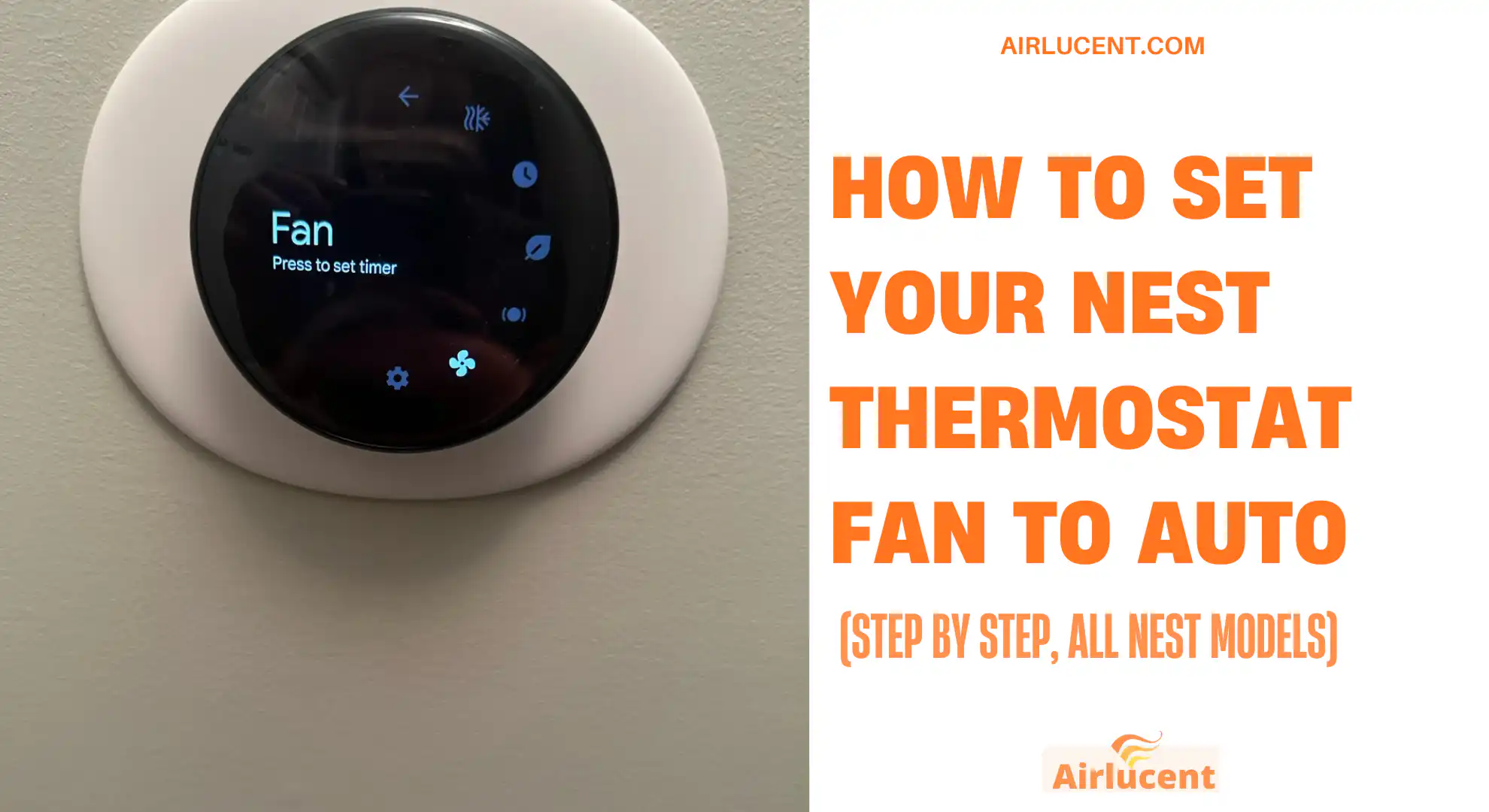
Hi, I’m Nathan. I’ve worked as an HVAC technician for over 10 years, and one of the most common “quick comfort” fixes I give homeowners is dialing in the fan setting on their thermostat. Setting your Nest thermostat fan to Auto is usually the best choice because it lets the system run the blower only when heating or cooling is actually needed, which helps with comfort and avoids unnecessary electrical use.
Below I’ll walk you through exactly how to set the fan to Auto on every Nest model, how to confirm it’s working, when Auto is the right choice, and the most common issues I see in the field.
- Quick answer: What does “Fan Auto” mean on a Nest?
- Before you start: Which Nest thermostat do you have?
- How to Set Nest Thermostat Fan to Auto (Google Home App)
- How to Set Nest Thermostat Fan to Auto (Nest App)
- How to Set Fan to Auto on the Thermostat Itself (no app)
- How to confirm your fan is really on Auto
- Fan Auto vs Fan On vs Fan Schedule (what I recommend and why)
- Energy use: does running the fan cost a lot?
- When Fan Auto is the best choice
- When you might want a fan schedule (instead of Auto)
- Important HVAC reality: Fan does not cool the air by itself
- Is it safe to run the HVAC fan without the outdoor condenser?
- Common problems when you try to set the Nest fan to Auto (and fixes)
- Troubleshooting table (fast reference)
- Best practices I recommend (after 10 years in HVAC)
- FAQ
- Should I run my Nest fan on Auto or On?
- Will “Fan Auto” help with allergies?
- Why does the fan keep running after heating or cooling stops?
- Conclusion
Quick answer: What does “Fan Auto” mean on a Nest?
Fan Auto means the HVAC blower fan runs automatically only when there’s a call for heating or cooling (and sometimes for a short “after-run” to use up leftover heating or cooling in the ductwork). When your system is idle, the fan stays off.
That’s different from:
- Fan On (runs continuously or for long stretches)
- Fan Schedule / Timer (runs the fan for a set amount of time per hour or for a timed session)
Before you start: Which Nest thermostat do you have?
Nest fan controls depend on the model:
| Nest Learning Thermostat (most generations) | Nest app (sometimes also Google Home) | Auto, timer, schedule (depending on setup) |
| Nest Thermostat E | Nest app | Auto, timer, schedule |
| Nest Thermostat (2020 mirror display) | Google Home app | Auto, timer (fan scheduling is more limited) |
If you’re not sure, the Nest Thermostat (2020) is the one with the mirrored front and typically runs primarily in the Google Home app.
How to Set Nest Thermostat Fan to Auto (Google Home App)
This is the most common path for the Nest Thermostat (2020).
Steps
- Open the Google Home app.
- Tap your thermostat.
- Tap Settings (gear icon).
- Tap Fan.
- Choose Auto.
If you see a fan timer instead of Auto
Some setups show a Fan timer screen. If so:
- Set the timer to Off or 0 minutes, and the thermostat will return to normal automatic fan control.
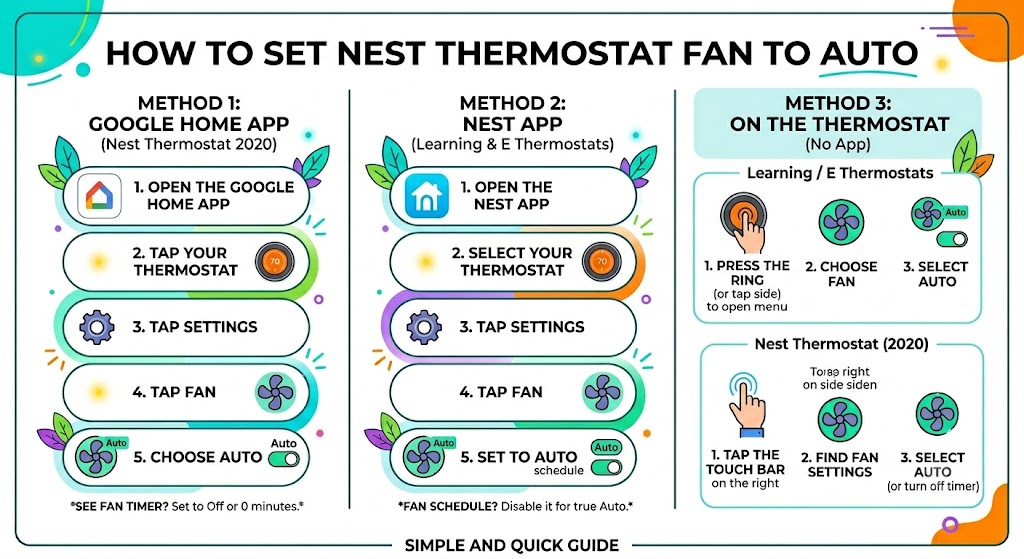
How to Set Nest Thermostat Fan to Auto (Nest App)
This is typical for Nest Learning Thermostat and Nest Thermostat E.
Steps
- Open the Nest app.
- Select your thermostat.
- Tap Settings (gear icon).
- Tap Fan.
- Set it to Auto (and turn off any Fan Schedule if it’s enabled).
If “Fan Schedule” is turned on
If you want true Auto behavior, disable the schedule:
- Go to Fan Schedule
- Turn it Off (or set scheduled runtime to 0 minutes)
How to Set Fan to Auto on the Thermostat Itself (no app)
If you prefer doing it at the thermostat:
Nest Learning Thermostat / Nest Thermostat E
- Press the thermostat ring (or tap the side if applicable) to open the menu.
- Choose Fan.
- Select Auto (or end any fan run timer).
Nest Thermostat (2020)
- Tap the touch bar on the right side to open the menu.
- Find Fan settings.
- Select Auto or turn off the fan timer.
Menu wording varies slightly by software version, but the idea is the same: end the manual fan run and return control back to the system.
How to confirm your fan is really on Auto
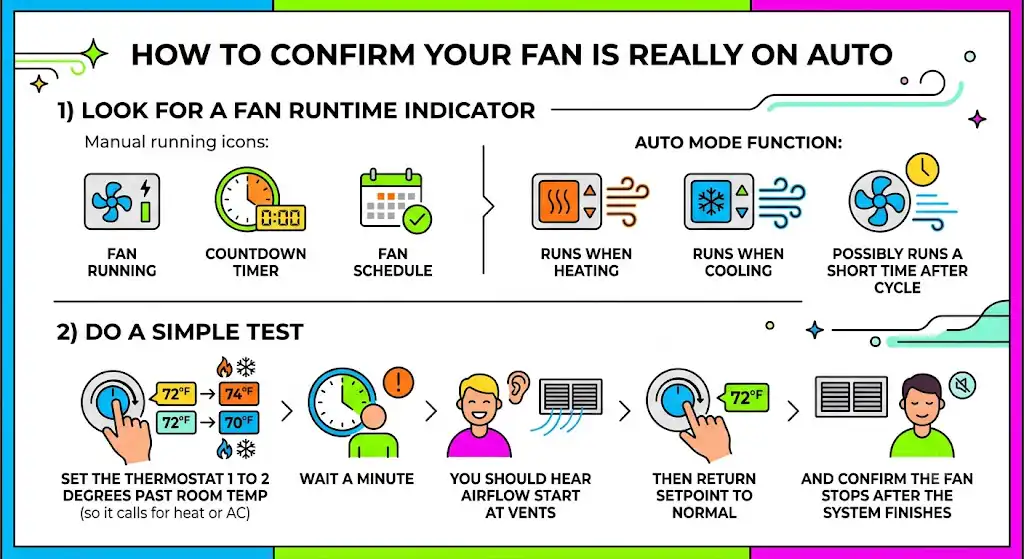
Here’s what I tell homeowners to check:
1) Look for a fan runtime indicator
If the fan is running manually, you’ll often see an icon or status like:
- “Fan running”
- A countdown timer
- “Fan schedule”
If Auto is working, the fan should run mainly when:
- The system is heating
- The system is cooling
- Possibly a short time after a heating or cooling cycle
2) Do a simple test
- Set the thermostat 1 to 2 degrees past room temp (so it calls for heat or AC).
- Wait a minute.
- You should hear airflow start at vents.
Then return setpoint to normal and confirm the fan stops after the system finishes (some systems have a built-in short fan delay).
Fan Auto vs Fan On vs Fan Schedule (what I recommend and why)
Most homeowners do best on Auto, but there are times you may want scheduled fan.
| Auto | Fan runs only during heating/cooling | Most homes, best efficiency | Less air mixing between cycles |
| On | Fan runs most of the time | Constant air circulation | Higher electric use, can worsen humidity in some climates |
| Schedule/Timer | Fan runs X minutes per hour or for a set time | Balancing rooms, mild allergy help | Overdoing it can add cost and humidity issues |
Energy use: does running the fan cost a lot?
It can, depending on your blower motor type.
In the field, I typically see blower fans pull roughly:
- ECM variable-speed blowers: often around 60 to 200 watts (varies widely)
- Older PSC blower motors: often around 300 to 700 watts (sometimes more)
For comparison, central AC systems can draw thousands of watts while cooling.
Also worth noting: the US Department of Energy has advised that using fans strategically (instead of full cooling) can reduce energy use in certain conditions. You’ll sometimes see estimates like up to 30 percent savings during mild weather when you can circulate air instead of running full cooling. Real savings depend heavily on your climate, insulation, duct design, and whether you’re also bringing in cooler outdoor air (when appropriate).
My real-world guidance is simple:
- Auto is usually the safest efficiency choice.
- If you want better circulation, use a fan schedule (like 15 minutes per hour) instead of running it constantly.
When Fan Auto is the best choice
In my experience, Auto is the right setting when:
- You want the lowest “set it and forget it” energy use
- Humidity is a concern (common in many regions)
- You’re happy with comfort and don’t have major hot or cold spots
- Your ducts are in unconditioned spaces (attic, crawlspace) and you don’t want to constantly push that heat gain into the home
When you might want a fan schedule (instead of Auto)
If you tell me any of the following, I often recommend Fan Schedule rather than pure Auto:
You have hot and cold rooms
A little mixing can help balance temperatures, especially in two-story homes.
You use higher-grade filtration
If you have a good filter (and your system is designed for it), scheduled fan runtime can slightly improve air mixing and filtration.
Mild seasons
In spring/fall, running the fan briefly can keep the house feeling more even without firing heating or cooling as often.
A reasonable starting point for many homes is:
- 10 to 20 minutes per hour
Then you adjust based on comfort, humidity, and electric bill.
Important HVAC reality: Fan does not cool the air by itself
This is one of the biggest misconceptions I run into.
Fan-only mode moves air. It can make you feel more comfortable because moving air helps your body shed heat. But it does not lower the actual indoor temperature unless:
- You’re bringing in cooler air through ventilation, or
- Your house is already cooler in some areas and you’re mixing it
So if it’s 90°F inside, fan-only won’t magically make it 75°F.
Is it safe to run the HVAC fan without the outdoor condenser?
Yes. In almost every standard residential forced-air system, it’s completely normal for the indoor blower to run without the outdoor unit running.
That’s basically what happens when you:
- Set the thermostat fan to On
- Run a fan schedule
- Run “fan-only” for air circulation
The indoor blower and the outdoor condenser fan are separate components with different jobs.
The only caution I give homeowners:
- If your AC has been running and you shut off cooling, the indoor coil may be wet. Running the fan can re-evaporate some moisture back into the air in humid climates. That’s a comfort and humidity issue, not usually a safety issue.
Common problems when you try to set the Nest fan to Auto (and fixes)
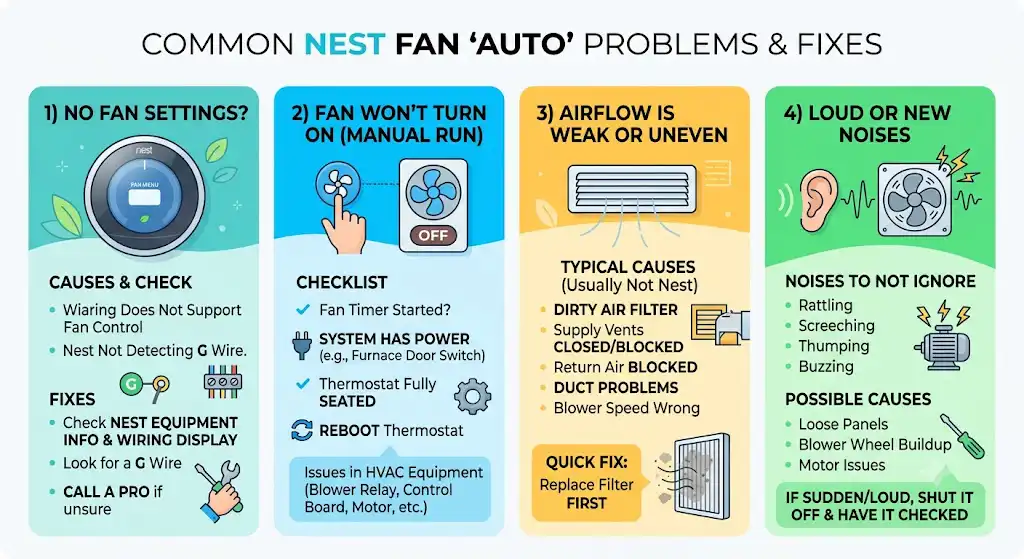
1) You don’t see any fan settings at all
Most common cause: Your system wiring does not support independent fan control, or the Nest isn’t detecting the G wire.
What to do
- Check your Nest equipment info and wiring display.
- Look for a G wire connection.
- If you don’t have a G wire, some systems can’t run the fan independently through the thermostat.
If you’re not comfortable opening the thermostat, this is where I recommend calling a pro. One loose wire can create intermittent problems that are a pain to track down later.
2) Fan won’t turn on even when you manually run it
Checklist
- Confirm the fan timer is actually started
- Confirm the system has power (furnace door switch is a common gotcha)
- Check the thermostat is fully seated on the base
- Reboot the thermostat
If the thermostat is correct and the fan still won’t run, the issue may be in the HVAC equipment (blower relay, control board, motor, capacitor depending on system)
3) Airflow is weak or uneven
This usually isn’t a Nest issue. It’s typically one of these:
- Dirty air filter
- Supply vents closed or blocked
- Return air blocked (furniture, rugs, doors)
- Duct problems (disconnects, crushed flex duct, leaks)
- Blower speed set wrong at the furnace/air handler
Quick homeowner fix
Replace the filter first. It solves a surprising number of airflow complaints.
4) The fan is loud or making new noises
Noises I don’t ignore:
- Rattling
- Screeching
- Thumping
- Buzzing that wasn’t there before
Possible causes include loose panels, blower wheel buildup, or motor issues. If it’s sudden and loud, shut it off and have it checked to prevent bigger damage.
Troubleshooting table (fast reference)
| No fan option in app | No G wire or unsupported control | Check wiring and Nest equipment detection |
| Fan won’t run | Power issue or blower/control problem | Check furnace door switch, reboot Nest |
| Weak airflow | Filter/duct/vent issue | Replace filter, open vents, check returns |
| Humidity feels higher | Fan is re-evaporating moisture | Use Auto, reduce fan schedule runtime |
| Uneven temps | Air mixing or duct balancing issue | Try 10–20 min/hour fan schedule |
Best practices I recommend (after 10 years in HVAC)
Keep Auto as your default
If you want the simplest, most efficient setup: Fan Auto.
Use a schedule only when you have a clear reason
If you’re trying to fix hot rooms or stale air, schedule the fan modestly and measure the results.
Change filters on time
A clogged filter reduces airflow and can cause comfort issues, noise, higher bills, and in some cases equipment stress.
Here’s a practical filter guideline I give customers:
- Basic 1-inch filters: often every 1 to 3 months
- Thicker media filters: often 6 to 12 months
Your home (pets, dust, allergies) can change those numbers a lot.
FAQ
Should I run my Nest fan on Auto or On?
If you want the best balance of comfort, efficiency, and humidity control, choose Auto. Use On or a schedule only if you have a specific circulation or comfort problem you’re solving.
Will “Fan Auto” help with allergies?
Auto helps a little because air still passes through the filter during heating and cooling. For additional filtration benefit, a short fan schedule can help, but it depends on having proper filtration and a system designed to handle it without restricting airflow.
Why does the fan keep running after heating or cooling stops?
Many systems are designed to run the fan briefly after a cycle to capture leftover heating or cooling from the coil or heat exchanger. That’s normal.
Conclusion
To set your Nest thermostat fan to Auto, you’re basically doing one thing: turning off any manual fan run or schedule so the system controls the blower only when it’s actually heating or cooling. It’s the setting I recommend to most homeowners because it’s simple, efficient, and usually better for humidity control.