
I’m Nathan, and I’ve worked as an HVAC technician for over 10 years. I’ve installed and set up a lot of Honeywell and Resideo thermostats in real homes, including plenty that were bought second-hand or came with a new house purchase. One of the most common roadblocks I see is this message during setup:
“This thermostat is already registered to another account.”
Below I’ll walk you through what the message actually means, why it happens, and the exact steps that usually fix it.
- What the “Already Registered” Message Actually Means
- Common Real-World Scenarios I See (And What They Mean)
- Quick Checklist Before You Start
- Use the Correct App (This Fixes More Issues Than You’d Think)
- Step-by-Step Fix: Get the Thermostat Released From the Old Account
- If It Still Won’t Register: You’ll Likely Need Honeywell/Resideo Support to Release It
- Why Factory Reset Doesn’t Always Fix Registration (Important)
- How to Register a Honeywell Thermostat Online (General Steps)
- Extra Troubleshooting Tips (From My Service Calls)
- Used Thermostat Buying Advice (So You Don’t Get Burned)
- How Much Does This Matter? (Comfort and Energy)
- FAQs
- My Recommended Fix Order (Fastest Path)
What the “Already Registered” Message Actually Means
Honeywell smart thermostats don’t just store settings locally. When you register the thermostat in the app, the thermostat’s unique ID is linked to an online account on Honeywell’s servers (often through Resideo services).
So when you see “already registered to another account,” it usually means:
- The thermostat is still linked to a previous owner’s account (common with used devices or home purchases)
- The thermostat was registered under a different email in your household
- The device was returned/exchanged at some point and never properly released
- A factory reset was done on the thermostat, but the server-side ownership link was never removed
Common Real-World Scenarios I See (And What They Mean)
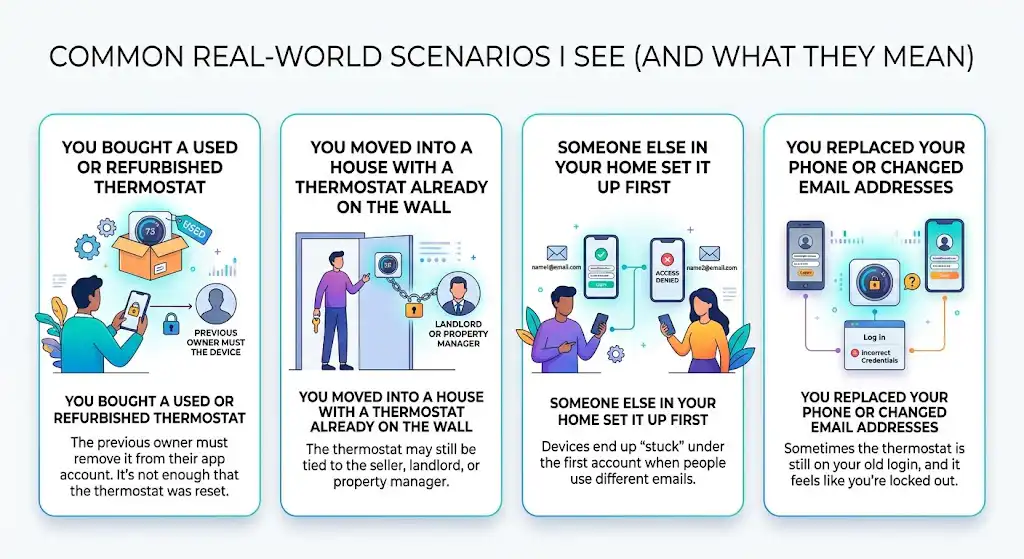
1) You bought a used or refurbished thermostat
This is the number one cause. It’s not enough that the thermostat was reset. The previous owner must remove it from their app account.
2) You moved into a house with a thermostat already on the wall
The thermostat may still be tied to the seller, landlord, or property manager.
3) Someone else in your home set it up first
I’ve seen this happen when one person uses one email, another uses a different email, and the device ends up “stuck” under the first account.
4) You replaced your phone or changed email addresses
Sometimes the thermostat is still on your old login, and it feels like it’s “someone else,” but it’s actually you.
Quick Checklist Before You Start
Here’s what I recommend you do first. It saves time.
Confirm these basics:
- You are using the correct app for your model (this matters a lot)
- The thermostat is powered on and stable (not rebooting)
- The thermostat is connected to your Wi‑Fi (or at least able to connect)
Gather these details (you’ll likely need them later):
- MAC ID
- CRC (or “Date Code” depending on model)
- Thermostat model number (example: T9, T10, T6 Pro Smart, etc.)
These are often found:
- On a label on the back of the thermostat (pull the faceplate off)
- In the thermostat menu under device information
Use the Correct App (This Fixes More Issues Than You’d Think)
Honeywell branding can be confusing because different thermostats use different platforms.
| Resideo App | Many newer Honeywell Home models | Most common today |
| Honeywell Home app | Some older “Honeywell Home” branded models | Sometimes merged with Resideo experience |
| Total Connect Comfort (TCC) | Many older Wi‑Fi models | Often uses MAC + CRC registration |
| Lyric app | Older Lyric series | Legacy |
If you try to register a thermostat in the wrong app, you can run into strange registration errors or dead ends.
Step-by-Step Fix: Get the Thermostat Released From the Old Account
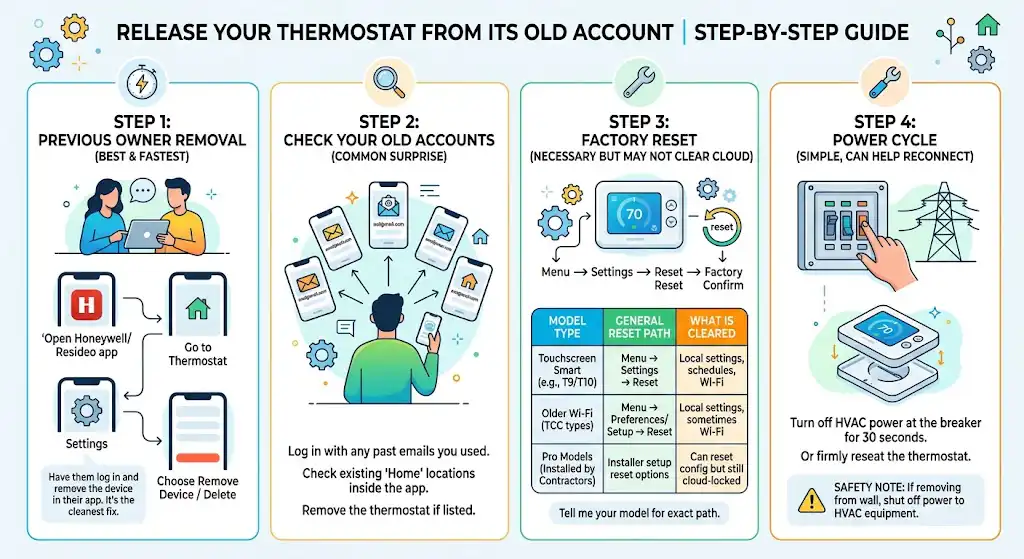
Step 1: Ask the previous owner to remove the thermostat (best and fastest)
If you can contact the seller/previous owner, this is the cleanest fix.
Have them:
- Open their Honeywell/Resideo app
- Go to the thermostat device
- Open Settings
- Choose Remove Device / Delete Thermostat (wording varies)
Once they do that, wait a few minutes and try registering again.
Step 2: Make sure the thermostat is removed from your own old account (common surprise)
Before you assume it’s a stranger’s account, try this:
- Log in using any email you may have used in the past
- Check any existing “Home” locations inside the app
- See if the thermostat is already listed under a different home profile
If you find it, remove it from there first.
Step 3: Factory reset the thermostat (necessary, but not always sufficient)
Even though this might not clear the cloud ownership, you should still reset so you’re not dealing with leftover Wi‑Fi settings and installer configurations.
General path on many models:
- Menu
- Settings
- Reset
- Factory reset
- Confirm
After reset, reconnect Wi‑Fi and attempt registration again.
Common reset differences by model (general guidance)
Exact wording varies, but this table reflects what I typically see on service calls:
| Touchscreen smart models (T9/T10 style) | Menu → Settings → Reset | Local settings, schedules, Wi‑Fi |
| Older Wi‑Fi models (TCC types) | Menu → Preferences/Setup → Reset | Local settings, sometimes Wi‑Fi |
| Pro models (installed by contractors) | Installer setup reset options | Can reset config but still cloud-locked |
If you tell me your exact model, I can usually point you to the precise reset path.
Step 4: Power cycle the thermostat (simple, but it helps)
I do this often in the field because it forces a clean reconnect.
Options:
- Turn off HVAC power at the breaker for 30 seconds, then back on
- If your thermostat is off the wall, reseat it firmly (loose connections cause weird behavior)
Safety note from a tech: If you’re removing the thermostat from the wall, shut off power to the HVAC equipment. Most thermostats are low voltage, but a short can still blow a fuse on the control board.
If It Still Won’t Register: You’ll Likely Need Honeywell/Resideo Support to Release It
If the previous owner can’t be reached, and the thermostat is still locked to their cloud account, support is often the only entity that can force-release it.
This isn’t you doing anything wrong. It’s a security feature to prevent device hijacking.
What to have ready before you call (this saves you 20 minutes)
Based on what I’ve seen support ask for, have this in front of you:
| MAC ID | Back label or device info menu | Identifies the thermostat on the network |
| CRC / Date Code | Back label or device info menu | Confirms device identity for registration |
| Model number | Front, back label, or menu | Routes you to the right support flow |
| Proof of purchase (sometimes) | Receipt, order page | Helps with ownership disputes |
| Thermostat powered and nearby | On the wall and connected | They may walk you through steps live |
Plan for 20 to 30 minutes if the process involves verification and a release.
Why Factory Reset Doesn’t Always Fix Registration (Important)
A factory reset clears what’s stored on the thermostat. But the “registered to another account” message is usually coming from the server after it checks the thermostat’s ID.
Think of it like this:
- Resetting the thermostat is like wiping your phone
- Registration lock is like iCloud Activation Lock (same idea, different system)
That’s why removing the device from the old account or getting support to release it is often the real fix.
How to Register a Honeywell Thermostat Online (General Steps)
Depending on your model, you’ll either register inside the app or on the Total Connect Comfort website-style flow.
Here’s the common registration process I walk homeowners through:
- Connect the thermostat to Wi‑Fi
- You can’t register a smart thermostat without internet access.
- Create an account (or sign in)
- Use the app that matches your thermostat platform (Resideo, TCC, etc.).
- Create a home/location
- This helps with weather, scheduling, and multi-device setups.
- Enter the device identifiers
- Often MAC ID and CRC, especially on older TCC models.
- Name the thermostat and finish setup
- Then test heating and cooling to confirm everything responds correctly.
Extra Troubleshooting Tips (From My Service Calls)
Make sure your Wi‑Fi is 2.4 GHz if the thermostat requires it
A lot of thermostats still prefer 2.4 GHz networks. If your router combines names for 2.4 and 5 GHz, setup can fail or partially connect.
Avoid guest networks and captive portals
If you’re trying to register on an apartment Wi‑Fi, hotel-like login page, or guest network isolation, the thermostat may connect but not register correctly.
Update the app first
Outdated apps can throw misleading errors.
Confirm your phone is on the same local network during setup
Not always required, but it reduces pairing issues.
Used Thermostat Buying Advice (So You Don’t Get Burned)
If you’re shopping used, here’s what I recommend as someone who’s been called out to fix these exact situations:
Before you buy, ask:
- Can you confirm it’s been removed from the Honeywell/Resideo account?
- Can you send a photo of the device info screen showing MAC/CRC (and that it’s reset)?
- Is it still under warranty, and do you have proof of purchase?
If the seller says “I factory reset it so you’re good,” that’s not a guarantee.
How Much Does This Matter? (Comfort and Energy)
Smart thermostats aren’t just convenience. When properly set up, they can reduce wasted runtime.
- Remote control
- Scheduling optimization
- Alerts and maintenance reminders
- Some smart features tied to the cloud
FAQs
Can I force remove the thermostat from the previous owner myself?
Not reliably. If it’s truly registered to someone else’s account, only:
The previous owner removing it, or
Support releasing it
will solve it in many cases.
Will a factory reset remove the old account link?
Sometimes it feels like it should, but often no. The registration lock is usually server-side.
What if I’m the previous owner, but I can’t log in anymore?
Try password reset first. If you can’t regain access, support may help once you prove ownership and provide the device identifiers.
How long does it take for the device to become available after removal?
Often within minutes, but I’ve seen delays up to an hour depending on platform and connectivity.
My Recommended Fix Order (Fastest Path)
If you want the shortest path to success, here’s the order I use:
- Confirm you’re using the correct app for your model
- Ask previous owner to remove the thermostat from their account
- Factory reset the thermostat
- Reconnect Wi‑Fi and try registering again
- If still locked, contact Resideo/Honeywell support with MAC and CRC