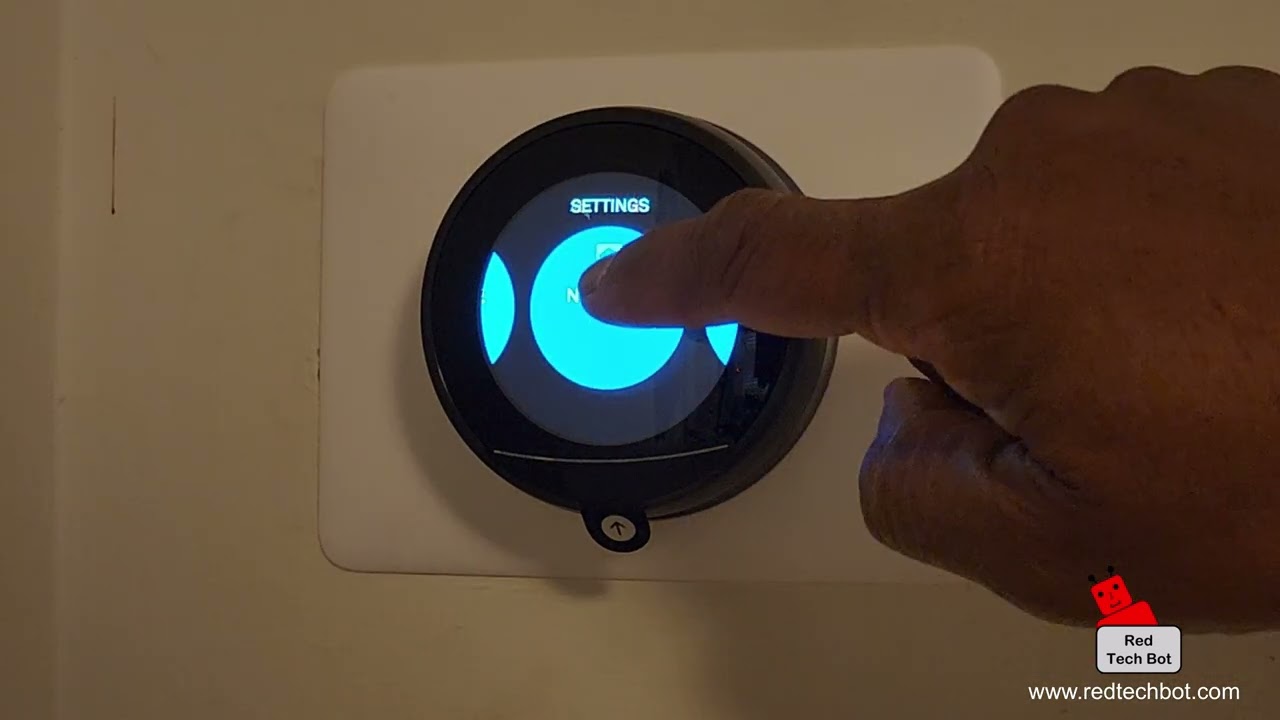
I’m Nathan. I’ve been an HVAC technician for over 10 years, and I’ve helped a lot of homeowners set up Nest thermostats after installs, Wi-Fi changes, router upgrades, and phone swaps. One of the most common hang-ups is the entry key. You’re in the app ready to connect, and the thermostat is sitting there like nothing’s wrong.
This guide shows you exactly where to find the Nest Thermostat entry key, what to do if it’s missing, and how to fix the common setup problems that stop it from showing up.
- Quick answer (if you just need the menu path)
- What the “entry key” actually is (and why you need it)
- Step-by-step: How to find the entry key on your Nest thermostat
- Method 1: Nest Learning Thermostat and Nest Thermostat E (most common entry key steps)
- Method 2: Newer Nest Thermostat (2020 mirror display) using Google Home
- Table: Where the entry key usually lives (by model)
- Why can’t you find the entry key (the real causes I see)
- Troubleshooting: What to do if the entry key is not displaying
- Table: Fast troubleshooting checklist
- How to connect your Nest thermostat to Wi-Fi (so the entry key works)
- How to find the entry key using the Nest app (phone steps)
- Common mistakes I see homeowners make (so you can avoid them)
- My pro advice: keep it reliable after you connect it
- Final thoughts
- FAQ
Quick answer (if you just need the menu path)
On most Nest Learning Thermostat and Nest Thermostat E models:
- Press the thermostat ring to open the menu.
- Go to Settings (gear icon)
- Select Nest app (or sometimes Account or Add to account)
- Choose Get entry key.
- Enter that key in the Nest app when prompted.
If your thermostat is the newer 2020 “mirror display” Nest Thermostat, setup is usually done in the Google Home app, and you may see a pairing code instead of a Nest app entry key.
I’ll break down both types below.
What the “entry key” actually is (and why you need it)
The entry key is a temporary code your thermostat displays so the app can securely add that thermostat to your account.
In real-world terms, it’s the handshake between:
- your thermostat (on the wall), and
- your Nest account in the app (on your phone)
Once you enter the code, you can control temperature, schedules, fan, and settings remotely.
A quick stat that matches what I see in homes
Smart thermostat setup issues are genuinely common. In my service calls, setup failures are usually caused by one of these:
- wrong app (Nest app vs Google Home)
- The thermostat is not connected to Wi-Fi yet
- old Nest account vs Google account confusion
- The thermostat is already linked to a previous owner/account
Step-by-step: How to find the entry key on your Nest thermostat
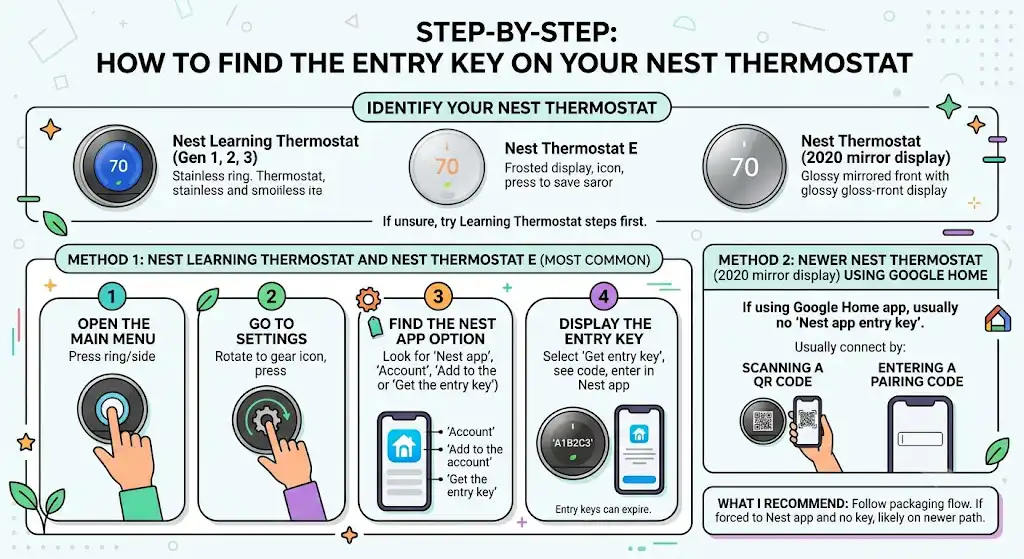
Step 1: Identify which Nest thermostat you have
This matters because the menu wording and the app you should use can be different.
Common models
- Nest Learning Thermostat (Gen 1, 2, 3): stainless ring, classic Nest look
- Nest Thermostat E: frosted display, softer look
- Nest Thermostat (2020 mirror display): glossy mirrored front, typically pushed toward Google Home app setup
If you’re not sure, don’t overthink it. Try the Learning Thermostat steps first, then use the Google Home section if your menu doesn’t match.
Method 1: Nest Learning Thermostat and Nest Thermostat E (most common entry key steps)
1. Open the main menu
- Press the thermostat ring (or the side, depending on model) to open the menu.
2. Go to Settings
- Rotate the ring to highlight Settings (gear icon)
- Press to select
3. Find the Nest app option
Look for one of these (the wording varies slightly by model/software):
- Nest app
- Account
- Add to the account
- Get the entry key
4. Display the entry key
- Select Get entry key.
- The thermostat will show a code.
- Enter it into the Nest app on your phone when prompted
Important: entry keys can expire. If you wait too long, just generate a fresh one.
Method 2: Newer Nest Thermostat (2020 mirror display) using Google Home
If you’re using the Google Home app, you may not see a “Nest app entry key” at all. You’ll usually connect by:
- scanning a QR code, or
- entering a pairing code shown during setup
What I recommend
- If your thermostat packaging or setup flow points you to Google Home, follow that path.
- If you’re trying to force it into the Nest app and it won’t provide an entry key, you’re probably on the newer Google-based setup path.
Table: Where the entry key usually lives (by model)
| Nest Learning Thermostat (Gen 1–3) | Nest app | Settings → Nest app (or Account) → Get entry key |
| Nest Thermostat E | Nest app | Settings → Nest app (or Account) → Get entry key |
| Nest Thermostat (2020 mirror) | Google Home app | Setup screen shows pairing code or QR flow (may not show “entry key”) |
Why can’t you find the entry key (the real causes I see)
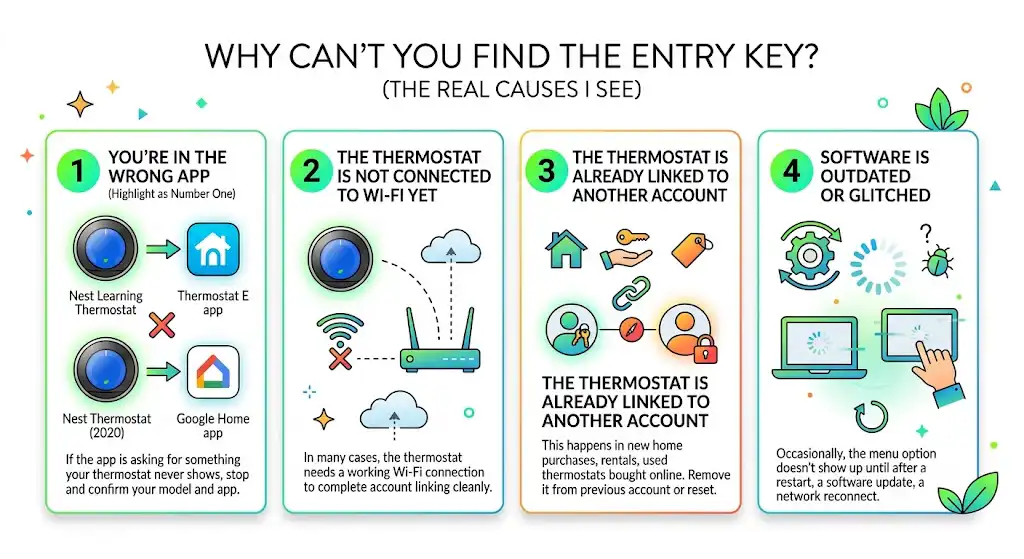
1. You’re in the wrong app
This is number one.
- Nest Learning and Thermostat E: usually pair through the Nest app
- Nest Thermostat (2020): usually pairs through the Google Home app
If the app is asking for something your thermostat never shows, stop and confirm your model and app.
2. The thermostat is not connected to Wi-Fi yet
In many cases, the thermostat needs a working Wi-Fi connection to complete account linking cleanly.
3. The thermostat is already linked to another account
This happens a lot in:
- new home purchases
- rentals
- used thermostats bought online
If it’s still tied to the previous owner’s account, you may not be able to add it properly until it’s removed from that account (or fully reset).
4. Software is outdated or glitched
Occasionally, the menu option doesn’t show up until after:
- a restart
- a software update
- a network reconnect
Troubleshooting: What to do if the entry key is not displaying
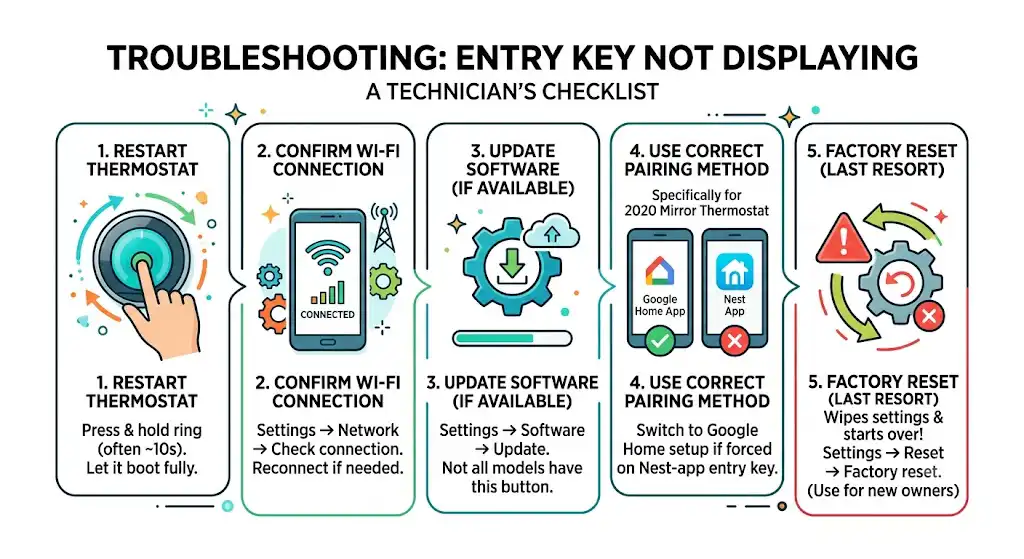
Here’s the same checklist I run through on service calls.
Step 1: Restart the thermostat
A restart clears a surprising number of display and menu glitches.
- Press and hold the thermostat ring until it restarts (varies by model, often around 10 seconds)
- Let it boot fully
- Try the menu path again.
Step 2: Confirm Wi-Fi connection
On most models:
- Settings → Network → confirm you’re connected.
If it’s not connected, reconnect (steps below).
Step 3: Update thermostat software
If you see a software/update option:
- Settings → Software → Update (if available)
Not every thermostat makes this button obvious, and some update automatically, but it’s worth checking.
Step 4: Use the correct pairing method for your model
If you’ve got the 2020 mirror thermostat, switch to the Google Home setup if you’ve been trying to force a Nest-app entry key.
Step 5: Factory reset (last resort)
Only do this if you’re okay wiping settings and starting over.
- Settings → Reset → Factory reset (wording varies)
If the thermostat came from a previous owner and is still linked to their account, a reset may not be enough by itself. You may still need the device removed from the previous Nest/Google Home structure.
Table: Fast troubleshooting checklist
| No “entry key” option anywhere | Wrong model/app path | Use Nest app for Learning/E, Google Home for 2020 mirror |
| Entry key option missing in menu | Software glitch or wrong submenu | Restart thermostat, then re-check Settings sections |
| Entry key shows but app won’t accept it | Key expired or wrong account | Generate a new key and confirm you’re logged into the correct account |
| Thermostat won’t connect to app at all | Wi-Fi not connected or weak signal | Reconnect Wi-Fi, move router or add mesh node |
| Setup says thermostat already added | Linked to another account | Have previous owner remove it, then reset and re-add |
How to connect your Nest thermostat to Wi-Fi (so the entry key works)
From the thermostat:
- Press the ring to open the menu
- Go to Settings
- Select Network
- Choose your Wi-Fi name.
- Enter the password and connect.
Wi-Fi tips from the field (this saves time)
- Most smart thermostats behave best on 2.4 GHz Wi-Fi if you have a dual-band router, especially if the signal is weak.
- If your router is far away, a mesh Wi-Fi node or moving the router slightly can fix constant disconnects.
- Avoid “guest networks” with device isolation turned on during setup.
How to find the entry key using the Nest app (phone steps)
If your thermostat is compatible with the Nest app:
- Install/open the Nest app
- Log in (make sure it’s the correct account)
- Tap Add product
- Select Thermostat
- The app will prompt you to enter the entry key displayed on the thermostat
If the Nest app keeps pushing you toward Google Home, that’s a hint you’re on the newer pairing method.
Common mistakes I see homeowners make (so you can avoid them)
Mixing accounts
If you have multiple Google/Nest logins, it’s easy to be signed into the wrong one on your phone. I always tell homeowners to double-check the email address in the app settings before pairing.
Skipping Wi-Fi setup
You can sometimes get partway through setup without solid Wi-Fi, but it usually fails when it’s time to link the account.
Trying to pair a used thermostat that’s still registered
If you bought a used thermostat, ask the seller to remove it from their account before you do anything else. It saves a ton of frustration.
My pro advice: keep it reliable after you connect it
Once you get the entry key and finish setup, do these two things so you don’t have to repeat the process later:
- Write down your Wi-Fi name and password (or store it in your password manager). Wi-Fi changes are the number one reason smart thermostats “suddenly stop working.”
- Keep the thermostat firmware updated. You don’t have to babysit it, but if you notice odd behavior, checking updates and rebooting is a quick win.
Final thoughts
Finding the entry key on a Nest thermostat is usually simple once you’re in the correct menu and using the correct app for your model. In most homes I work in, the fix is one of three things: pick the right app, connect Wi-Fi first, or restart the thermostat so the menu options show correctly.
If you tell me your exact thermostat model (or upload a photo of the thermostat screen and ring), I can point you to the exact menu path for your version.
FAQ
Where is the entry key on a Nest Learning Thermostat?
On most Nest Learning Thermostats, go to Settings → Nest app (or Account) → Get entry key.
Why is my Nest thermostat not showing an entry key?
Usually it’s because you’re using the wrong pairing method (Nest app vs Google Home), the thermostat isn’t connected to Wi-Fi, or it needs a restart/software update.
Can I find the entry key in the Nest app?
The Nest app guides you, but the actual entry key is typically displayed on the thermostat screen during the add-device process.
What if the entry key keeps failing?
Generate a new entry key and confirm you’re logged into the correct account. If it still fails, restart the thermostat and verify Wi-Fi.
Do I need to factory reset to get an entry key?
Not usually. Restarting and correcting Wi-Fi/app issues works most of the time. Factory reset is a last resort, especially if the thermostat was previously owned.