
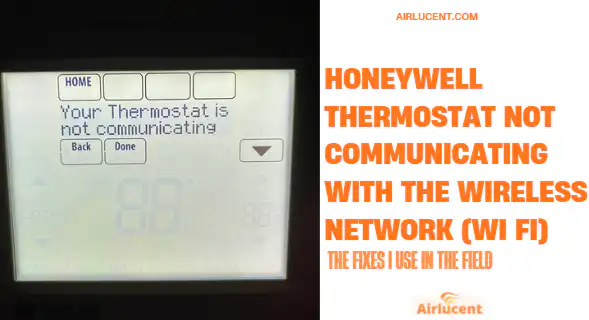
Hi, I’m Nathan. I’ve worked as an HVAC technician for over 10 years, and “Honeywell thermostat won’t connect to Wi Fi” is one of the most common smart-thermostat complaints I see. The good news is that most connection issues are not a “bad thermostat” problem. They’re usually a network setting, router behavior, or a simple setup glitch.
In this guide, I’ll walk you through the exact troubleshooting path I use in homes so you can get your Honeywell thermostat communicating with your wireless network again.
- Before You Start: Identify What “Wireless Network” Means
- Quick Fix Checklist (Do These First)
- The Most Common Reasons Honeywell Thermostats Stop Communicating With Wi Fi
- Symptoms and Fixes (Troubleshooting Table)
- Step-by-Step: How I Fix It (In the Order That Works Most Often)
- Step 1: Confirm your internet is actually working
- Step 2: Restart the router properly
- Step 3: Restart the thermostat
- Step 4: Verify the network requirements (this matters)
- Step 5: Reconnect Wi Fi from scratch (forget and re-add)
- Step 6: Try a phone hotspot test (my favorite diagnostic trick)
- Step 7: Check router settings that commonly block thermostats
- Step 8: Firmware and app updates
- When a Reset Is the Right Move (and when it’s not)
- My “Connection Health” Benchmarks (What Good Looks Like)
- Real-World Scenarios I See (And the Fix)
- Troubleshooting Wireless Sensors (If That’s What You Meant)
- When It Might Be a Thermostat Hardware Problem
- Frequently Asked Questions
Before You Start: Identify What “Wireless Network” Means
Honeywell thermostats can use different kinds of wireless connections:
- Wi Fi (connects to your home router and the Honeywell Home or Total Connect Comfort app)
- RedLINK wireless (Honeywell’s proprietary wireless used with certain systems and accessories)
- Wireless sensors (room sensors communicating to the thermostat, not your router)
Quick model clues
- Honeywell Home T5, T6, T9, T10, T10 Pro are typically Wi Fi
- VisionPRO with RedLINK accessories may not use Wi Fi unless there’s a separate internet gateway
You can usually find the model number:
- On the thermostat screen in the menu under “About”
- On the back of the thermostat faceplate
- On the box/manual
Quick Fix Checklist (Do These First)
If you want the fastest route to success, do these in order:
- Power cycle the thermostat (off and back on)
- Power cycle your router (unplug 30 seconds, plug back in)
- Confirm your Wi Fi is 2.4 GHz (many Honeywell models will not join 5 GHz)
- Check your Wi Fi password (no typos, correct network)
- Move the router closer temporarily (or use your phone hotspot to test)
If it connects after any step, you’ve found the cause.
The Most Common Reasons Honeywell Thermostats Stop Communicating With Wi Fi
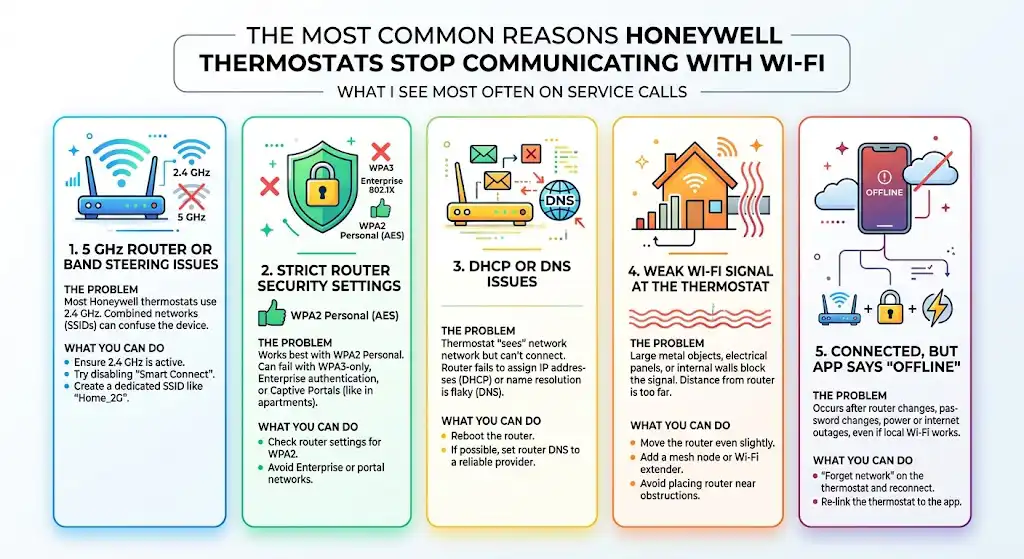
Here’s what I see most often on service calls.
1. Your router is on 5 GHz only (or band steering is confusing the thermostat)
A lot of Honeywell Wi Fi thermostats are designed to connect to 2.4 GHz networks. Many modern routers combine 2.4 and 5 GHz under one network name (SSID), and the thermostat may fail the handshake.
What you can do:
- Ensure your router has a 2.4 GHz network enabled
- If your router uses “Smart Connect” or band steering, try temporarily turning it off
- Create a dedicated SSID like Home_2G for the thermostat
2. Router security is too strict
Most Honeywell Wi Fi thermostats work best with:
- WPA2 Personal (AES)
They may fail with:
- WPA3 only mode
- Enterprise authentication (802.1X)
- Captive portals (common in apartments or shared Wi Fi)
3. DHCP or DNS issues
If the thermostat can “see” the network but won’t connect, the router may not be handing out IP addresses properly (DHCP), or DNS is flaky.
Quick fix:
- Reboot router
- If you can, set router DNS to a stable provider (ask your ISP or use a known reliable DNS)
4. Weak Wi Fi signal at the thermostat
A thermostat on an interior wall near ducts, masonry, metal lath plaster, or a mechanical room can have poor signal.
Typical improvement options:
- Move router (even a few feet can help)
- Add a mesh node or Wi Fi extender
- Avoid placing the router next to large metal objects, electrical panels, or behind entertainment centers
5. The thermostat is connected, but the app says “offline”
This often happens after:
- A router replacement
- A password change
- A power outage
- An internet outage while local Wi Fi still works
Fix is usually to “forget network” on the thermostat and re-add.
Symptoms and Fixes (Troubleshooting Table)
| Thermostat doesn’t show any Wi Fi networks | Wi Fi radio not in setup mode, or thermostat not Wi Fi capable, or 2.4 GHz not enabled | Confirm model, reboot thermostat, confirm 2.4 GHz enabled |
| Sees Wi Fi name but fails to connect | Wrong password, router security mismatch, DHCP issue | Re-enter password, set router to WPA2, reboot router |
| Connected to Wi Fi but app shows offline | Cloud/app issue, account issue, router blocking, DNS | Reboot router, log out/in app, reconnect thermostat |
| Drops offline randomly | Weak signal, router band steering, interference | Improve signal, dedicate 2.4 GHz SSID, firmware updates |
| Thermostat was fine until new router | SSID/password changed or router security changed | Rename SSID to old name and password, or reconnect thermostat |
Step-by-Step: How I Fix It (In the Order That Works Most Often)
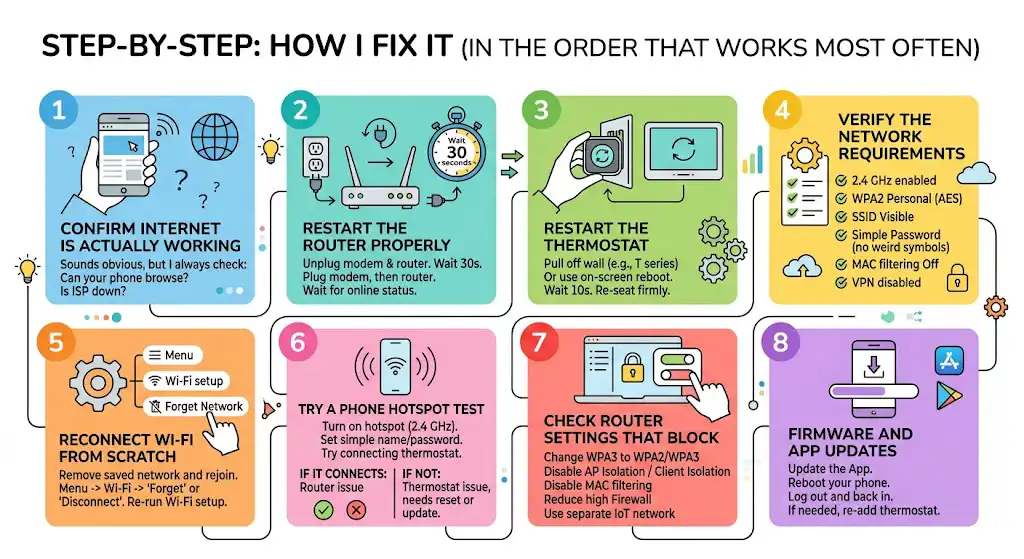
Step 1: Confirm your internet is actually working
Sounds obvious, but I always check:
- Can your phone browse the web on the same Wi Fi?
- Is your ISP currently down?
If your internet is down, your thermostat may still heat/cool normally, but the app will show offline.
Step 2: Restart the router properly
Do this, in this order:
- Unplug the modem and router (or gateway)
- Wait 30 seconds
- Plug modem back in first (wait until it’s fully online)
- Plug router back in
This clears a surprising number of thermostat connectivity problems.
Step 3: Restart the thermostat
Depending on model, you can:
- Pull the thermostat off the wall plate (common with T series)
- Or use the on-screen reset/reboot option
If you pull it off:
- Wait 10 seconds
- Re-seat it firmly (a loose connection can cause weird behavior)
Step 4: Verify the network requirements (this matters)
Here’s the “compatibility reality” I explain to homeowners:
| Band | 2.4 GHz enabled |
| Security | WPA2 Personal (AES) |
| SSID | Visible (broadcast on) |
| Password | Avoid unusual symbols if you’re troubleshooting (you can change later) |
| MAC filtering | Off (or whitelist the thermostat) |
| VPN at router level | Disable temporarily for testing |
If you have a very new router, try enabling a “legacy” or “IoT” network mode for smart devices.
Step 5: Reconnect Wi Fi from scratch (forget and re-add)
If the thermostat previously worked and now doesn’t, I usually remove the saved network and rejoin.
General approach:
- Open thermostat Menu
- Find Wi Fi setup or Network
- Choose “Forget” or “Disconnect”
- Re-run Wi Fi setup and join your 2.4 GHz SSID
Because menu names vary by model, the exact wording may differ, but the logic is always the same.
Step 6: Try a phone hotspot test (my favorite diagnostic trick)
This tells you whether the issue is the thermostat or your home router.
- Turn on hotspot on your phone (2.4 GHz if possible)
- Set a simple hotspot name and password
- Try connecting the thermostat to the hotspot
Results:
- If it connects to the hotspot, your thermostat is fine and your router settings are the problem.
- If it won’t connect to hotspot either, the thermostat may need a reset, firmware update, or may have a Wi Fi hardware issue.
Step 7: Check router settings that commonly block thermostats
If you can access router settings, check these:
- WPA3 only mode: switch to WPA2 or WPA2/WPA3 mixed
- AP isolation / Client isolation: disable
- MAC address filtering: disable or whitelist thermostat
- Firewall “high” settings: reduce temporarily to test
- Separate IoT network: use it (often more compatible)
Step 8: Firmware and app updates
I’ve seen cases where the thermostat is fine, but the app session is stale.
Do this:
- Update the Honeywell Home app
- Reboot your phone
- Log out and log back in
- If needed, remove and re-add the thermostat in the app (last resort before factory reset)
When a Reset Is the Right Move (and when it’s not)
Soft reset vs factory reset
- A reboot/soft reset is safe and quick.
- A factory reset wipes configuration (schedules, settings, Wi Fi, sometimes installer settings depending on model).
I only recommend a factory reset if:
- You’ve confirmed 2.4 GHz and WPA2
- Router reboot didn’t help
- Hotspot test also fails or the thermostat is stuck in a bad state
If you do a factory reset, take photos of:
- Equipment settings (heat pump vs furnace, stages, etc.)
- Any special preferences you want to restore
If you’re not comfortable with installer settings, stop before factory reset and get help, because incorrect setup can cause heating/cooling problems.
My “Connection Health” Benchmarks (What Good Looks Like)
These are practical targets I use on-site:
| Signal strength | Strong enough that the thermostat doesn’t drop offline (if it’s marginal, add mesh/extender) |
| Network band | 2.4 GHz available |
| Security | WPA2 Personal |
| SSID/password stability | Don’t change frequently; thermostats don’t recover gracefully sometimes |
| Router uptime | Frequent router crashes often show up as “thermostat offline” complaints |
Real-World Scenarios I See (And the Fix)
Scenario A: “It worked for months, then after a power outage it won’t reconnect”
What usually happened:
- Router came back with a different band choice or the DHCP table got messy.
Fix:
- Reboot router properly
- Forget network on thermostat
- Rejoin 2.4 GHz SSID
Scenario B: “I got a new router and now the thermostat is offline”
Fix options:
- Easiest: rename the new router SSID and password to match the old one
- Or: reconnect the thermostat to the new SSID
Scenario C: “Thermostat connects but keeps dropping offline”
Most common cause:
- Weak signal or band steering
Fix:
- Dedicated 2.4 GHz SSID
- Add mesh node closer to thermostat
- Avoid placing mesh node inside metal utility rooms
Troubleshooting Wireless Sensors (If That’s What You Meant)
If your issue is actually room sensors not communicating (not Wi Fi), the fixes are different:
- Replace sensor batteries
- Re-pair the sensors
- Check distance and interference
- Confirm the thermostat model supports those sensors
When It Might Be a Thermostat Hardware Problem
In my experience, true Wi Fi hardware failure is less common than router/settings issues, but it happens.
Signs it could be the thermostat:
- It cannot see any Wi Fi networks at all, even standing next to the router
- It fails to connect to both home Wi Fi and a phone hotspot
- It constantly drops even with excellent Wi Fi and after reset
At that point, I recommend:
- Check warranty status
- Contact Honeywell Home/Resideo support with your model and serial number
- Consider replacement if it’s older and out of warranty
Frequently Asked Questions
Does a Honeywell thermostat need 2.4 GHz or 5 GHz?
Many Honeywell Wi Fi thermostats use 2.4 GHz. Some smart home devices don’t support 5 GHz at all. If your thermostat won’t connect, the first thing I check is whether 2.4 GHz is enabled and easy to join.
Why does my thermostat say it’s connected to Wi Fi but the app shows offline?
Usually one of these:
Internet is down (Wi Fi is up but no internet)
DNS/router issue
App account session issue
Cloud service issue (less common, but possible)
Will a Wi Fi extender help?
Yes, if signal strength is the problem. In 2026 homes with thick walls or mechanical rooms, I often prefer a mesh system because it’s more stable than a basic extender.
Can I run my HVAC system if the thermostat is offline?
Usually yes. Most thermostats still control heating/cooling locally. You just lose remote access and some smart features until the network is restored.